Community
AI Background Remover for WooCommerce Product Designer

Cmsmart's AI Background Remover is a built-in tool inside the Cmsmart Product Designer that lets customers remove photo backgrounds directly in the online design canvas before ordering. It offers subject selection, edge softness, and high-detail options, cutting manual photo editing and reducing reprints caused by unchecked backgrounds.




Cmsmart Ecommerce provides custom ecommerce and WooCommerce development services for web-to-print, product personalization, plugin support and API integration.

Cmsmart AI for Ecommerce Engineer
Adds practical AI to stores: image tools, preflight checks, automation and assistants.
Meet the team →
Top
In short
A customer uploads their dog's photo to put on a mug, and the kitchen behind it ends up printed too, because nobody on your team has time to clean up every photo by hand. An AI background remover for WooCommerce fixes that inside the product designer itself, so the buyer sees a clean cutout before they pay, not a support ticket after.
Most print shops still push that problem onto the customer ("send us a photo with a plain background") or onto a staff member with Photoshop and a queue of orders before the press runs. Neither scales past a handful of orders a day. This guide covers what a built-in AI background remover changes for the business, what it takes to turn on, and where Cmsmart builds further, part of Cmsmart's broader AI for ecommerce work alongside Image Upscale and AI Preflight.
What does a missing background cost your print shop?
A messy background is rarely a one-time annoyance. Cmsmart sees the same pattern across print shops: every photo product either needs a manual edit before production or ships with a backdrop the customer never asked for, and both outcomes cost staff time and reorders.
The pain shows up in a few concrete, repeatable ways:
The fix is not another subscription tool — it is removing the manual step from the workflow entirely, which is what the AI tool inside the designer does.
What would your designer look like with one-click background removal?
Picture a buyer uploading a photo at 10pm, running Remove background with AI inside Cmsmart Product Designer, and seeing a clean subject on the mockup a few seconds later — no separate app, no waiting on your team, no second visit to finish the order.
Example scenario: A buyer uploads a family photo taken in a cluttered kitchen to put on a mug, opens the photo tool menu, and chooses Remove background with AI. The cutout appears against a transparent checkerboard; a stray corner of a chair is still attached, so they brush it out with Smart Select, apply the result, and add the mug to the cart — before the print shop has even opened for the day.
That is the difference between a tool a customer has to go find and a tool that is simply part of placing the order. It also changes what your team sees on the other end: designs arriving in Orders already cut out, instead of a queue of photos waiting for someone to fix them by hand.
How Does Cmsmart's AI Background Remover for WooCommerce Fit Into Your Product Designer?
Cmsmart Product Designer runs the background remover as one of the Cmsmart Cloud AI Tools, alongside Image Upscale and AI Preflight, with its own on/off switch, an audience setting, and an in-canvas editor so buyers never leave the product page to get a usable cutout.
The building blocks, in the order a buyer and then your team meet them:
Cmsmart insight: busy or low-contrast backdrops are the most common reason a cutout looks rough at the edges in our delivery work. Turn on High-detail mode for hair, fur or fine jewellery before you ask a customer to approve the proof — it takes a little longer to process, but it is cheaper than a reprint.
This is also where the manual workflow and the built-in one really diverge. Here is the same job, side by side:
The market context backs up why this matters: the global print-on-demand market was valued at $10.8 billion in 2025, and the global background-removal software market was valued at $1.32 billion in 2024 — both growing fast enough that a manual, staff-time-bound editing step is a harder bottleneck every year, not a smaller one.
What's the Business Value of Built-In AI Background Removal?
For a store owner, the value of Cmsmart's AI background remover is fewer staff hours spent editing photos, fewer reprints from backgrounds nobody checked, and a faster path from upload to checkout — tracked through ordinary KPIs you already watch.
Sizing it for your store: take the photo orders each month that would otherwise need a background clean-up, multiply by the minutes your team currently spends doing that in a separate editor, then multiply by your fully loaded hourly rate. That is the monthly cost of the manual workaround you are comparing the built-in tool against — and it does not count the reprints a missed background still causes after the fact.
How Do You Set Up an AI Background Remover for WooCommerce in Cmsmart Product Designer?
Setting up Cmsmart's AI background remover is an admin settings pass plus a product check: turn the tool on for the right audience in Cmsmart Cloud, confirm the product has a photo upload option in its design area, then test the buyer flow end to end before you announce it.
Deeper output settings — DPI, PDF/ICC options for the files production prints — live under WooCommerce → Settings → Cmsmart → Output and are outside this guide; see the settings guide for those.
Going Further: What Can Cmsmart Build On Top of the AI Tools?
The AI background remover ships as Transparent or White cutouts for any product; when a store needs something the core tool was never built to do — a branded backdrop, a bulk catalogue pass, or a rule tied to your own production queue — Cmsmart builds it as custom development on top of Cmsmart Product Designer.
Four directions we see print shops and POD brands ask for most:
Our delivery approach is the same whatever the feature: discovery, solution design, build in sprints, QA against your real catalogue, launch, then ongoing support — see our project delivery model.
Plan a custom AI background workflow or browse AI integration services for WooCommerce stores.
If gang sheets or print-production integrations are also on your roadmap, see our guides on batch design with the gang sheet builder and web-to-print and print API integrations.
Why Work With Cmsmart on Your Product Personalization Stack?
Cmsmart has built and supported WooCommerce product personalization since 2012 as a Netbase JSC division, with Cmsmart Product Designer (NBDesigner) as the core plugin and a track record of custom development for stores whose needs go past what ships by default.
Cmsmart has delivered 6,300+ client projects and 4,600+ projects delivered since 2012, with 1,800+ live stores running today across 80+ countries. Reviews are independently verified on Trustpilot, rated 4.2 from 404 reviews. See the range of work in real Cmsmart projects, from storefront builds to AI and automation work like this.
Frequently Asked Questions About the Cmsmart AI Background Remover
Is the AI background remover part of Cmsmart Product Designer, or a separate plugin?
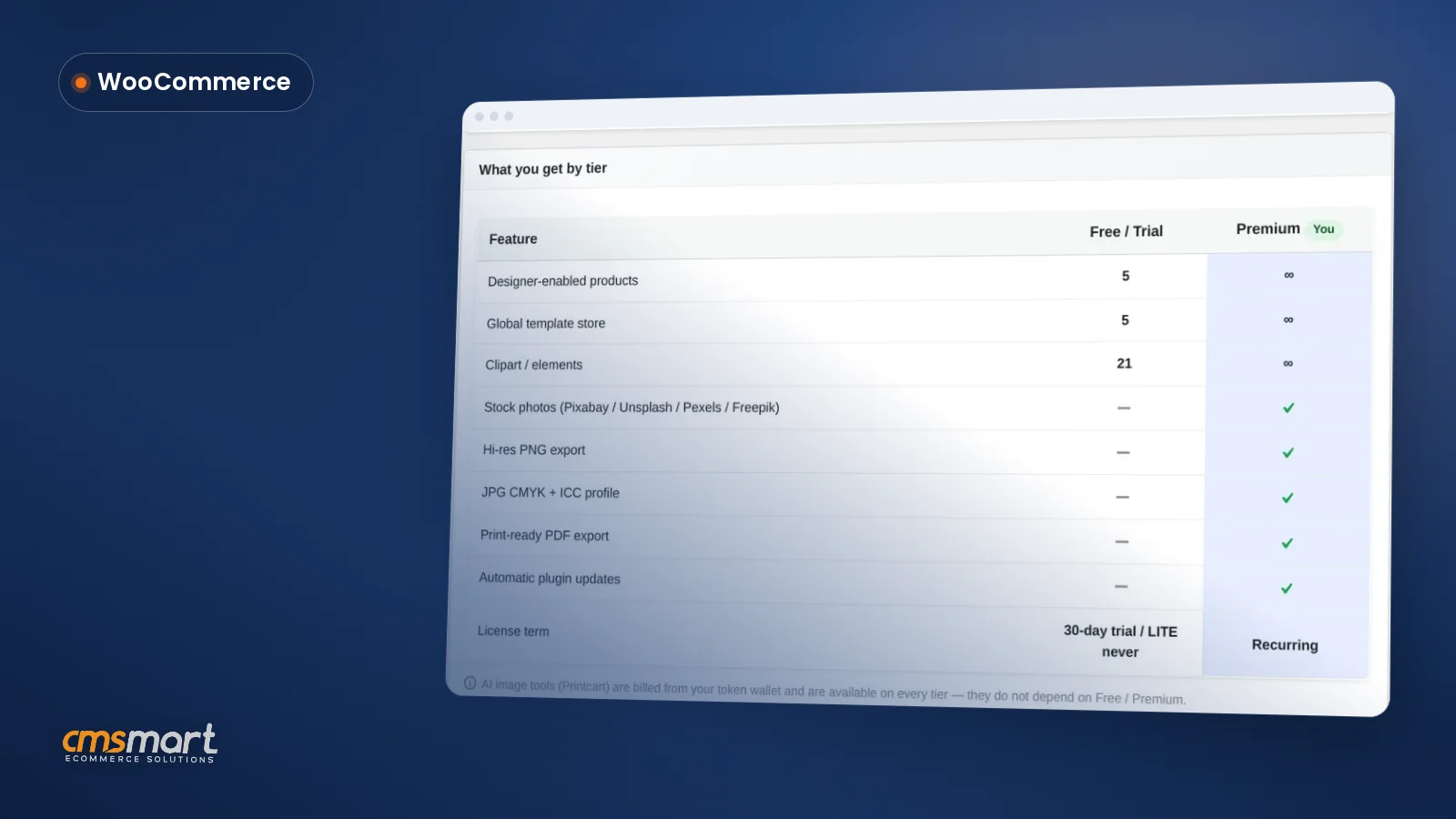
It is built in. The Background Remover is one of the Cmsmart Cloud AI Tools that ship with Cmsmart Product Designer (NBDesigner) from 2.15.0 onward, alongside Image Upscale and AI Preflight, each with its own on/off switch on the Cmsmart Cloud admin page.
Does it work on every product, or only specific ones?
It works on any product that uses the online designer with a photo or image layer in its design area — mugs, apparel, phone cases, photo prints and similar products. A product with no image upload step in its design area has nothing for the tool to act on.
How do we control who can use the AI tools, and the cost of running them?
The audience setting is the main lever: Everyone, Members, or Customers who have ordered. Turning the master switch off removes the buttons from the storefront entirely and stops the endpoints from running, so nothing is spent from a page where the tool is not meant to be offered.
What happens if the automatic cutout looks wrong?
The buyer is not stuck with the first result. The in-canvas editor has Brush and Smart Select tools to erase or restore parts of the cutout, a High-detail mode for hair or fur, and the original photo stays faintly visible underneath until the buyer applies the result.
Can Cmsmart automate background removal across our whole product catalogue, not just new orders?
Yes, as custom development. The in-designer tool runs one photo at a time, at checkout; a bulk pass across an existing catalogue, or a rule that only lets approved cutouts reach your production queue, is the kind of project Cmsmart builds on top of the core plugin.
Does removing the background affect the print-ready PDF or DPI?
No extra step is needed on your side. Once the buyer applies the cutout and clicks Process, the design feeds into the same print-ready PDF pipeline as any other design, using whatever paper size, bleed and output settings you already configured under Settings → Output.
What output options does the AI Background Remover provide after removing a background?
Once a background is removed, customers can choose between a transparent PNG or a plain white background for their image before adding it to the design. Brush and Smart Select tools are also available to refine edges, giving shoppers control over the final look before they finish customizing their product.
Where does a store admin turn on the AI Background Remover?
The feature is switched on from the Cmsmart Cloud AI Tools admin panel, and it only appears on products that already have photo upload enabled in the designer. Since it is built into the existing Cmsmart Product Designer, there is no separate plugin to install or configure.
How does removing backgrounds automatically help a print-on-demand business day to day?
Letting shoppers clean up their own photos in the designer removes the need for staff to manually edit images before production, which saves time on each order. It also cuts down on reprints caused by backgrounds that were not caught before checkout, helping orders move through production faster.
Written by
Cmsmart AI for Ecommerce Engineer
Adds practical AI to stores: image tools, preflight checks, automation and assistants.
- AI tools
- Automation
- AI preflight
- Cmsmart Cloud
More from this expert →