

Guide · Web-to-print
Cmsmart Stores Setup Wizard: What's New, October 2026
The Cmsmart Stores Setup wizard installs niche, B2B and Marketplace stores with sample data live in minutes. See what changed and try it free.
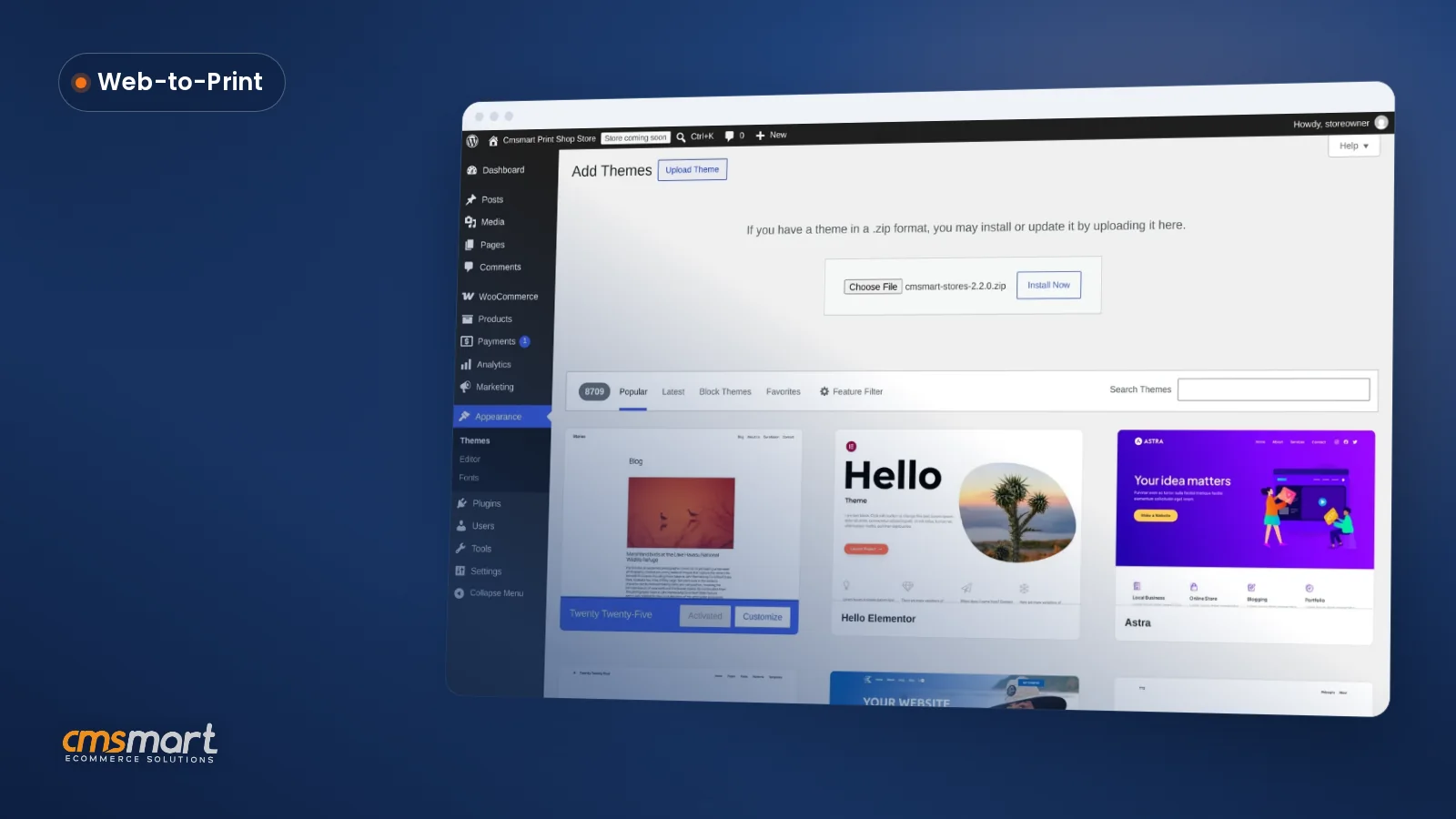
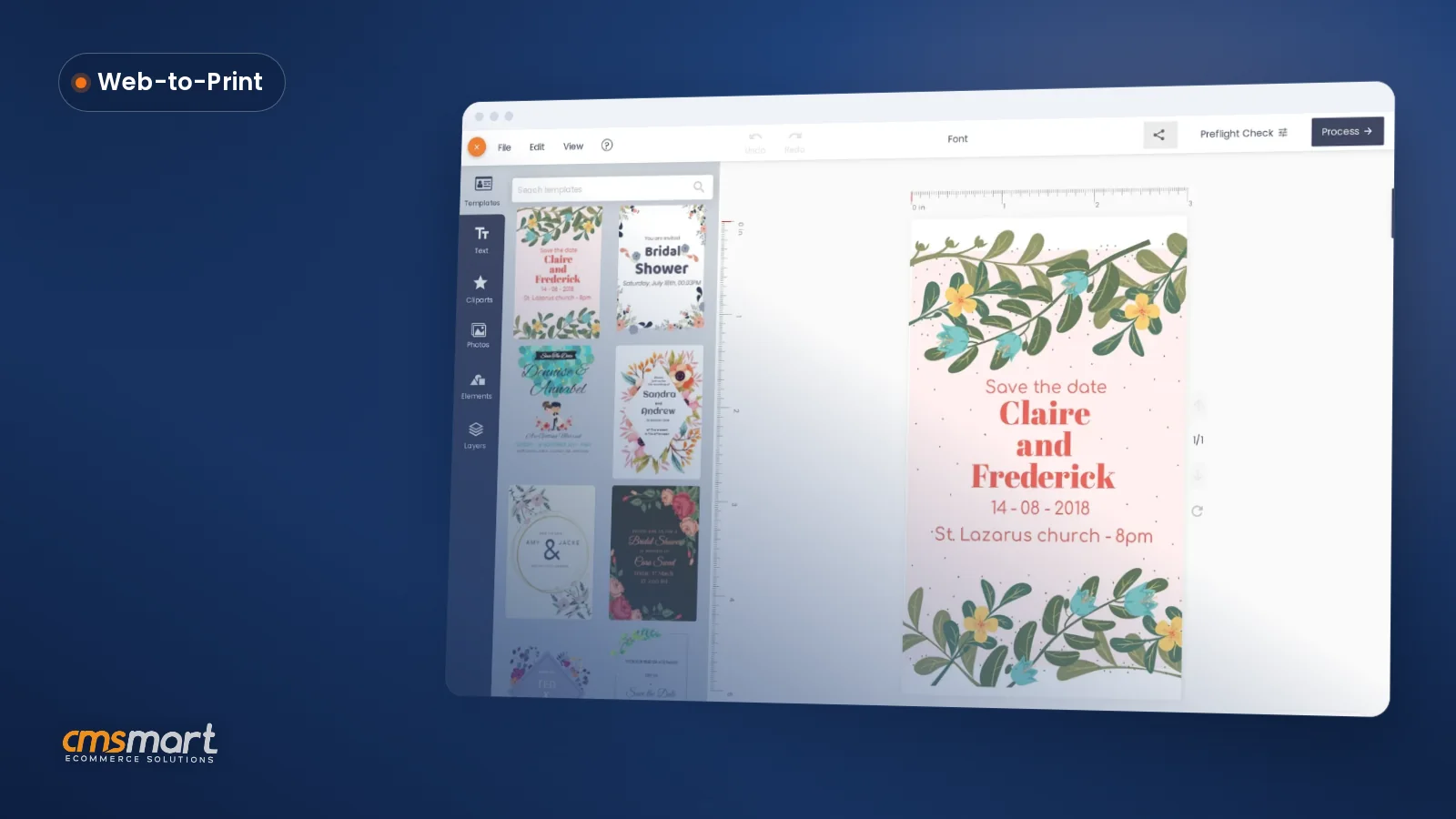
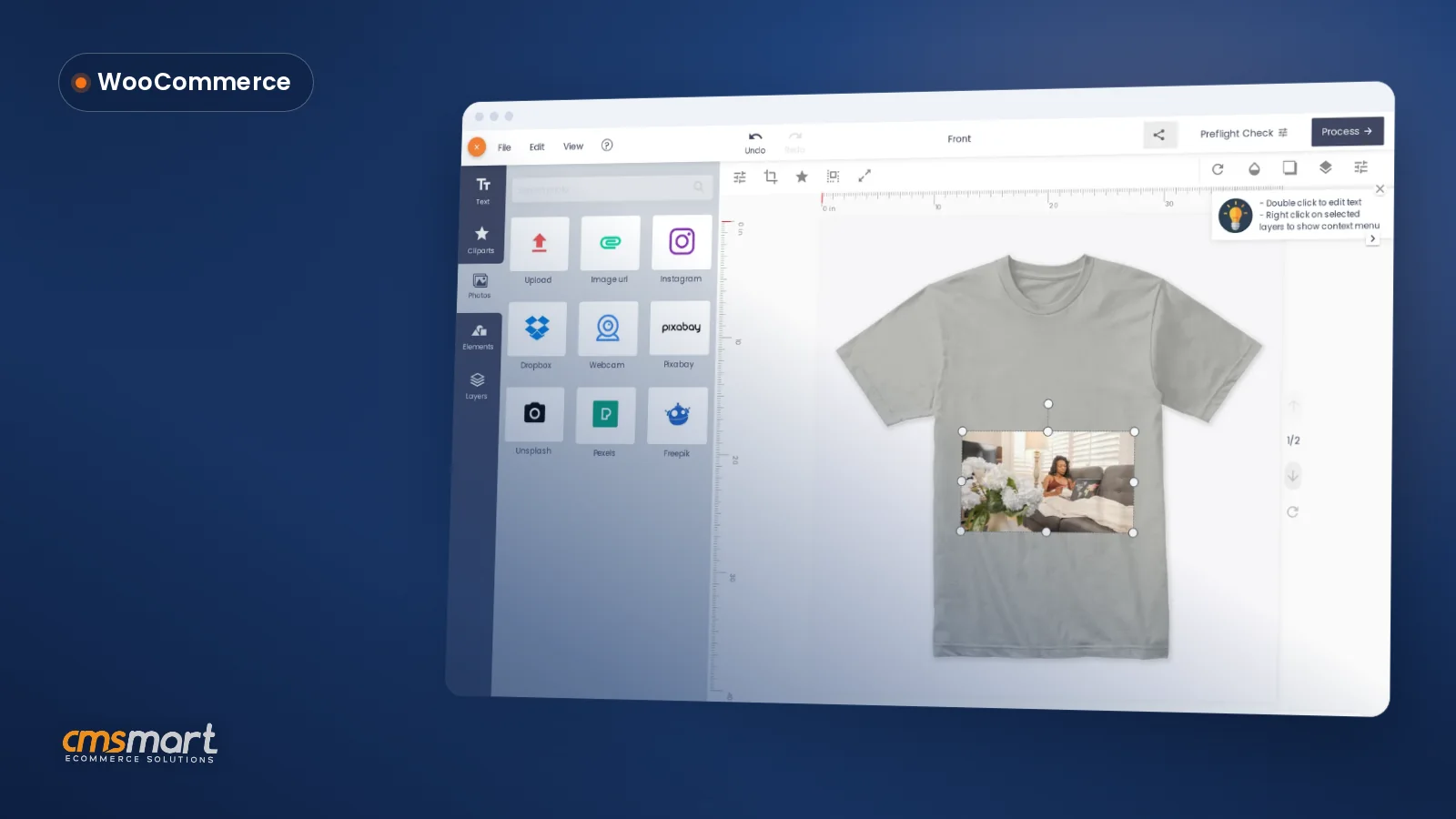
Cmsmart Product Designer (NBDesigner) adds a canvas-based editor to WooCommerce products, but the editor is only as good as the WooCommerce product designer plugin settings behind it. This guide walks a store owner through installing, configuring, and - when a product or a season doesn't need it - turning the designer off, product by product or across the whole site.
Was this tutorial helpful?
Written by
Cmsmart Product Designer Plugin Engineer
Builds and supports the Cmsmart Product Designer (NBDesigner) for WooCommerce.
The team behind it
 Account Manager
 Project Manager
 Business Analyst
 Developers & QA
Guide · Web-to-print
The Cmsmart Stores Setup wizard installs niche, B2B and Marketplace stores with sample data live in minutes. See what changed and try it free.
Guide · Web-to-print
The NBDesigner plugin now gives stationery shoppers a curated background library so print-ready PDFs always match the preview. See how to set it up.
Guide · Web-to-print
See how t-shirt artwork approval and print-ready PDFs cut POD reprints on WooCommerce; get a free workflow review from Cmsmart today.
Browse more guides, tutorials and case studies from the Cmsmart community.
With the increasing competition within the industry, you might be left wondering where your window of opportunity for your product could be. Here are 10 great ideas for a startup printing business for you to take inspiration from.
Read MorePrint-on-Demand business must use effective marketing strategies and be created on a high-performing ecommerce platform that supports it in order to yield good results.
Read MoreThe design editing interface is one of the important parts of an online design website. Whether the customer feels interested in your product depends greatly on your design interface.
Read More
Cmsmart Ecommerce provides custom ecommerce and WooCommerce development services for web-to-print, product personalization, plugin support and API integration.
Cmsmart Product Designer Plugin Engineer
Builds and supports the Cmsmart Product Designer (NBDesigner) for WooCommerce.
Meet the team →



In short
Why does a badly tuned product designer cost you orders?
Cmsmart Product Designer only pays off when its settings match your catalog: the wrong upload limit, a forgotten watermark rule, or a designer left switched on for the wrong product all create real, avoidable cost for a WooCommerce store, not just an inconvenience.
Most of the pain we see in print and personalization shops traces back to settings nobody revisited after the first install:
None of this shows up as one dramatic failure; it shows up as abandoned carts, one-off refunds and support tickets that a short settings review would have prevented. The scale is worth keeping in mind: the shopping-cart plugin these settings sit inside has 7+ million active installations, and WordPress itself now runs roughly 43.5% of all websites (Kinsta, August 2024) - a settings mistake on a plugin this widely used is rarely a one-off problem.
What does a well-run product designer look like?
With Cmsmart Product Designer configured correctly, only the right products show "Start design," uploads arrive in formats your prepress team can actually use, and every PDF leaves the store watermarked or print-ready depending on order status, without anyone checking it by hand.
Example scenario. A print shop sells business cards, posters and a wholesale bundle. Business cards and posters open the designer; the wholesale bundle - reordered by the same buyers every month - doesn't, because Designer Canvas is unchecked on that one product. Uploads on the poster product require a minimum DPI and reject anything under a sensible file size. When an order reaches "Processing," the automatic PDF export queues a print-ready file with the house watermark removed, and if a render fails, the store manager sees an admin notice instead of finding out from an angry customer.
How does Cmsmart structure product designer settings?
Cmsmart Product Designer splits its configuration into plugin-wide settings (layout, upload defaults, output and pricing) and a per-product switch, so a store owner sets the rules once and then turns the canvas on or off for each SKU without touching code.
Inside WooCommerce, the plugin adds its own settings area with tabs including General, Appearance, Design Tool, Colors, Upload design, Output, Libraries and Printing Options, plus a Designers panel and Live chat & Design monitor. Four of these carry most of the weight on a setup project:
Per product, a single Designer Canvas checkbox - "Enable the Online Designer for this product" - turns the editor on or off, with a Sides preset (1-sided/2-sided) next to it. That switch is what the 2.17.0 release notes refer to when they mention the "designer disabled" state a shopper sees on a product with the canvas turned off.
Cmsmart insight: treat the per-product Designer Canvas checkbox as your everyday "deactivate" control, and save the Plugins screen's Deactivate link for a full, site-wide shutdown. Switching off one wholesale SKU should never mean uninstalling the plugin for every other product.
If you'd rather not map all of this yourself, Cmsmart also offers done-for-you installation that configures these screens against your actual catalog.
What's the ROI of getting your WooCommerce product designer plugin settings right?
Correct Cmsmart Product Designer settings turn into fewer rejected uploads, fewer reprints from unwatermarked or low-DPI files, and fewer support tickets from buyers who see a designer on products that shouldn't have one - all trackable with the store's ordinary KPIs.
Example worksheet. If reprints currently run R per 100 orders at a cost of C per reprint, and tighter upload and output rules cut that in half, monthly savings are roughly
(orders per month ÷ 100) × R × C ÷ 2. Add the manager-hours spent triaging bad files today, at their hourly rate, for the full picture - checkout friction is already expensive everywhere: the average documented shopping-cart abandonment rate is 70.22%, averaged across 50 studies (Baymard Institute, updated 2025), so removing designer-related friction at checkout is worth tracking on its own line.How to set up and configure the Cmsmart Product Designer plugin
Setting up Cmsmart Product Designer means working through License, General, Upload design, Output and Printing Options once, then checking the Designer Canvas switch on each product - a first pass usually takes under an hour for a catalog of a few dozen SKUs.
Follow these steps in order the first time you configure the plugin, or whenever you're auditing an existing store:
What can Cmsmart build on top of the standard settings?
Beyond the settings screens, Cmsmart builds custom development on top of Product Designer: role-based designer visibility, bulk settings audits across large catalogs, and migration of settings and templates from another designer plugin - practical work the standard install doesn't do by itself, delivered by the same team that wrote this guide.
The screens above cover what ships in the plugin today. Stores that outgrow a single global ruleset usually ask for one of these, each delivered as custom development rather than a built-in checkbox:
Cmsmart's delivery approach for this kind of work follows the same path on every engagement: discovery, solution design, build in sprints, QA, launch and ongoing support - the same model behind our published project work.
Get a custom settings & rollout quote
Why work with Cmsmart on your product designer setup?
Cmsmart has built and supported WooCommerce product design tools since 2012 as a Netbase JSC division, with the Product Designer plugin behind thousands of client projects and a published Trustpilot rating - the same team that writes these settings guides also configures them for client stores.
Frequently asked questions
Can I turn off the product designer for just one product?
Yes. Open the product, find the Online Designer box, and clear the Designer Canvas checkbox - "Enable the Online Designer for this product." The product keeps selling normally; it just loses the "Start design" entry point.
What's the difference between deactivating a product's designer and deactivating the plugin?
The per-product checkbox turns the canvas off for one SKU. Deactivate on the WordPress Plugins screen turns Cmsmart Product Designer off everywhere - every product loses its designer, upload rules and output rules at once, so use it only for a full, site-wide pause.
Do I need to set upload and output rules for every product individually?
No. Settings > Upload design and Settings > Output hold the defaults every product inherits; you only need a per-product override for an exception, such as a poster product that needs a higher minimum DPI than the rest of the catalog.
Will changing the default editor layout affect products already live?
The General setting sets the default for new and unconfigured products; you can still specify a layout per product, and Cmsmart has stopped adding features to the Classic layout, so Modern is the recommended choice for anything you configure from here on.
Can Cmsmart set all of this up for us instead?
Yes - Cmsmart offers done-for-you installation that configures licensing, upload, output and pricing against your real catalog, plus custom development for anything the standard settings screens don't cover.
Where can I read more about setting the designer up per product?
See our related tutorials on installing the plugin for the first time and configuring the online designer for each product.