

Guide · Web-to-print
Cmsmart Stores Setup Wizard: What's New, October 2026
The Cmsmart Stores Setup wizard installs niche, B2B and Marketplace stores with sample data live in minutes. See what changed and try it free.
This is WooCommerce help for artists, print shops and personalization brands tired of customers settling for generic stock clipart. Cmsmart Product Designer (NBDesigner) lets you upload, categorize and manage your own clip art library in wp-admin, then decide per product whether Cmsmart's shared library joins it — so every design pulls from art you actually own or licensed.
Was this tutorial helpful?
Written by
Cmsmart Product Designer Plugin Engineer
Builds and supports the Cmsmart Product Designer (NBDesigner) for WooCommerce.
The team behind it
 Account Manager
 Project Manager
 Business Analyst
 Developers & QA
Guide · Web-to-print
The Cmsmart Stores Setup wizard installs niche, B2B and Marketplace stores with sample data live in minutes. See what changed and try it free.
Guide · Web-to-print
The NBDesigner plugin now gives stationery shoppers a curated background library so print-ready PDFs always match the preview. See how to set it up.
Guide · Web-to-print
See how t-shirt artwork approval and print-ready PDFs cut POD reprints on WooCommerce; get a free workflow review from Cmsmart today.
Browse more guides, tutorials and case studies from the Cmsmart community.
Run a custom tote bag printing business with Cmsmart Product Designer: live pricing, real print specs and a print-ready PDF. See how to set it up.
Read MoreBuild a car wrap ecommerce store on WooCommerce: panel pricing, approval and print-ready PDFs before you print. Plan your wrap store today.
Read MoreDiscover how the home décor industry is transforming with the rise of personalized products and the challenges retailers face. Learn how CMSmart's Product Builder offers a solution, improving customer engagement, reducing return rates, and increasing sales through real-time 3D previews and automated processes.
Read More
Cmsmart Ecommerce provides custom ecommerce and WooCommerce development services for web-to-print, product personalization, plugin support and API integration.
Cmsmart Product Designer Plugin Engineer
Builds and supports the Cmsmart Product Designer (NBDesigner) for WooCommerce.
Meet the team →




In short
WooCommerce help for artists: what's the real cost of a messy clip art library?
A clip art library with no structure costs a print shop time and brand consistency: staff re-upload the same icon to every product, customers can't find anything in one giant category, and nobody is sure which graphics are actually licensed for commercial print. Cmsmart's Manager Arts and per-product library controls fix the structure side of that problem.
Cost of the status quo, with your own numbers: minutes spent re-uploading or re-finding art per week × your hourly design-ops cost × 52 weeks. The bigger cost is often customers who give up browsing and grab the first generic graphic they see — exactly what a real asset library prevents.
What would a branded clip art library look like for your shop?
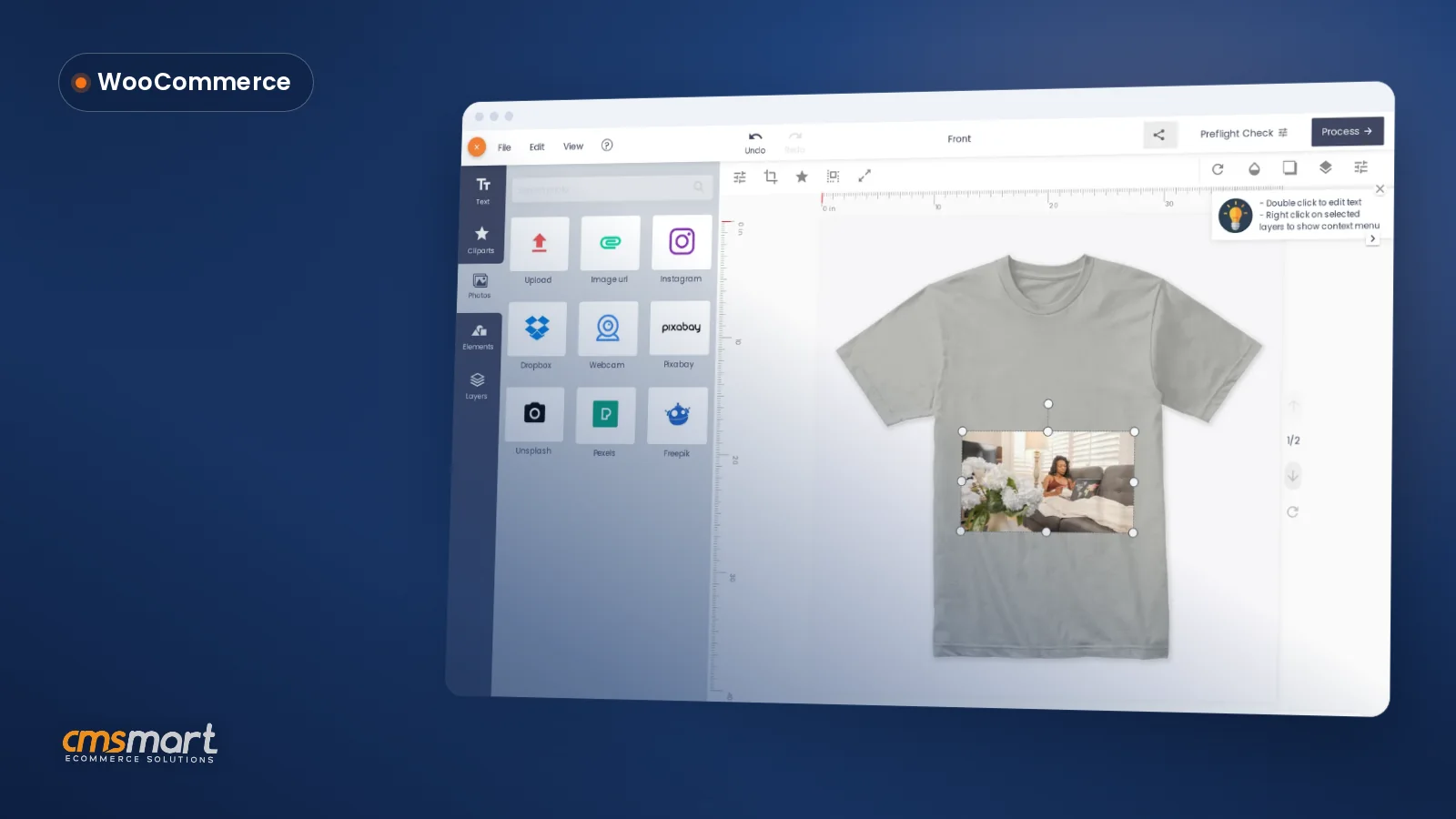
Picture a Cmsmart store where every seasonal drop, every client's logo set and every house illustration style has its own category, visible to customers the moment they open Cliparts in the designer, with no repeat email requests for the same file.
Example scenario. A print shop's in-house illustrator finishes a set of 40 holiday icons, uploads it once to Manager Arts, and sorts it into a new Holiday 2026 category, leaving the shared Cmsmart library on for general-purpose shapes. A buyer customizing an ornament opens Cliparts, finds Holiday 2026 at the top, and finishes in a few clicks — the shop's own art, not a generic snowflake everyone else is using.
Choosing "design online" keeps your categorized clip art one click away the whole time.
If buyer-facing creativity with clip art is what you're after rather than the admin side, our tutorial on how to make your designs come alive with cliparts covers that ground from the shopper's seat.
How does Cmsmart's clip art library actually work?
Cmsmart splits clip art into two layers: your own library, which you upload and categorize in wp-admin under the Media group's Cliparts page (Manager Arts), and Cmsmart's shared global library, which you can leave on, turn off site-wide, or restrict per product — so what a customer sees is always a decision you made, not a default nobody checked.
The flow, in six pieces:
Cmsmart insight: the stores that get the most out of this are the ones that treat clip art categories like product categories: a handful of well-named, well-stocked groups a buyer can scan in seconds beat one giant "Icons" bucket every time, even though search still works either way.
In the plugin today: uploading, categorizing, moving items between categories, and the global-library on/off switches. Not in the plugin: a library private to one business client, or one that syncs automatically from an external asset system — see custom development below.
What's the business value of managing your own clip art?
A categorized, licensing-aware clip art library turns a generic design tool into a brand asset: customers finish designs faster because they can actually find what fits, your team stops re-sending the same graphic by email, and you reduce the risk of printing something your shop never had the right to use commercially.
Rough worksheet (your numbers): minutes saved per product you no longer re-upload the same art to × number of products that use it × how many times a year you refresh the set = hours of design-ops time back. These are variables to fill in for your own shop, not a promised result.
One thing worth getting right before you upload a large set: who owns the art. An employee's work is yours by default (17 U.S.C. §201(b), which makes the employer "the author" and owner). A freelancer's work defaults the other way — they keep the copyright unless a signed written agreement says otherwise. This isn't hypothetical: US law allows statutory damages of up to $150,000 per work for willful copyright infringement.
How do you set up and manage clip art categories in Cmsmart?
To set up your own clip art library in Cmsmart Product Designer, you install the plugin, open the Cliparts page under the Media menu group, and build categories as you upload — the whole flow runs in wp-admin and the result appears instantly in the buyer-facing designer. The steps below follow the plugin's documented 2.12.0–2.17.0 feature set rather than a screenshot walkthrough of the admin screen itself.
For the color side of clip art — letting a buyer recolor an icon on the canvas rather than uploading a second version in every shade — see our tutorial on how to choose color in Cmsmart Product Designer, which covers that part of the editor in depth.
Going further: what can Cmsmart build on top of your clip art library?
Beyond uploading and categorizing, shops that outgrow the shared, site-wide library typically want it split by client or synced automatically from somewhere else — both are custom development Cmsmart builds on top of the plugin, not switches hidden somewhere in the settings.
Cmsmart has run this kind of asset and design-tooling work since 2012 as part of its web-to-print projects — see the web-to-print solutions hub for the broader toolkit a project like this usually sits inside, or the product designer customization service for how this kind of work is scoped.
Plan a private clip art library
Why work with Cmsmart on your design asset library?
Cmsmart has built and supported the Product Designer (NBDesigner) plugin since 2012 as part of Netbase JSC, with the clip art and asset tooling shipping inside the same product your team already runs — not a bolt-on from a different vendor.
Frequently asked questions
Can I add my own clip art categories to Cmsmart Product Designer?
Yes. Open Cliparts (Manager Arts) under the Cmsmart admin menu's Media group, upload your art, and assign or create a category for it. Customers see your categories in the Cliparts tab of the online designer as soon as they're published.
Can I turn off Cmsmart's shared clip art library and show only our own art?
Yes. A site-wide "Enable global clipart library" setting and a per-product "Include Cmsmart global clipart library" option, both added in 2.14.1, let you keep the shared library off everywhere or on a product-by-product basis.
How large is Cmsmart's shared clip art library?
The shared global library syncs from studio.cmsmart.net and spans tens of thousands of cliparts across dozens of categories, each category paged in from the server rather than loaded all at once (2.14.0).
Can I move clip art between categories without re-uploading it?
Yes. Since 2.12.0, hovering a clipart or background card shows a category picker next to the delete control, so you can re-file an item without deleting and re-uploading it.
Can each of our B2B clients have their own private clip art library?
Not out of the box — the plugin's libraries are shared across the whole store. A library that's private to one business client is custom development, delivered as part of the Cmsmart B2B Ecommerce package.
Does a design built from clip art still get a print-ready file?
Yes. Any finished design — whether it's built from your clip art, a template or an uploaded photo — goes through the same Process action, and with Auto export design to PDF on, that queues the print-ready PDF the same way for every design (2.16.0).