

Guide · WooCommerce
What's New in Cmsmart Stores: November 2026
See what is new in Cmsmart this November: 15 ready-made Cmsmart Stores, Cmsmart B2B 2.2.0 and Product Designer fixes. Try the Store Setup wizard today...
Cmsmart's NBDesigner plugin for WooCommerce gives personalised-stationery sellers a built-in background image library inside the Online Designer: shoppers pick a studio-quality backdrop instead of leaving it blank, Process locks the layout, and the 2.17.0 cloud renderer builds a print-ready PDF from the exact same page geometry the shopper saw on screen.
Was this tutorial helpful?
Written by
Cmsmart Product Designer Plugin Engineer
Builds and supports the Cmsmart Product Designer (NBDesigner) for WooCommerce.
The team behind it
 Account Manager
 Project Manager
 Business Analyst
 Developers & QA
Guide · WooCommerce
See what is new in Cmsmart this November: 15 ready-made Cmsmart Stores, Cmsmart B2B 2.2.0 and Product Designer fixes. Try the Store Setup wizard today...
Guide · Web-to-print
The Cmsmart Stores Setup wizard installs niche, B2B and Marketplace stores with sample data live in minutes. See what changed and try it free.
Guide · Web-to-print
See how t-shirt artwork approval and print-ready PDFs cut POD reprints on WooCommerce; get a free workflow review from Cmsmart today.
Browse more guides, tutorials and case studies from the Cmsmart community.
Run a custom tote bag printing business with Cmsmart Product Designer: live pricing, real print specs and a print-ready PDF. See how to set it up.
Read MoreBuild a car wrap ecommerce store on WooCommerce: panel pricing, approval and print-ready PDFs before you print. Plan your wrap store today.
Read MoreDiscover how the home décor industry is transforming with the rise of personalized products and the challenges retailers face. Learn how CMSmart's Product Builder offers a solution, improving customer engagement, reducing return rates, and increasing sales through real-time 3D previews and automated processes.
Read More
Cmsmart Ecommerce provides custom ecommerce and WooCommerce development services for web-to-print, product personalization, plugin support and API integration.
Cmsmart Product Designer Plugin Engineer
Builds and supports the Cmsmart Product Designer (NBDesigner) for WooCommerce.
Meet the team →




In short
Why does letting shoppers add their own background cost you reprints?
Cmsmart's background library replaces blank canvases and ad-hoc Google-image pastes with a curated set of on-brand backdrops, so support staff stop re-exporting files when a customer's low-resolution upload fails at print size, and every order reaches production with print geometry that matches the preview.
Most online product designers ship with a text tool, a clipart panel and an upload button — and leave the canvas background blank unless the buyer drags in an image of their own. For an invitation, save-the-date card or custom label, a blank or low-resolution background is the single biggest reason a design looks unfinished at checkout and wrong on paper: a phone screenshot or a 72dpi web image previews fine on screen, then pixelates the moment it scales to a print-ready PDF.
That gap between "looked fine on screen" and "printed badly" is a manual, staff-hours problem — someone on your production team has to notice the low-resolution file, email the customer, wait for a replacement, and re-render the order before it can ship.
What could your stationery shop look like with a background library built in?
Imagine Cmsmart's Online Designer offering a dedicated Backgrounds tab next to Templates and Cliparts, so a shopper designing an invitation picks from backdrops you've already checked for print resolution and on-brand colour, instead of hunting for their own.
Picture a stationery storefront where the Invitation product page opens straight into a designer with a Backgrounds panel next to Templates, Text and Photos. A shopper buying a save-the-date card doesn't need a designer's eye for print resolution — they pick a category ("Floral", "Minimal", "Photo frame"), choose a vetted backdrop, drop their own photo or text on top, and the canvas is never empty or pixelated.
How does Cmsmart's NBDesigner plugin background library solve this?
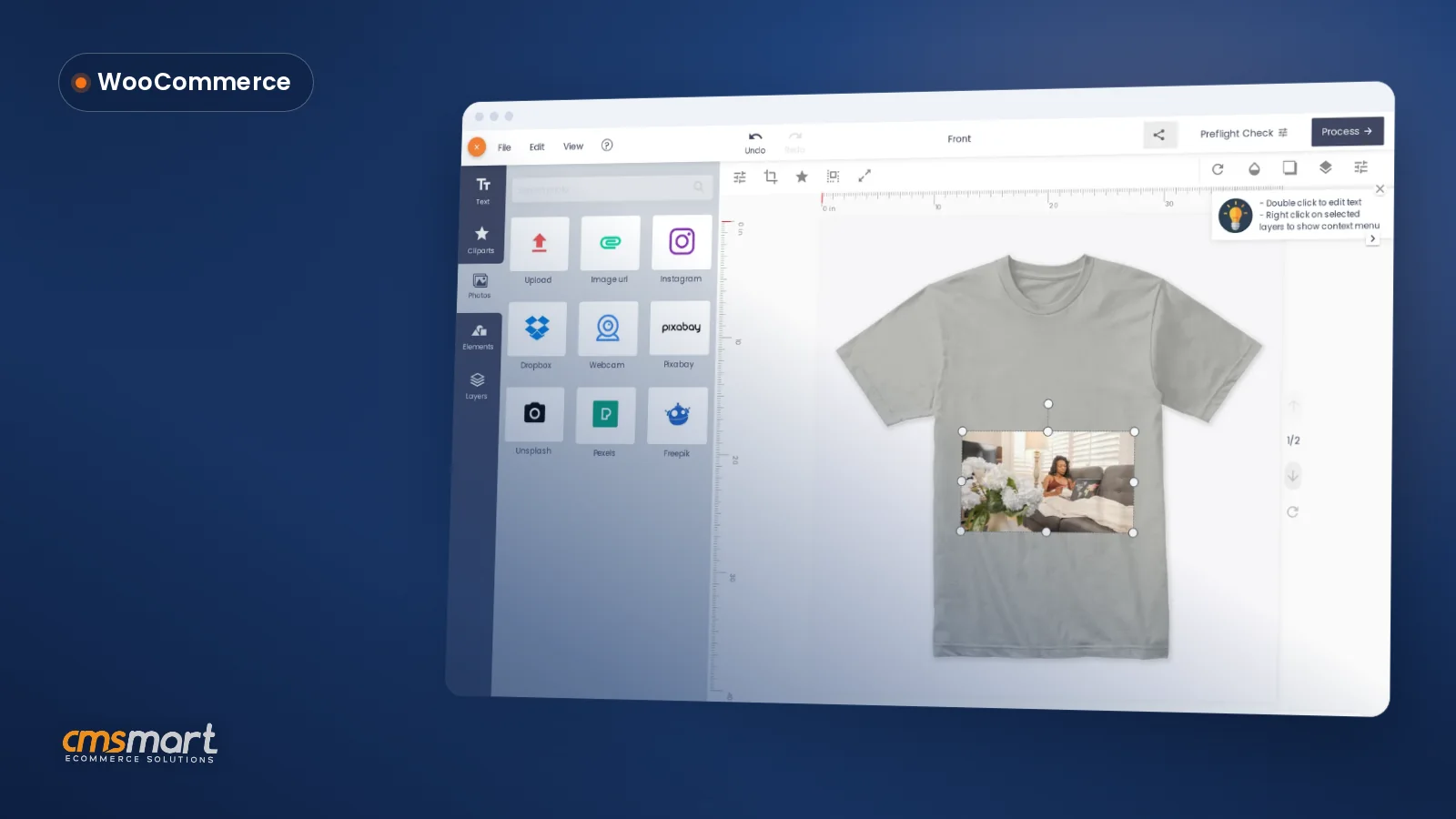
Cmsmart's Online Designer ships Backgrounds as one of its editor tabs alongside Templates, Cliparts, Photos and Layers, so a curated backdrop is one click away, and Process still locks the finished layout into the same print-ready pipeline as every other order.
The feature sits in two places. On the admin side, backgrounds live under the plugin's Media menu group together with Cliparts, Fonts and Templates — upload an image, sort it into a category, and delete or recategorise it later without breaking other cards. On the buyer side, the Online Designer's editor exposes those same backgrounds as a tab a shopper can browse while they design, next to Templates and Photos.
A shopper can still add their own photo on top of a chosen backdrop — the designer supports both at once. Here, the shopper has dropped a personal photo into the card while keeping the pre-built floral background behind it:
Clicking Process turns that canvas into "Your artwork" — a locked preview the buyer sees before adding to cart, and the same file the print-ready PDF renderer reads from:
Cmsmart insight: since 2.17.0, automatic print PDFs read the same page geometry as the admin's Create PDF button, including the background — so a custom paper size or a changed background no longer produces a PDF that drifts from what Create PDF would build by hand. The backdrop a shopper picks is treated as part of the order's print geometry, not a cosmetic overlay.
From there the order flows through the regular WooCommerce cart and checkout — the background choice travels with the line item as part of the saved design, not as a separate asset to track:
What's the ROI of a built-in background library?
Cmsmart's background library turns a source of reprints and support tickets into a self-service step, and in a print-on-demand market already worth $10.8 billion in 2025, cutting even a small percentage of reprint labor off every order adds up fast.
The direct cost a background library removes is staff time: every order where a shopper's own background fails at print resolution costs you a round of back-and-forth before it can ship. The direct benefit is that the backdrop never needs re-checking, because you approved its resolution before it was ever offered to a buyer.
The wider market context makes the case for that polish. The global print-on-demand market was valued at USD 10.8 billion in 2025, growing at a 23.6% CAGR through 2033 — more sellers competing for the same personalisation-hungry buyers. The personalised-gifts category is tracking even faster: USD 33.70 billion in 2025, projected to reach USD 69.20 billion by 2033. And getting a design right the first time rather than reprinting it holds up industry-wide — offset reprints typically waste 3–10% of total print volume, versus under 1–3% for digital runs done right the first time.
Quick ROI worksheet — fill in your own numbers:
Most stores that run this worksheet find the background library pays for the setup time within the first month simply by removing that line item.
Cmsmart itself has shipped 6,300+ client projects since 2012, with 1,800+ stores live today in 80+ countries — the background library is one small piece of a plugin built specifically to keep a print-ready file matching what the buyer approved.
How do you set up the background library for your products?
Setting up Cmsmart's background library is an admin-side task: upload and categorise the images once, assign them to the right products, then test the buyer flow yourself before launch — no theme edits or custom code required for the core library.
What can Cmsmart build on top of the background library?
The core Backgrounds library covers upload, categorisation and buyer selection — for anything beyond that, Cmsmart builds custom development on top of the same plugin, tailored to how your store actually sells.
The categorised library in 2.17.0 is deliberately general-purpose: upload, sort, assign, select. It doesn't automatically rotate backgrounds by season, lock a wholesale account to its own approved palette, or generate a new backdrop from a prompt. Those are real requests from stores selling personalised stationery at scale, and Cmsmart builds them as custom development rather than claiming they ship in the core plugin:
Related reading: if your platform limits go beyond backgrounds — pricing matrices, multi-vendor routing, or a full personalisation rebuild — see how Cmsmart rebuilt one print shop's customization experience in Revolutionizing User Experience: Flexible Background Customization and Admin Empowerment.
Get a custom background-library quote
Why work with Cmsmart for your stationery store's design tools?
Cmsmart has run the Online Designer behind thousands of personalised-product stores since 2012, and real sellers specifically call out the plugin for printing personalized cards — exactly the stationery use case a background library is built for.
Cmsmart Ecommerce (Netbase JSC) has delivered 4,600+ projects and runs 1,800+ live stores across 80+ countries, rated 4.2/5 from 404 Trustpilot reviews. Reviewers who sell personalised print products call out the designer directly:
On the production side, the same plugin that shows a buyer their background choice is what your team uses to fulfil the order. The order timeline keeps status visible without digging through email:
Every design — background included — can be downloaded in the format your print equipment needs:
And the print-ready PDF itself is rendered in the cloud and timestamped, so your team never has to guess whether a file is current:
Before a design goes to print, the Customer Design box gives staff a straightforward accept/decline step with a notify-the-customer email — the approved-artwork lock (2.17.0) then stops any further edits to that saved design on the server:
Example scenario: a stationery seller curates two background categories, Wedding and Baby shower, with eight backdrops each, assigns them to the Invitation product, and tells customers the backgrounds are pre-checked for print quality. Within the first month, blurry-background messages to support drop off, because uploading a low-resolution image is no longer the only path through the designer.
To see the full buyer-to-production flow on a live store first, the WooCommerce Product Designer demo walks through design, cart, order and print-ready PDF end to end. For the wider picture, see Cmsmart's web-to-print platform overview and, for wholesale stationery sellers, the B2B web-to-print portal. The background library ships as part of the Cmsmart Product Designer plugin itself.
Talk to Cmsmart about your stationery store
Frequently asked questions
Is the background library part of the core NBDesigner plugin, or an add-on?
It's core: backgrounds are one of the Online Designer's editor tabs, and the admin Backgrounds page lives under the plugin's own Media menu group alongside Cliparts, Fonts and Templates.
Can a buyer still upload their own background instead of picking from the library?
Yes. The curated Backgrounds tab sits next to the regular upload and template options, so you can offer both — a vetted library for a fast, safe choice, and a full upload path for buyers who already have artwork.
Does the background show up correctly in the print-ready PDF, not just the on-screen preview?
Since 2.17.0, automatic print PDFs read the same page geometry as the admin's Create PDF button, including the background, so a custom paper size or a changed backdrop doesn't produce a file that drifts from what the buyer approved on screen.
How do I organise backgrounds so buyers aren't scrolling through everything?
Use categories. The admin library lets you sort each background into a category and move it later without re-uploading, so you can group by occasion ("Wedding", "Baby shower") and show only the relevant set per product.
What if I need something the library doesn't do, like per-brand locked palettes?
That's custom development, not a core setting — Cmsmart builds brand-locked background sets, seasonal rotation and similar extensions on top of the standard plugin.
Does approving a design lock in the background the customer chose?
Yes. Once staff accept a design through the Customer Design box, the 2.17.0 approved-artwork lock refuses further saves to it on the server, so the background and every other element stay exactly as approved through to print.