

Guide · WooCommerce
What's New in Cmsmart Stores: November 2026
See what is new in Cmsmart this November: 15 ready-made Cmsmart Stores, Cmsmart B2B 2.2.0 and Product Designer fixes. Try the Store Setup wizard today...
Customer file uploads for print on demand orders let a shopper send a finished PDF, PSD or vector file instead of only picking from your template library, so you can say yes to the custom, one-off and already-designed jobs a template catalog can't cover. Cmsmart Product Designer checks the file on the way in and carries it through to a print-ready PDF, with no email attachments in between.
Was this tutorial helpful?
See also: Cmsmart pricing and Cmsmart products.
Written by
Cmsmart Product Designer Plugin Engineer
Builds and supports the Cmsmart Product Designer (NBDesigner) for WooCommerce.
The team behind it
 Account Manager
 Project Manager
 Business Analyst
 Developers & QA
Guide · WooCommerce
See what is new in Cmsmart this November: 15 ready-made Cmsmart Stores, Cmsmart B2B 2.2.0 and Product Designer fixes. Try the Store Setup wizard today...
Guide · Web-to-print
The Cmsmart Stores Setup wizard installs niche, B2B and Marketplace stores with sample data live in minutes. See what changed and try it free.
Guide · Web-to-print
The NBDesigner plugin now gives stationery shoppers a curated background library so print-ready PDFs always match the preview. See how to set it up.

Cmsmart Ecommerce provides custom ecommerce and WooCommerce development services for web-to-print, product personalization, plugin support and API integration.
Cmsmart Product Designer Plugin Engineer
Builds and supports the Cmsmart Product Designer (NBDesigner) for WooCommerce.
Meet the team →

In short
What's the real cost of manual design-file emails for print on demand orders?
Cmsmart Product Designer replaces email-and-attachment back-and-forth with an upload button on the product page, so a shopper's file lands on the order the moment they check out, already matched to the right product and size — removing most of the delay between "I have a file" and "it's in production."
If your product pages only offer a fixed template library, every customer with their own artwork has three options, and none of them are great: ask your team to rebuild it by hand, email a file and wait for a reply, or give up and buy somewhere else. Each path costs you something:
Cmsmart insight: Set a minimum upload resolution and a maximum file size before you open uploads to customers, not after the first reprint request. Then add one manual check: open the uploaded PDF or vector file and confirm it's actually sized for the product ordered, since a file can pass every automatic check and still be scaled for the wrong item.
What does a smooth customer upload experience look like?
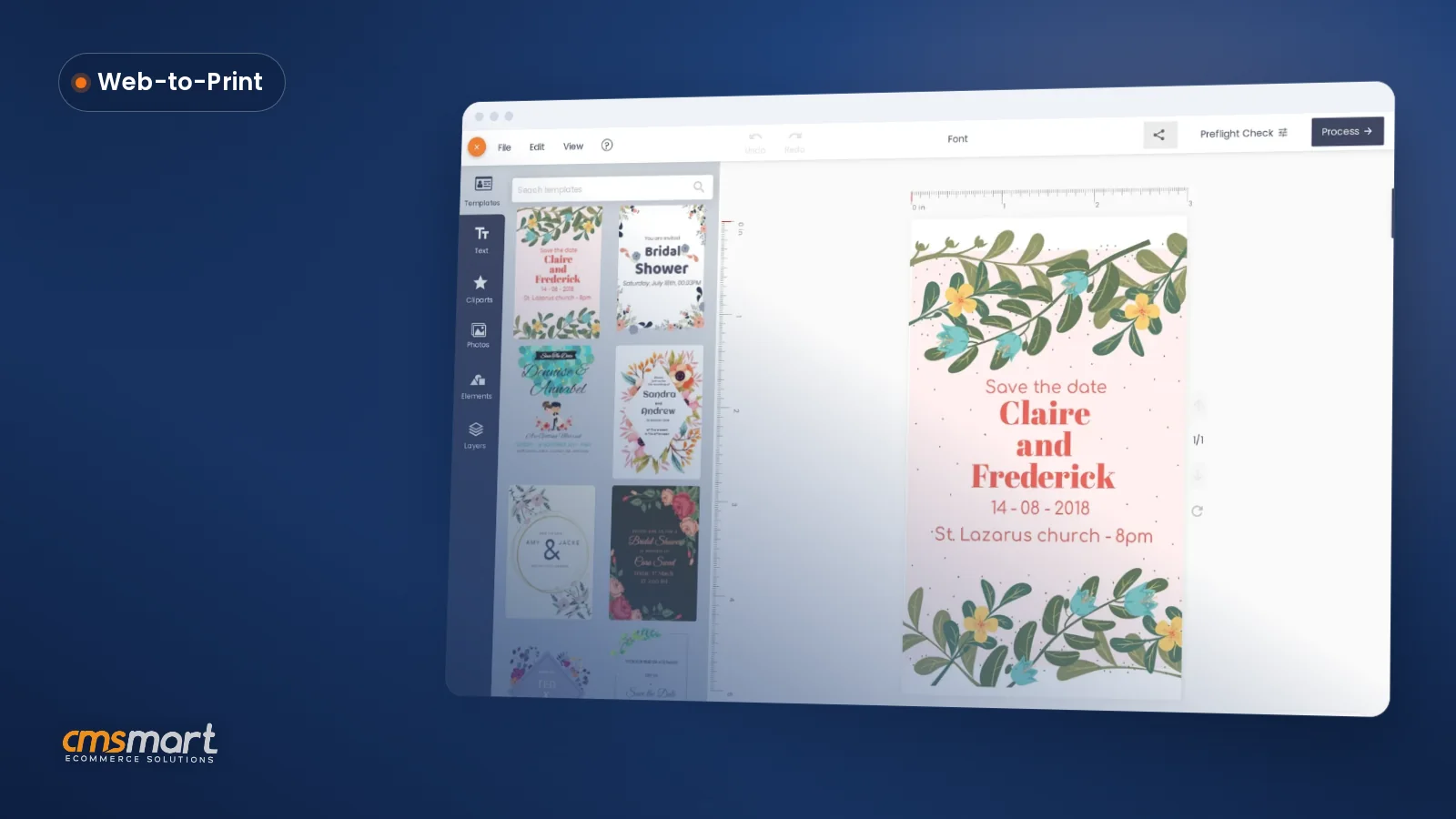
Cmsmart Product Designer lets a shopper open "Upload a full design" right next to "Design here online," drop in their file, and see it placed on the product before they add it to the cart, so print on demand orders with ready artwork move as fast as template orders.
Example scenario: A shopper lands on a product page late in the evening with a finished vector logo. Instead of emailing it and waiting for a reply, they click "Upload a full design," pick the file, and watch it drop onto the product mockup. They add it to the cart and check out, and the order lands in your queue the next morning with the design file, the order details, and a print-ready PDF already attached — no inbox, no back-and-forth, no guessing which file goes with which order.
How does Cmsmart handle customer file uploads for print on demand orders?
Cmsmart Product Designer handles customer file uploads for print on demand orders through a storefront chooser, a set of upload rules you control, and a print-ready export, so a shopper's own artwork becomes a production file without anyone touching email.
Four building blocks carry a file from the product page to the press:
What's the business value of accepting uploaded print files?
Cmsmart Product Designer turns every customer-supplied file into a trackable order line with its own print-ready PDF, so you can measure the business value in staff hours saved, reprints avoided, and orders you no longer have to turn away.
Rough-cut ROI: take the number of upload-enabled orders you expect in a month, multiply by the minutes your team currently spends per order chasing, renaming and checking emailed files, then multiply by your loaded hourly staff cost and divide by the minutes in an hour. That's the monthly staff cost the upload flow removes — before counting avoided reprints or the orders you stopped turning away.
How do you set up file uploads for your WooCommerce products?
Cmsmart Product Designer turns on customer file uploads from one settings screen: set the allowed formats and size limits, add a resolution floor, then place a test order to confirm the file reaches the print-ready PDF.
If different product lines need different rules — a sticker product with a strict resolution floor and a banner product with none — our companion guide on setting up advanced, per-product upload rules covers the product-level overrides this store-wide settings screen doesn't.
Going further: what can Cmsmart build on top of file uploads?
Cmsmart builds custom development on top of the upload flow for stores that need more than format checks: turning any uploaded file into an editable template, routing files straight into your MIS or ERP, and building approval chains for repeat B2B ordering.
Five extensions we build on request, each starting from a business reason:
Projects like these follow the same delivery path every time: discovery, solution design, build sprints, QA, launch and ongoing support — see how we scope similar work on ecommerce-projects, or start from our product designer customization service.
Plan my custom upload workflow
Why work with Cmsmart for your print on demand uploads?
Cmsmart has built WooCommerce product customization since 2012, now behind 6,300+ client projects and 1,800+ live stores, so a custom upload workflow is built by a team that has already solved it for other print and POD businesses.
Cmsmart, a Netbase JSC division, has run 6,300+ client projects and delivered 4,600+ of them since 2012, with 1,800+ stores live today across 80+ countries, including 500+ custom development projects. The plugin sits among the 7+ million active WooCommerce installs tracked on WordPress.org, and reviewers rate Cmsmart 4.2 out of 5 from 404 Trustpilot reviews. Demand for this kind of personalized ordering keeps growing: the global print-on-demand market was valued at $10.8 billion in 2025 and is projected to grow at a 23.6% annual rate through 2033, according to Grand View Research, and a 2025 Deloitte and Meta study found 80% of US shoppers are more likely to buy from brands that personalize the experience, as reported by ppc.land.
See related work on our projects page, or learn more about the Cmsmart Product Designer (NBDesigner) plugin itself.
Talk to the product designer team
Frequently asked questions about customer file uploads for print on demand
What file formats can customers upload for print on demand orders?
JPG and PNG work out of the box, and common print-source formats — PDF, PSD, AI, EPS and TIFF — are accepted by default under the upload allowlist. SVG uploads are accepted too, and are sanitized on the server before they're stored. You can narrow or widen this list per store in Settings → Upload design — see our related walkthrough on uploading PDF, SVG and EPS files for format-specific notes.
How do I stop low-resolution files from reaching production?
Set a Min. resolution DPI for JPG/JPEG image in the Upload design settings. Anything a shopper uploads below that floor is flagged before checkout, instead of being caught by a press operator after the job has already started.
Can I require an account before someone uploads a design?
Yes. Turn on Login Required in Upload design settings to tie every uploaded file to a registered WordPress account — useful for B2B buyers who reorder the same artwork.
Does Cmsmart turn an uploaded PDF or AI file into an editable template?
Out of the box, an uploaded file is placed on the product at its real size and carried through to the print-ready PDF and export formats as supplied. Turning it into a fully editable template — so your team can resize, recolor or reuse it like any other design — is custom development we build on request.
How long are uploaded files kept?
Set Delete upload files after X days in Upload design settings, or leave it blank to keep files indefinitely so you can handle reprints and reorders without asking the customer to resend anything.
What's the difference between this and per-product upload rules?
This guide covers the store-wide Upload design settings. If different product lines need different file types, sizes or DPI floors, see our companion tutorial on setting up advanced, per-product upload rules.