

Guide · Web-to-print
WooCommerce Product Designer Plugin: Import Customer Artwork
WooCommerce product designer plugin: let customers upload artwork or design online, cut proof emails, and ship print-ready files. See how to set it up...
A WooCommerce order with a custom design is only half finished when the customer pays: someone still has to turn that artwork into a print ready pdf woocommerce orders can send straight to the press, cutter or embroidery machine. Cmsmart Product Designer (formerly NBDesigner) closes that gap automatically — bleed and CMYK applied, watermark off, the moment the order reaches the status you choose.
Was this tutorial helpful?
Written by
Cmsmart Product Designer Plugin Engineer
Builds and supports the Cmsmart Product Designer (NBDesigner) for WooCommerce.
The team behind it
 Account Manager
 Project Manager
 Business Analyst
 Developers & QA
Guide · Web-to-print
WooCommerce product designer plugin: let customers upload artwork or design online, cut proof emails, and ship print-ready files. See how to set it up...
Case study · Web-to-print
See how Cmsmart's product customization software for WooCommerce gives buyers real design control, plus pricing and print automation for your team.
Guide · Web-to-print
Set up automatic print-ready PDF export for WooCommerce, sync files to FTP, Dropbox, or Amazon S3, and manage print options the right way. See how.

Cmsmart Ecommerce provides custom ecommerce and WooCommerce development services for web-to-print, product personalization, plugin support and API integration.
Cmsmart Product Designer Plugin Engineer
Builds and supports the Cmsmart Product Designer (NBDesigner) for WooCommerce.
Meet the team →
In short
What does it cost your shop when a WooCommerce order doesn't arrive print-ready?
Every order that lands in production without a usable file costs a person's attention: opening the design, rebuilding margins and bleed by hand, re-checking resolution, then re-uploading before the press can run it. Cmsmart Product Designer removes that hand-off by generating the file automatically.
None of this is one dramatic failure — it's small, repeated friction that order volume turns into real cost:
Cmsmart insight: the most common production delay isn't a bad design — it's a late one. When the print file only exists after someone remembers to click a button, it arrives exactly as fast as the slowest step in the hand-off. Automating export removes that person from the critical path entirely.
What would a WooCommerce order look like if the print file was already waiting?
With Cmsmart Product Designer, a buyer designs and pays, and the print-ready PDF is already rendering before anyone opens the order — bleed and CMYK handled, watermark off, ready for the queue instead of another round of checking.
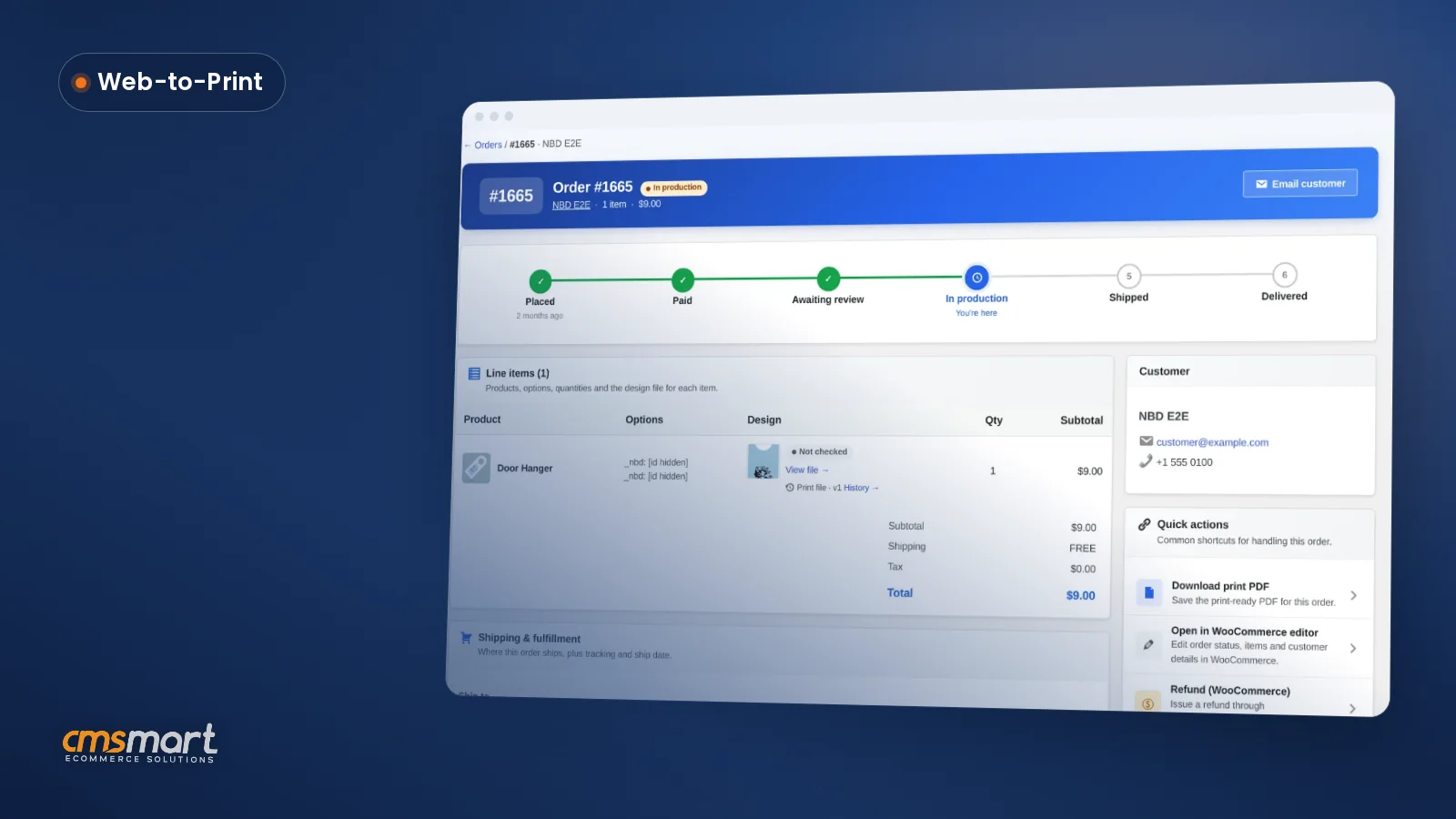
Picture the morning after a busy evening of orders: instead of a stack of designs to turn into print files, your production screen already shows which jobs are Ready, Rendering, or Failed — so the first thing anyone touches is the exception, not the routine.
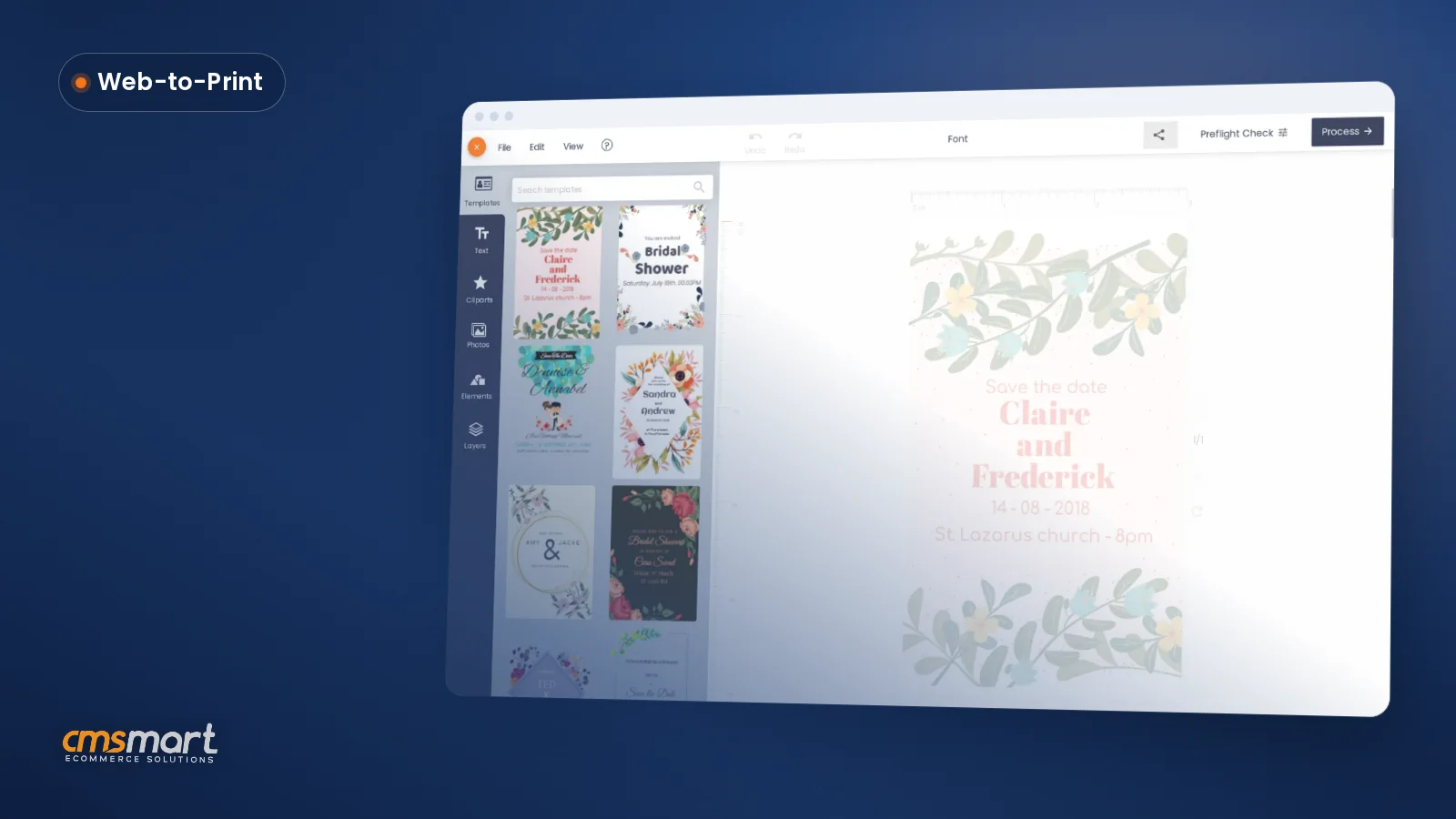
Example scenario. A print shop selling personalized invitations and door hangers turns on automatic export at the "Processing" status. A customer designs a save-the-date card at 9pm and pays; by the time the shop opens the next morning, the order's print-ready PDF is already marked Ready, rendered by the cloud renderer.
How does Cmsmart Product Designer turn a WooCommerce order into a print-ready PDF?
Cmsmart Product Designer pipes the order through four stages — designer, approval, render, delivery — so the same renderer behind the automatic export also powers Create PDF, meaning production never downloads a different file from the one already certified.
The building blocks, in the order an order actually moves through them:
What's the business value of automatic print-ready PDFs for your WooCommerce store?
Automatic print-ready PDFs turn file prep from a per-order task into a one-time setting, so a growing personalization business gets the same turnaround on order 500 as order 5 — the value shows up as hours saved, not a feature on a list.
Rough ROI worksheet — fill in your own numbers:
Add your own reprint cost per job and current reprint rate to see what automatic bleed/CMYK handling is worth on top of the labor hours.
For scale: WooCommerce powers roughly 4.53 million active stores, about a third of all tracked ecommerce sites, per StoreLeads' August 2025 count — many of them selling exactly this kind of personalized, print-produced product.
How do you set up a print ready pdf woocommerce orders workflow?
Cmsmart Product Designer needs a handful of settings under WooCommerce → Settings → Cmsmart, not a developer: choose when the file renders, how bleed and DPI are handled, and which formats production can download.
If you are installing the plugin for the first time, start with the installation and activation guide — the steps below assume Cmsmart Product Designer is already active on your WooCommerce store.
Cmsmart insight: the settings below configure the export rules, but the automatic print-ready PDF render and the JPG-CMYK download are Premium-only: with an inactive or free/LITE license, their Download buttons stay disabled and route you to the License screen until you upgrade to Premium.
For the CMYK/ICC profile step specifically: an ICC profile is a standardized color-management file that tells a press or RIP how to reproduce color consistently, defined and maintained by the International Color Consortium.
Can Cmsmart build custom print-ready workflows beyond the plugin?
Cmsmart Product Designer's built-in export covers bleed, CMYK/ICC, watermark control and the approval lock; connecting that file to your press, MIS or ERP, or adding rules the plugin doesn't ship with, is custom development Cmsmart builds for your store.
None of the following ships in the core plugin — they are extensions we build on top of it once the standard export is already running:
Our delivery approach: discovery call, a solution design you approve, build in sprints, QA against real order data, launch, and ongoing support — as in our product designer customization work, artwork approval builds, and wider web-to-print solutions.
Plan my print-ready workflow
Why work with Cmsmart for WooCommerce print-ready automation?
Cmsmart has built and supported WooCommerce product-design and print workflows since 2012 as a Netbase JSC division — a plugin production teams already run in real stores.
From a verified Trustpilot review: "NBDesigner is a very robust plugin for printing shops. […] I've been in printing 30 years and I am impressed with how the developers have thought this plugin through. It has everything." — Pamela Redman.
See related work on our Print-Ready Files product page, get the plugin itself from the Cmsmart Product Designer plugin page, or read two related tutorials: web-to-print and print API integrations and how DPI affects print quality.
Frequently asked questions
Does the print-ready PDF match what the customer actually ordered, including a custom size?
Yes. Since 2.17.0, the automatic render, both renderers, and Create PDF all read the same page geometry — including a buyer's custom width and height — instead of the product template's default size.
Will the customer's watermarked preview ever end up as the production file?
Not if Output → Watermark is set to "No" or "Before complete order": watermarking is a store-wide setting applied to previews, so the file production downloads is always the clean one.
What happens if a design changes after the print-ready PDF was already made?
Editing an approved order's design is refused by the approved-artwork lock unless a shop widens it; editing a design that isn't yet approved queues a fresh print-ready render automatically, and the order detail flags the change so it isn't missed.
Can production get CMYK files instead of a PDF?
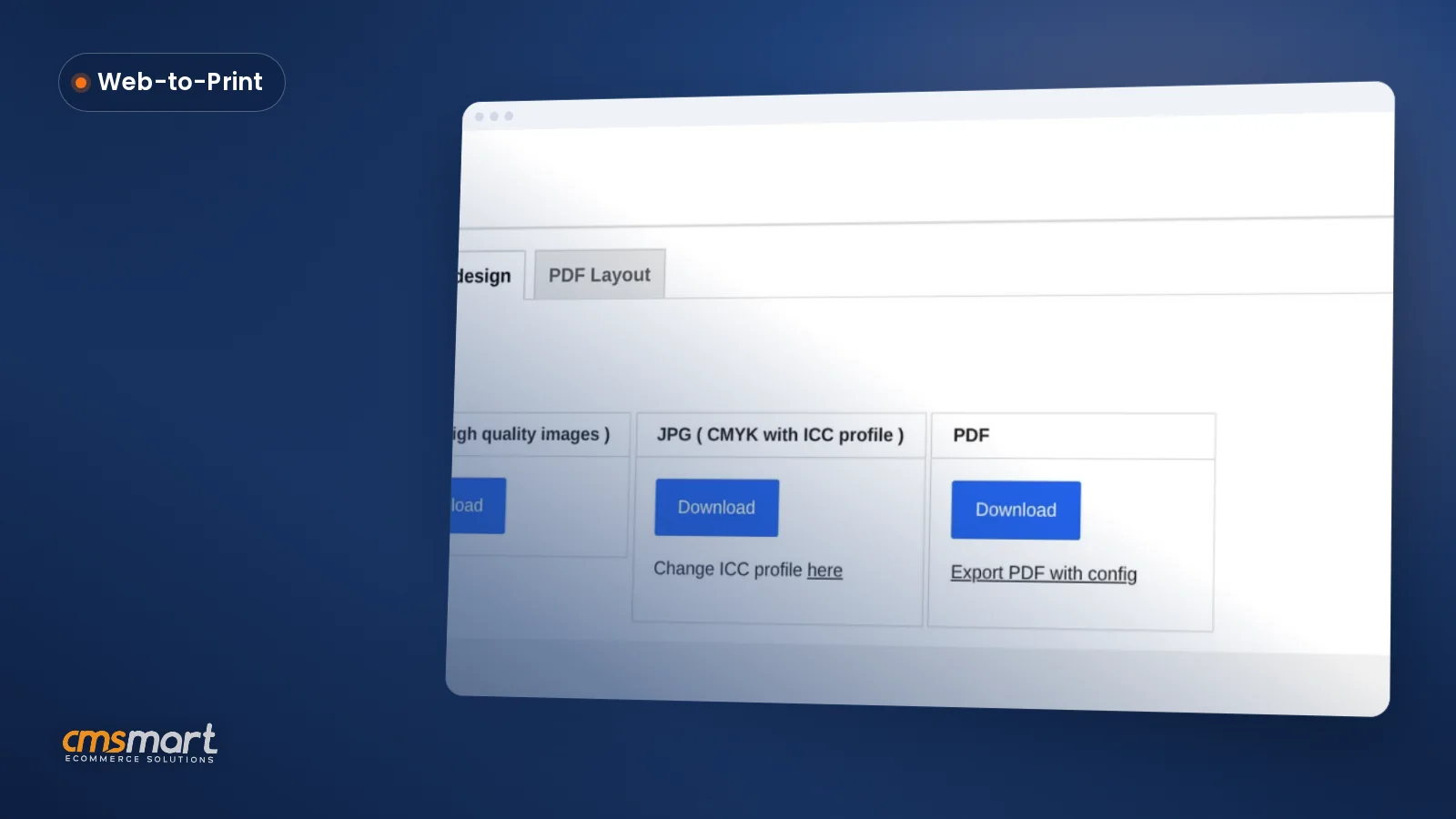
Yes — Download design offers JPG with a CMYK profile and selectable ICC profile alongside PDF, SVG and PNG, for RIPs that prefer CMYK raster input.
Can Cmsmart connect our print-ready files to our own MIS or print API?
The plugin generates and stores the certified file; pushing it automatically into your MIS, ERP or a print API's hot folder is custom development we build around your specific system — it isn't a built-in integration today.
Do I need a paid license for the automatic print-ready PDF and the JPG-CMYK export?
Yes. Both the automatic print-ready PDF render and the JPG-CMYK download are Premium-only: with an inactive license or a free/LITE key, their Download buttons are disabled and link to the License screen instead of producing a file, until you activate a Premium license.