


Applies to Cmsmart 3D Print Store 2.0.0 (parent Cmsmart Stores 2.0.0) · Cmsmart Product Designer 2.17.1 · Cmsmart Stores Blocks 2.0.1 · WooCommerce 11.2.1 · Updated October 2026. Screenshots in this guide come from a real installation of the Cmsmart 3D Print Store on a WordPress/WooCommerce site.
In short
A ready-made WooCommerce storefront for personalized 3D-printed products, with branding, a sample catalogue, and the Cmsmart Product Designer already wired to a demo product.
Cmsmart's Store Setup wizard installs the theme, plugin and sample data in one pass; you spend the first hour on branding, products, payments, shipping and a test order.
It takes a Fullstore (or higher) licence, a WordPress host with WooCommerce, and about an hour before you replace the sample data with your own.
The Cmsmart 3D Print Store turns WordPress into a 3D printing store WooCommerce shoppers can order from: a pre-built theme and demo catalogue bundled with the Cmsmart Product Designer (formerly NBDesigner) so buyers configure a product before paying. Install it with Cmsmart's Store Setup wizard, spend an hour on branding, products, payments and shipping, and it's ready to sell.
Why does launching a 3D print store the old way cost you weeks?
A generic WooCommerce theme gives you a blank shop: no products, no personalization flow and no pricing rules for materials. Cmsmart ships a themed storefront, a sample catalogue and the product designer already connected, so the first hour is configuration, not construction.
Sellers who start from a bare theme usually hit the same wall points:
No personalization path. WooCommerce sells fixed SKUs out of the box; letting a buyer choose a color or upload artwork means wiring in a separate plugin yourself.
Pricing by material and finish. A print shop prices by filament, resin and finish, not one product price — without a price-matrix tool that is a spreadsheet and manual quoting.
Empty-shop syndrome. No demo content means no pages, no menus and no sample products to work from.
Payments and shipping from scratch. Every new store still needs a payment method and a shipping or pickup zone before it can take an order.
Put a rough number on it: hours wiring a design plugin and a price matrix + hours building pages from zero + your hourly rate. For most small teams that's several working days before the store can take its first order — against the one hour this guide walks through.
What would your 3D print store look like after one hour?
An hour in, Cmsmart gives you a live WooCommerce store with your logo and colors, a sample catalogue of 3D-printed products, and the Product Designer already attached to a demo product — ready for you to swap in your own prints and go live.
Example scenario. A small print shop owner picks the Cmsmart 3D Print Store before lunch. By the time they're back, the installer has built a live site with the theme active. They spend the next hour swapping the logo, opening the Product Designer tab on a demo product, turning on a payment method and a local-pickup zone, then place one test order before replacing the sample catalogue with their own prints.
How does Cmsmart build a 3D print store for you?
Cmsmart's Store Setup wizard installs the printstores-3d theme on the Cmsmart Stores parent theme, WooCommerce, the Cmsmart Product Designer plugin and a sample catalogue together, so you configure one connected store instead of assembling a theme and a design plugin separately.
The released content tree installs:
Cmsmart 3D Print Store 2.0.0, a child theme of the Cmsmart Stores 2.0.0 parent, built on the WordPress block editor and Site Editor.
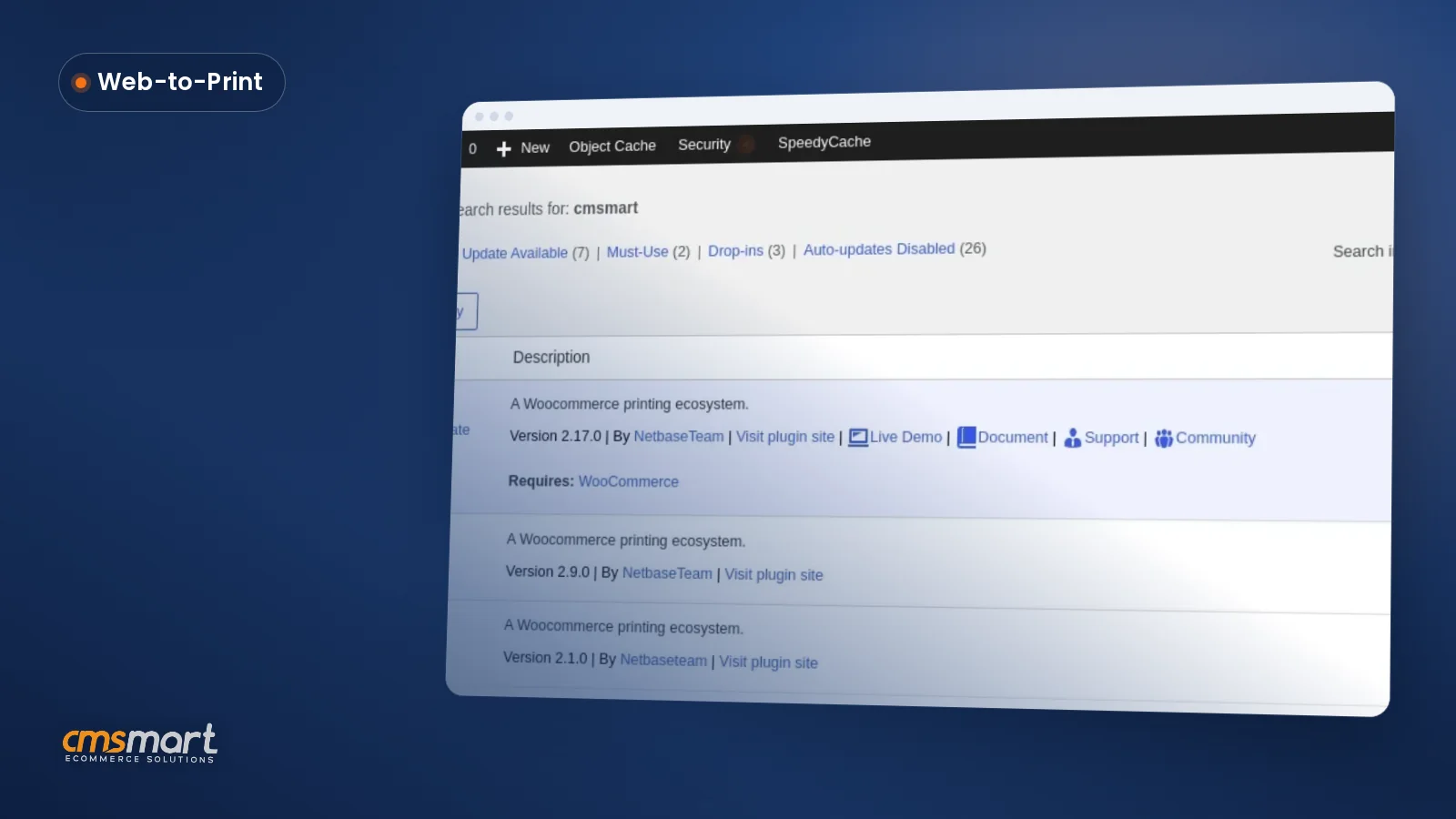
Cmsmart Product Designer 2.17.1 (formerly NBDesigner), already attached to a demo product.
Cmsmart Stores Blocks 2.0.1, the block-editor components the theme's patterns use.
A sample catalogue: pages, menus and demo products you edit instead of building from zero.
Appearance > Themes confirms the bundle: Cmsmart 3D Print Store is active, with the Cmsmart Stores parent theme installed alongside it.
Cmsmart insight: Check Appearance > Themes and Plugins once before branding — a child/parent theme pair plus a designer plugin is three moving parts, and knowing their versions saves a support ticket if something looks different from a screenshot.
Keep Cmsmart Product Designer up to date: when WordPress shows an update under Dashboard > Updates, install it.
How do you set up a 3D Printing Store WooCommerce site in an hour?
You install the Cmsmart 3D Print Store once through Cmsmart's Store Setup wizard, then configure it: branding, pages, your catalogue, the Product Designer tab, payments, shipping and a test order — about an hour from install to a store you could point a customer at.
Install first, then configure. Cmsmart's dashboard installer downloads one PHP file you upload to an empty folder (about 10 minutes), or you install the theme files and plugin by hand (about 30 minutes); either way it runs with sample data from the first minute. The full walkthrough is in the Cmsmart Store Setup install guide — this post picks up once the store is live. See the full feature list on the Cmsmart 3D Print Store product page.
The first hour, step by step
Set your logo and header. In the Site Editor, open the Header template part and replace the Site Logo block; the menu and cart/account icons are already wired.
Edit the footer. Open the Footer template part and update the address, phone, email and support links — the sample footer ships with placeholder contact details.
Set your site title and icon. In Settings > General, replace the sample Site Title and upload your own site icon.
Check the imported pages. Pages > All Pages lists every page the sample data created (About, Cart, Checkout, My account and more) to edit in place.
Review the sample catalogue. Products > All Products shows the demo items. Treat names and descriptions as placeholders — sample copy doesn't always match the product (a phone case can carry sticker copy by default).
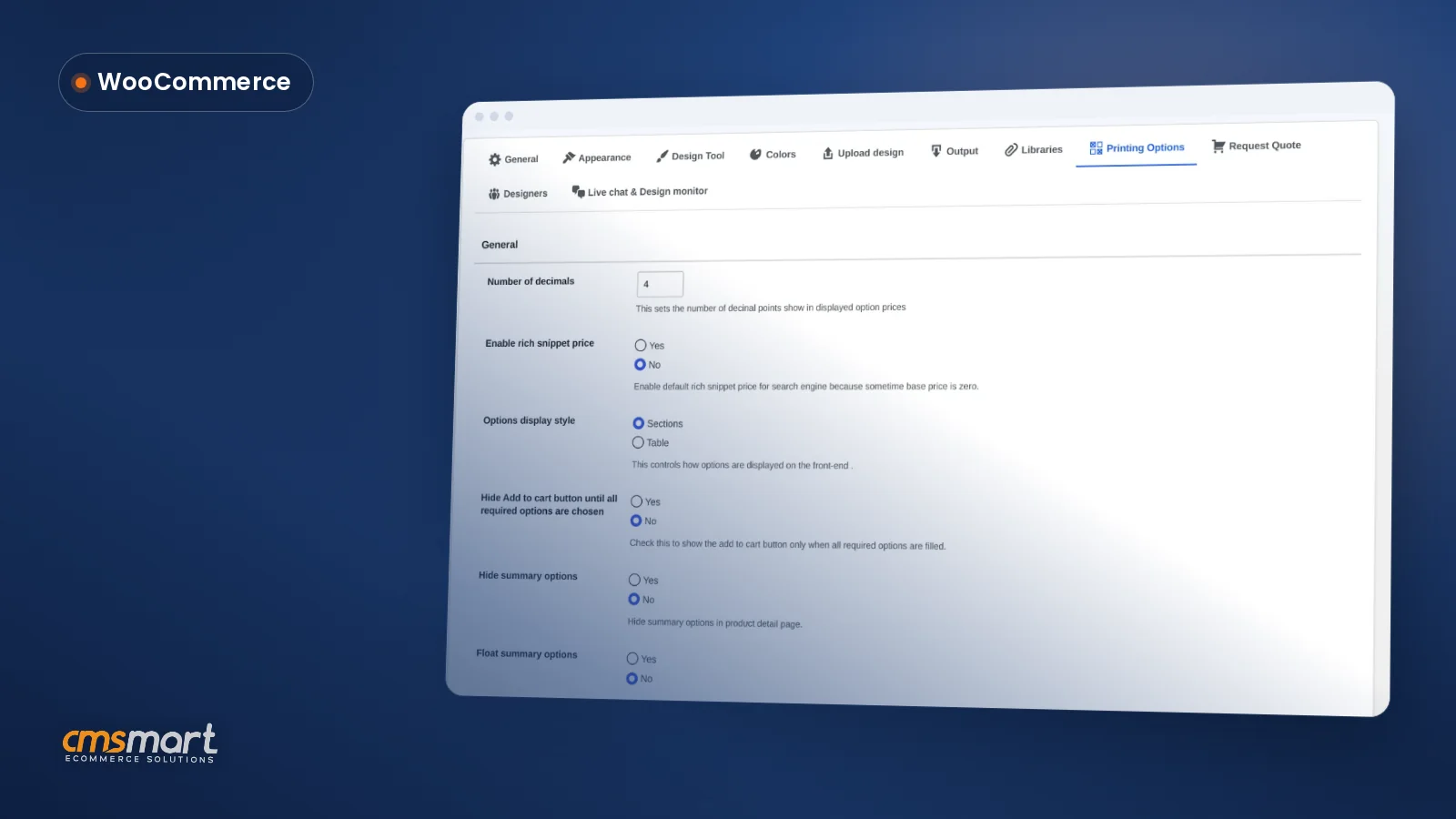
Open the Product Designer tab. A demo product's "Setting Cmsmart" box shows Enable Design, layout and DPI already configured, next to a Printing Option box for a priced option set (material, finish, size).
Set your store address and locations. WooCommerce > Settings > General holds the address, selling/shipping locations and default customer location.
Turn on a payment method. WooCommerce > Settings > Payments lists its own methods, PayPal Payments and offline options.
Set a shipping zone. WooCommerce > Settings > Shipping ships with one sample zone (Local pickup) to rename and extend.
Place a test order. Add the demo product, press Start Design, step through the designer, and check out with a test payment.
Check the storefront on a phone. Price, options and the Start Design button should all still work at phone width.
Go live. Bind your licence key to your real domain under Commerce > Your Licenses, then remove the sample data.
The header template part: swap the Site Logo block here to rebrand the storefront without touching code.The footer template part: the sample address, phone and email are demo placeholders — replace them before launch.Pages > All Pages: a full page set imported for you to edit in place.Products > All Products: the sample catalogue to click through and replace, not a finished product line.A demo product's "Setting Cmsmart" box: Enable Design, editor layout and DPI are already configured.The Printing Option box: attach a priced option set — material, finish or size — to a product.WooCommerce > Settings > General: store address, selling/shipping locations and default customer location.WooCommerce > Settings > Payments: turn on at least one method before you test-order.WooCommerce > Settings > Shipping: one sample zone and a Local pickup method you can rename and extend.The storefront home page, running on the sample data, before any rebranding.A demo product page: Start Design opens the Cmsmart Product Designer directly from the storefront.The designer opened from the product page: templates on the left, and Cmsmart's AI preflight ("Preflight Check") and Process on the toolbar.The same product page on a phone — check price and Start Design are both usable before you launch.
Go-live checklist, once the hour is up:
Logo, header and footer replaced with your branding.
Sample product copy reviewed or replaced, not left as demo text.
One payment method and one shipping or pickup zone active.
A test order placed and visible in WooCommerce > Orders.
Licence key bound to your real domain, not localhost or staging.
Sample data removed once your own catalogue is ready.
Licence keys bind to the first domain that activates them — change the root domain under Commerce > Your Licenses when you move from staging to your live site.
What should 3D print sellers configure differently?
A 3D print catalogue prices by material and finish rather than a flat per-item price, and buyers often need to send their own file for a custom piece — set the Printing Option list and the upload rules to match before you launch.
Price by material and finish, not just size. Use the Printing Option box to list filament or resin options and the price difference for each — the price matrix a 3D print catalogue needs.
Plan for custom requests. The product page supports custom requests through file upload with configurable restrictions, so a buyer with their own model has a path that doesn't depend on email.
State a lead time. 3D printing and finishing takes longer than a same-day job; say so on the product page so buyers set expectations before they pay.
Double-check the category tree. The sample catalogue's categories are generic (business-card categories on a phone case); rebuild them around your actual materials.
What's the business value of launching on Cmsmart instead of a generic theme?
Cmsmart's 3D Print Store turns a blank-theme project into a one-hour configuration task: the storefront, sample catalogue and Cmsmart Product Designer arrive wired together, so the time you'd spend assembling those pieces goes into your products and marketing instead.
Benefit
How it shows up in your business
KPI to track
Faster time to a working store
Store Setup installs theme, plugin and sample data in one pass
Hours from install to a store you could show a customer
A personalization path from day one
Product Designer is already attached to a demo product, with Start Design live
Product views that click Start Design
Priced options instead of one flat price
The Printing Option box charges differently per material or finish
Average order value, customized vs. fixed-price SKUs
Fewer abandoned custom orders
Buyers see a running price before checkout, not after a manual quote
Cart-to-checkout rate on designed products
Personalization is not a guess: a 2026 Deloitte Digital survey found 52% of consumers are more likely to buy from brands that personalize their experience, spending 30% more with them (Deloitte Digital, 2026). The market is growing too: 3D printing services are projected to reach $10.38B in 2026 and $19.01B by 2030, a 16.3% CAGR driven partly by demand for customized production (The Business Research Company, 2026).
Generic WooCommerce theme
Cmsmart 3D Print Store
Starting catalogue
Blank — add every product and page yourself
Sample catalogue, pages and menus already imported
Product personalization
Not built in; wire a separate design plugin
Product Designer already attached to a demo product
Pricing by material/finish
Needs a separate pricing or options plugin
Printing Option box on each product
Branding surface
Varies by theme; often needs a page builder
Site Editor template parts (header, footer) built in
Install path
Manual upload, then hunt for compatible plugins
Setup wizard: one installer file (~10 min) or manual files (~30 min)
Custom model/artwork requests
Needs custom development to collect files safely
File upload with configurable restrictions, built in
This store's checkout runs on WooCommerce's own block-based cart and checkout, built to reduce friction on exactly this kind of multi-option, priced-by-material order (WooCommerce documentation).
What can Cmsmart build on top of the 3D Print Store?
The Cmsmart 3D Print Store covers the storefront, catalogue and 2D personalization flow; a full 3D-configurator or production pipeline is custom development Cmsmart builds for your store, scoped to how you actually print and ship.
Interactive 3D model preview. The built-in designer personalizes 2D artwork on a product image; a true rotate-and-zoom preview of the finished print is custom development.
Production-queue integration. Connecting orders straight into your slicer or print-farm queue, instead of checking WooCommerce > Orders by hand, is a custom integration.
Tiered quoting for bulk and B2B orders. Volume pricing beyond the standard Printing Option list is pricing logic Cmsmart builds to your rules.
Automated proofing for custom files. An automated size/format check on a buyer-uploaded file, before it reaches your print queue, can be built into the upload step.
Cmsmart scopes this work the same way for every project: discovery, solution design, build sprints, QA, launch and support — see the delivery model on Cmsmart's web-to-print solutions hub.
Cmsmart has built ecommerce and web-to-print projects since 2012, with 6,300+ client projects, 4,600+ delivered and 1,800+ live stores today across 80+ countries, plus a 4.2 out of 5 Trustpilot rating — see the figures on Cmsmart's platform page.
Can I use my own products instead of the demo catalogue?
Yes. The sample catalogue exists so the store is never empty, not as a finished product line. Edit or delete the demo products in Products > All Products, add your own, and rebuild the category tree around your actual materials and product types.
Which plan activates the Cmsmart 3D Print Store?
The Fullstore plan activates it, alongside the other Printstores titles; B2B and Marketplace plans include it too. Current plans and pricing are on Cmsmart's pricing page.
Can I change the colors and logo without touching code?
Yes. The theme runs on the WordPress Site Editor, so the logo, header, footer and site-wide colors are edited through template parts and the Styles panel — no theme files to touch. The Cmsmart Store customization guide covers the Styles panel in more depth.
What if my licence key doesn't match the store I picked?
Store Setup checks this before you continue: a key that doesn't cover the store you chose shows an upgrade prompt, and a 30-day trial key is offered if you have none yet. You can also download the theme files free and add a licence later.
Can I sell true 3D model files (STL) instead of printed products?
The Product Designer personalizes a product's 2D artwork and accepts custom file uploads with configurable restrictions; a full 3D model marketplace is a different catalogue, which Cmsmart builds as a custom project.
In short
The Cmsmart 3D Print Store turns WordPress into a 3D printing store WooCommerce shoppers can order from: a pre-built theme and demo catalogue bundled with the Cmsmart Product Designer (formerly NBDesigner) so buyers configure a product before paying. Install it with Cmsmart's Store Setup wizard, spend an hour on branding, products, payments and shipping, and it's ready to sell.
Why does launching a 3D print store the old way cost you weeks?
A generic WooCommerce theme gives you a blank shop: no products, no personalization flow and no pricing rules for materials. Cmsmart ships a themed storefront, a sample catalogue and the product designer already connected, so the first hour is configuration, not construction.
Sellers who start from a bare theme usually hit the same wall points:
Put a rough number on it: hours wiring a design plugin and a price matrix + hours building pages from zero + your hourly rate. For most small teams that's several working days before the store can take its first order — against the one hour this guide walks through.
What would your 3D print store look like after one hour?
An hour in, Cmsmart gives you a live WooCommerce store with your logo and colors, a sample catalogue of 3D-printed products, and the Product Designer already attached to a demo product — ready for you to swap in your own prints and go live.
Example scenario. A small print shop owner picks the Cmsmart 3D Print Store before lunch. By the time they're back, the installer has built a live site with the theme active. They spend the next hour swapping the logo, opening the Product Designer tab on a demo product, turning on a payment method and a local-pickup zone, then place one test order before replacing the sample catalogue with their own prints.
How does Cmsmart build a 3D print store for you?
Cmsmart's Store Setup wizard installs the printstores-3d theme on the Cmsmart Stores parent theme, WooCommerce, the Cmsmart Product Designer plugin and a sample catalogue together, so you configure one connected store instead of assembling a theme and a design plugin separately.
The released content tree installs:
Cmsmart insight: Check Appearance > Themes and Plugins once before branding — a child/parent theme pair plus a designer plugin is three moving parts, and knowing their versions saves a support ticket if something looks different from a screenshot.
Keep Cmsmart Product Designer up to date: when WordPress shows an update under Dashboard > Updates, install it.
How do you set up a 3D Printing Store WooCommerce site in an hour?
You install the Cmsmart 3D Print Store once through Cmsmart's Store Setup wizard, then configure it: branding, pages, your catalogue, the Product Designer tab, payments, shipping and a test order — about an hour from install to a store you could point a customer at.
Install first, then configure. Cmsmart's dashboard installer downloads one PHP file you upload to an empty folder (about 10 minutes), or you install the theme files and plugin by hand (about 30 minutes); either way it runs with sample data from the first minute. The full walkthrough is in the Cmsmart Store Setup install guide — this post picks up once the store is live. See the full feature list on the Cmsmart 3D Print Store product page.
The first hour, step by step
Go-live checklist, once the hour is up:
Licence keys bind to the first domain that activates them — change the root domain under Commerce > Your Licenses when you move from staging to your live site.
What should 3D print sellers configure differently?
A 3D print catalogue prices by material and finish rather than a flat per-item price, and buyers often need to send their own file for a custom piece — set the Printing Option list and the upload rules to match before you launch.
What's the business value of launching on Cmsmart instead of a generic theme?
Cmsmart's 3D Print Store turns a blank-theme project into a one-hour configuration task: the storefront, sample catalogue and Cmsmart Product Designer arrive wired together, so the time you'd spend assembling those pieces goes into your products and marketing instead.
Personalization is not a guess: a 2026 Deloitte Digital survey found 52% of consumers are more likely to buy from brands that personalize their experience, spending 30% more with them (Deloitte Digital, 2026). The market is growing too: 3D printing services are projected to reach $10.38B in 2026 and $19.01B by 2030, a 16.3% CAGR driven partly by demand for customized production (The Business Research Company, 2026).
This store's checkout runs on WooCommerce's own block-based cart and checkout, built to reduce friction on exactly this kind of multi-option, priced-by-material order (WooCommerce documentation).
What can Cmsmart build on top of the 3D Print Store?
The Cmsmart 3D Print Store covers the storefront, catalogue and 2D personalization flow; a full 3D-configurator or production pipeline is custom development Cmsmart builds for your store, scoped to how you actually print and ship.
Cmsmart scopes this work the same way for every project: discovery, solution design, build sprints, QA, launch and support — see the delivery model on Cmsmart's web-to-print solutions hub.
Get a custom 3D print store build quote
Prefer someone else to install and import the demo for you? See Cmsmart's store preset installation & demo import service.
Why Cmsmart for your 3D print store?
Cmsmart has built ecommerce and web-to-print projects since 2012, with 6,300+ client projects, 4,600+ delivered and 1,800+ live stores today across 80+ countries, plus a 4.2 out of 5 Trustpilot rating — see the figures on Cmsmart's platform page.
The same plugin that ships with this store also powers the wider Cmsmart Product Designer line, and the rebranding steps here build on the companion Cmsmart Store customization guide.
Frequently asked questions
Can I use my own products instead of the demo catalogue?
Yes. The sample catalogue exists so the store is never empty, not as a finished product line. Edit or delete the demo products in Products > All Products, add your own, and rebuild the category tree around your actual materials and product types.
Which plan activates the Cmsmart 3D Print Store?
The Fullstore plan activates it, alongside the other Printstores titles; B2B and Marketplace plans include it too. Current plans and pricing are on Cmsmart's pricing page.
Can I change the colors and logo without touching code?
Yes. The theme runs on the WordPress Site Editor, so the logo, header, footer and site-wide colors are edited through template parts and the Styles panel — no theme files to touch. The Cmsmart Store customization guide covers the Styles panel in more depth.
What if my licence key doesn't match the store I picked?
Store Setup checks this before you continue: a key that doesn't cover the store you chose shows an upgrade prompt, and a 30-day trial key is offered if you have none yet. You can also download the theme files free and add a licence later.
Can I sell true 3D model files (STL) instead of printed products?
The Product Designer personalizes a product's 2D artwork and accepts custom file uploads with configurable restrictions; a full 3D model marketplace is a different catalogue, which Cmsmart builds as a custom project.