


Cmsmart Ecommerce provides custom ecommerce and WooCommerce development services for web-to-print, product personalization, plugin support and API integration.

Cmsmart WooCommerce Development Lead
Leads custom WooCommerce builds: architecture, checkout, performance and integrations.
Meet the team →
Top
In short
A personalized gift store WooCommerce setup does not have to take weeks: Cmsmart Gift Store is a ready-made shop for mugs, pillows, cushions and photo prints, with the Cmsmart Product Designer already wired into one demo product. Install it, rebrand it and run a test order, and the store is live in about an hour.
What does it cost to sell personalized gifts without a store built for it?
Cmsmart Gift Store removes the manual back-and-forth behind selling personalized mugs, pillows and prints: a customer designs and previews their artwork online, sees the exact price before paying, and the order lands in WooCommerce with the file and options already attached — no emailed proofs, no re-typing into a spreadsheet.
Most shops selling personalized gifts without a store built for it hit the same problems:
This friction is measurable: the Baymard Institute's meta-analysis of 50 studies puts average documented cart abandonment at 70.22% (updated September 2025), with unexpected checkout cost a top reason shoppers give for leaving. A quote-based flow that hides the price until an email comes back adds exactly that friction to a gift purchase. A rough formula for your own numbers: hours lost to manual proofing per month ≈ (orders needing a proof) × (minutes per email round-trip) ÷ 60.
What could your gift store look like after launch?
Cmsmart Gift Store shows a buyer the price as they personalize a mug or pillow, so a shopper goes from browsing to a paid, print-ready order in one visit instead of waiting on a quote — and the order is already sitting in WooCommerce, artwork attached, before your team opens a laptop.
Example scenario: A shopper opens your gift store at 9pm, picks a photo pillow, uploads two photos into the online designer, and watches the final price update as they choose a colour. They check out. By the time your team opens WooCommerce the next morning, the order is already there with its artwork, option choices and a print-ready file attached — no email thread, no re-pricing.
How does Cmsmart put a gift store together for you?
Cmsmart builds the Gift Store from the same building blocks as every Printstores pack: the Cmsmart Stores parent theme for branding, a store-specific child theme with a demo catalogue, Cmsmart Product Designer for personalization and pricing, and WooCommerce for checkout, payments and shipping — all installed together through Store Setup v2.
Four pieces do the work: Cmsmart Stores (parent theme: shared layout and design tokens), Cmsmart Gift Store (child theme + demo content: branding, pages, catalogue), Cmsmart Product Designer (the design tool and pricing engine wired into the demo products), and WooCommerce (cart, checkout, payments and shipping).
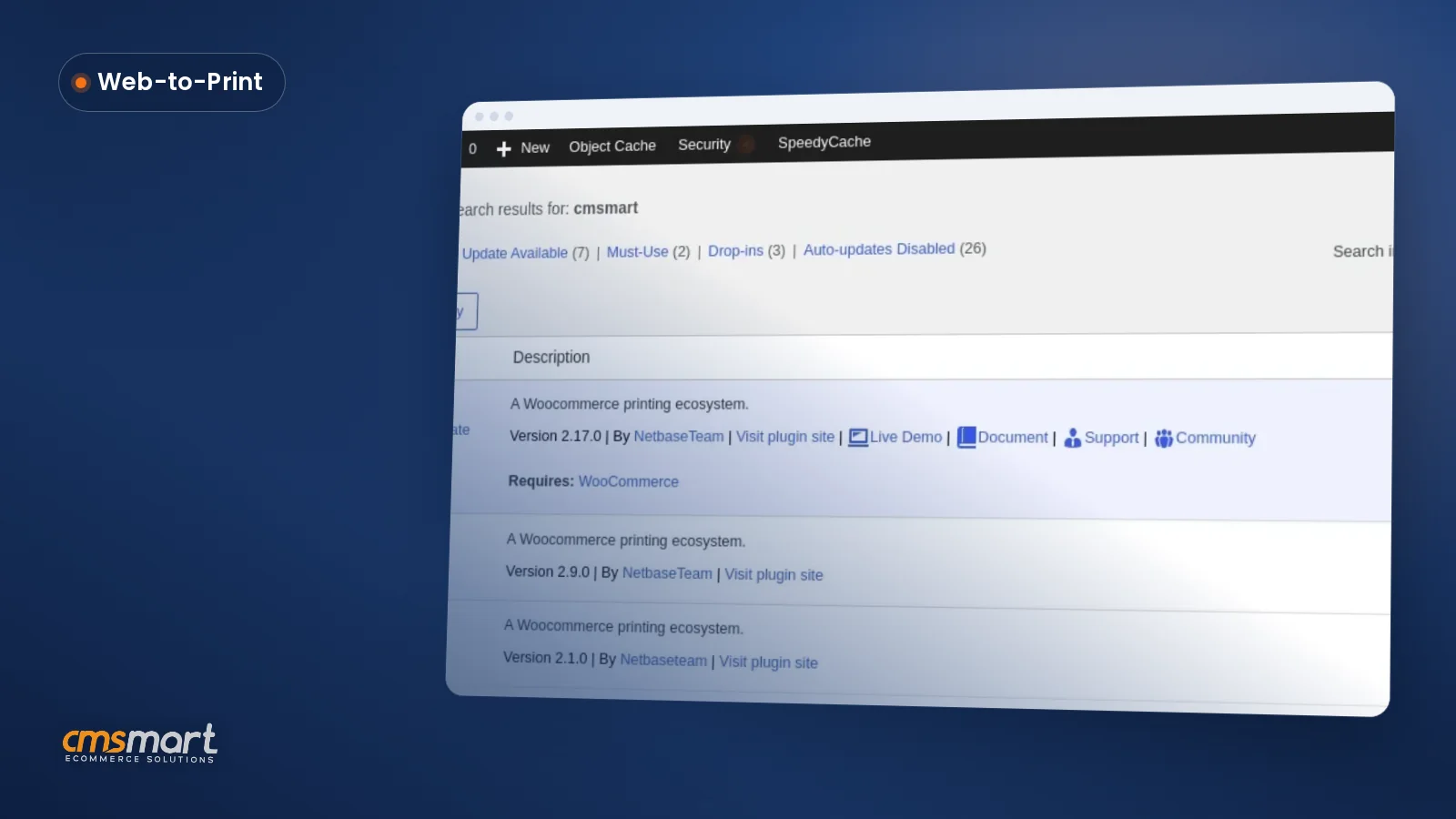
The Printstores 2.0.0 content tree installs Cmsmart Product Designer 2.18.0 and Cmsmart Stores Blocks 2.0.0 — the versions these screenshots show. Keep the designer current: install its update under Dashboard > Updates whenever WordPress shows one. Two named pieces work behind the scenes: Cmsmart Cloud renders the print-ready PDF that matches the order once Process is pressed, and AI preflight flags sizing issues in the designer first.
Cmsmart insight: Most support questions after a quick store setup are about a Fullstore licence key reused on a second domain. Store Setup v2 binds the key to the first domain that activates it, so start the install on the live domain whenever you can.
Install the store first
Store Setup v2 downloads an installer file (or the parent and child theme zips) and walks through the upload, WordPress and licence steps on your own host — covered in full in Install Cmsmart Store on WordPress: parent + child theme. Follow that end to end first. Installer kit 2.0.3 then opens the store live on your domain, no WooCommerce "coming soon" page in the way, and you land in the wp-admin screens below.
How do you set up the Cmsmart Gift Store in your first hour?
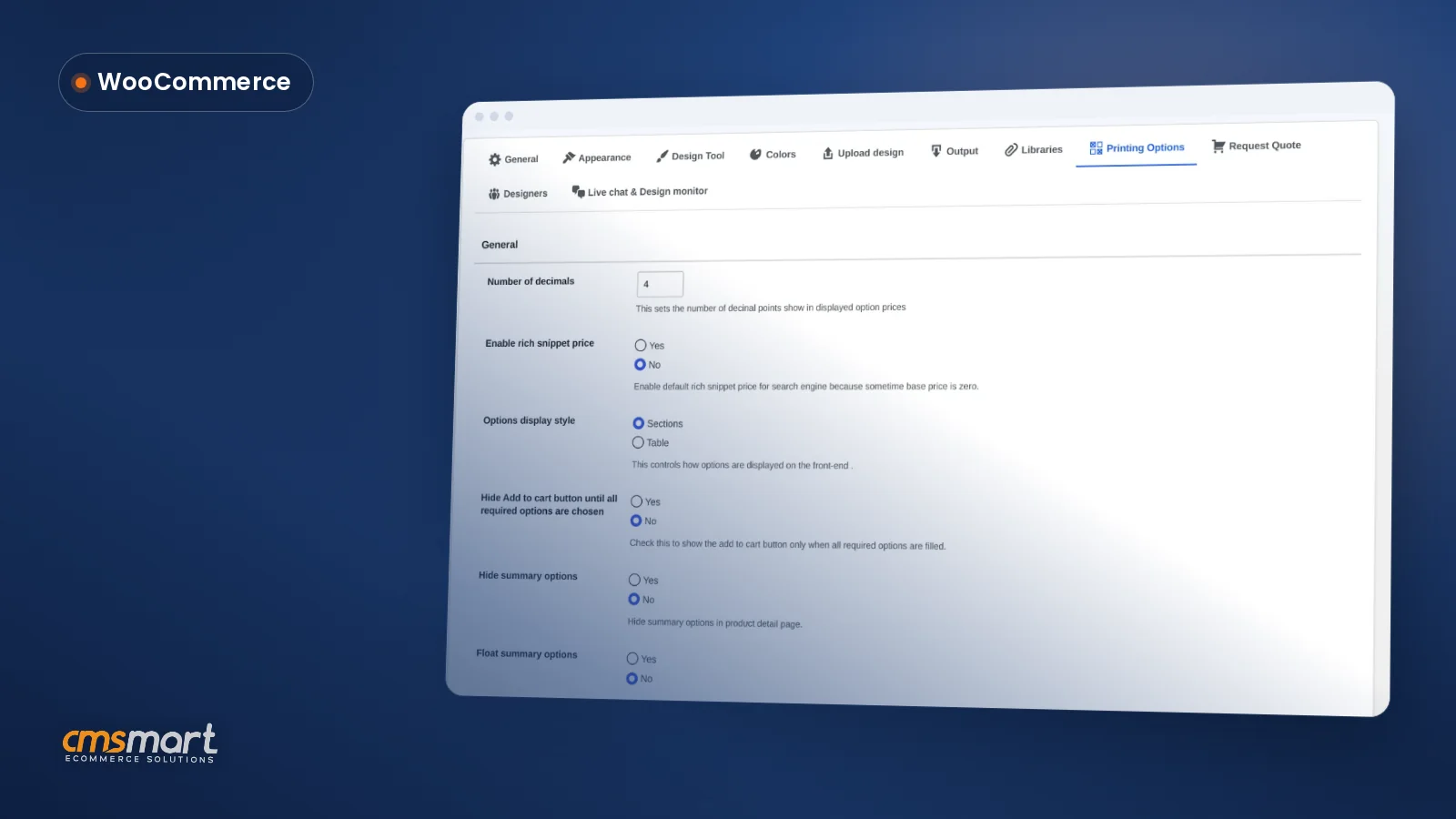
Cmsmart Gift Store gives you a working personalized gift shop within an hour of install: rebrand the header, review the imported pages and sample catalogue, check the Cmsmart Product Designer tab on one demo product, connect payments and shipping, then run a test order before you tell anyone the store is open.
Before you share the store link, run through a short go-live checklist:
What should you customize first for a personalized gift shop?
Cmsmart Gift Store ships with one fully configured demo product, a price matrix and ready seasonal templates in the designer — reuse all three as your starting point instead of configuring every new product from a blank screen.
Cmsmart insight: The sample catalogue is realistic enough that teams forget it is placeholder data. Make "remove sample data" its own line on the go-live checklist, not something you assume happened during install.
What's the business value of a personalized gift store WooCommerce setup versus a generic theme?
Cmsmart Gift Store gets a personalization-ready storefront live in about an hour because the product designer, live pricing and a demo catalogue are already wired together; a generic WooCommerce theme gives a gift seller none of that without separate plugins and custom wiring.
Track the launch against a short set of KPIs rather than a vague "did it work" feeling:
Rough staff-time ROI: hours saved per month ≈ (orders that used to need a manual proof) × (minutes per proof) ÷ 60. Example: 40 orders at 12 minutes each is 8 hours a month back once price and proof are shown in the designer instead of over email. Use your own volume and proofing time.
How do you go further with custom development on the Gift Store?
Cmsmart builds the features a growing gift catalogue needs next — gift notes, corporate bulk ordering, loyalty boxes and ERP hand-off — as custom development on top of the Gift Store, because they are not part of the core pack.
A few things we regularly build on top of the core pack as a gift catalogue grows: gift note and gift-wrap options at checkout; corporate and bulk gifting portals (one payment, many ship-to addresses and personalizations); loyalty and subscription gift boxes; ERP or fulfilment integration so approved designs and print-ready files push straight into production; and custom seasonal landing pages tied to the designer's template library.
We run every engagement the same way: discovery, solution design, build in sprints, QA, launch and ongoing support — the model behind our ecommerce project case studies.
Plan my gift store build-out
Prefer to start with the preset and demo import done for you? See our store preset installation service.
Why Cmsmart for your gift store?
Cmsmart has run ecommerce projects since 2012 as a Netbase JSC division, with 6,300+ client projects and 1,800+ live stores today — including personalization storefronts like this Gift Store — backed by a 4.2 Trustpilot rating from 404 reviews.
The numbers come from Cmsmart's own project records: 6,300+ client projects and 4,600+ delivered since 2012, 1,800+ live stores online now, in 80+ countries. Trustpilot rates Cmsmart 4.2 out of 5 from 404 reviews, including: "the designer works exceptionally well across all devices and allows us to create the exact customisations required to perfectly fit our products and our business model" — Web Developer, Trustpilot review.
Browse web-to-print storefronts Cmsmart has built beyond gifts. For the plugin behind the designer, see Cmsmart Product Designer, and check pricing plans for which activates a store. More detail: Cmsmart Product Designer user guides and customising a Cmsmart store, or the live demo itself.
Frequently asked questions
Can I use my own products instead of the demo catalogue?
Yes. The demo catalogue is sample data showing the layout and how the designer is wired to a product — add your own products and remove the sample data from Cmsmart Stores > demo content > Remove sample data before launch.
Which plan activates the Cmsmart Gift Store?
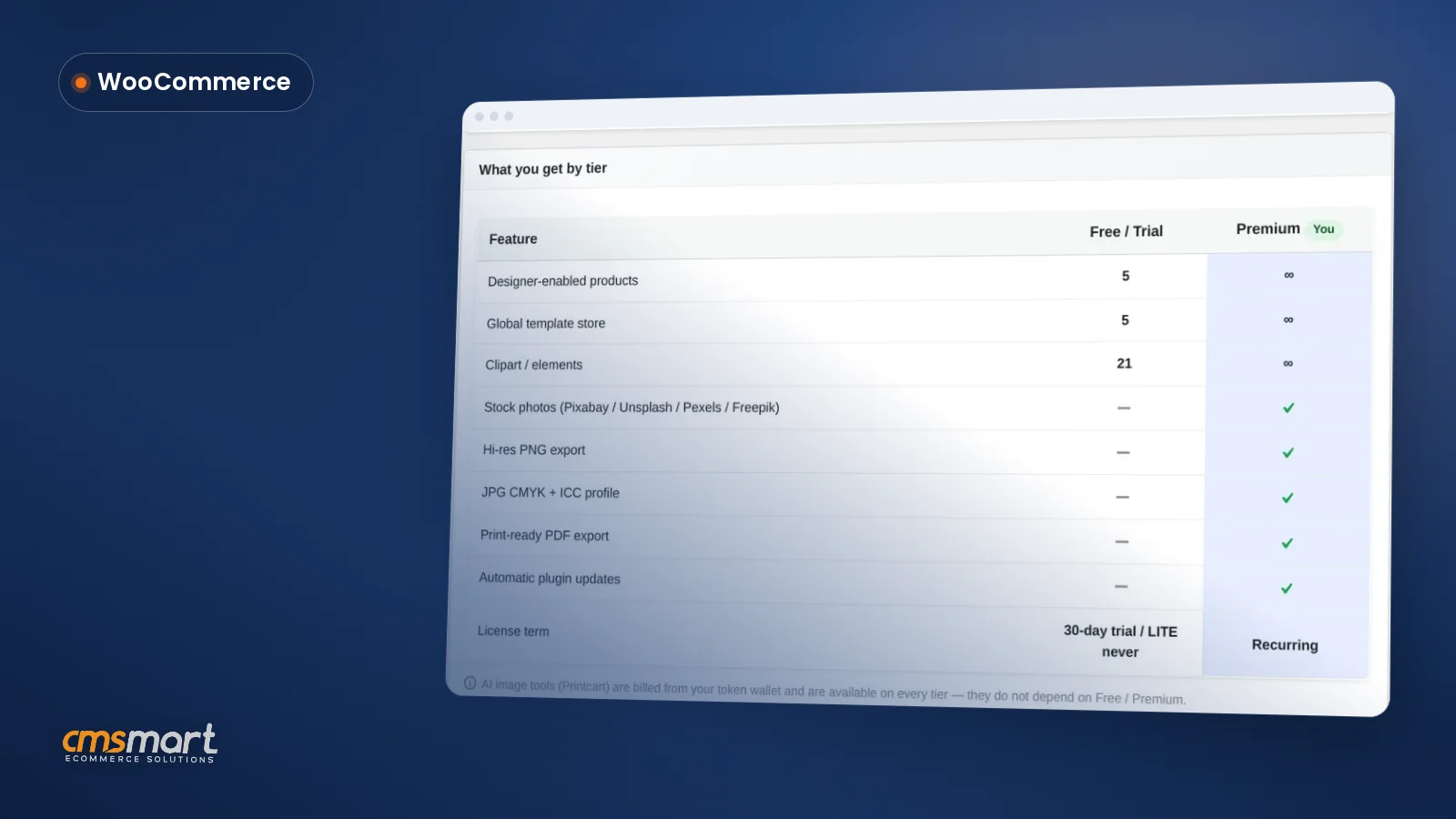
A Fullstore plan (or the B2B or Marketplace plans above it) activates every Printstores pack, including the Gift Store; see Cmsmart's pricing page for current plan names.
Does the gift store come with a gift note or gift-wrap option?
Not in the core pack — the demo shows colour and personalization options through the Cmsmart Product Designer, but a gift-message or gift-wrap field at checkout is custom development Cmsmart builds on top of the store.
Does the store show a "coming soon" page while I'm setting it up, and what about the demo images?
No coming-soon page: since installer kit 2.0.3, a Store Setup v2 install opens live on your domain right away. That makes the go-live checklist the real gate — remove the sample catalogue and demo images from Cmsmart Stores > demo content and switch payments out of test mode before you share the link.