
Guide · Web-to-print
Cmsmart Stores Setup Wizard: What's New, October 2026
The Cmsmart Stores Setup wizard installs niche, B2B and Marketplace stores with sample data live in minutes. See what changed and try it free.
A WooCommerce store selling engraved tumblers, invitations or custom apparel usually starts with a handful of dropdown fields bolted onto the product page, then hits a wall: shoppers want to see their name, their logo or their photo on the product before they click "Add to cart." That single moment, more than any feature list, decides whether a form field is still enough or whether the store needs a visual product designer.
Was this tutorial helpful?
Written by the Founder & CEO
Huy Nguyen (David), Founder & CEO
Huy Nguyen (David) is the Founder & CEO of Cmsmart Ecommerce, a division of Netbase since 2012. His focus is strategic planning and customer success: helping online stores choose the right platform, tools and AI approach for their business. He writes the Cmsmart strategy, AI, business and comparison guides and is happy to talk directly with store owners.
For support and project requests, please open a ticket in your dashboard — the official channel.
More from David →The team behind it
 Account Manager
 Project Manager
 Business Analyst
 Developers & QA
Guide · Web-to-print
The Cmsmart Stores Setup wizard installs niche, B2B and Marketplace stores with sample data live in minutes. See what changed and try it free.
Guide · Web-to-print
The NBDesigner plugin now gives stationery shoppers a curated background library so print-ready PDFs always match the preview. See how to set it up.
Guide · Web-to-print
See how t-shirt artwork approval and print-ready PDFs cut POD reprints on WooCommerce; get a free workflow review from Cmsmart today.

Cmsmart Ecommerce provides custom ecommerce and WooCommerce development services for web-to-print, product personalization, plugin support and API integration.
Huy Nguyen (David), Founder & CEO
Writes about ecommerce strategy, AI and the business decisions behind online stores.
Meet the team →


In short
This WooCommerce product add-ons vs product designer comparison shows when a simple option field is enough, what a visual designer actually looks like in production, and how Cmsmart builds the rest when a store's workflow goes beyond either plugin's defaults.
WooCommerce product add-ons vs product designer: when do simple fields start costing you sales?
Cmsmart has watched the same pattern across print shops and POD brands on WooCommerce: a dropdown or text field works well until a shopper needs to picture the finished product first. Then checkout stalls, support receives an email with an attached photo, and staff rebuild the order by hand. Cmsmart Product Designer removes that manual step by showing the result before the buyer pays.
Five pains show up on stores that rely only on add-on fields once products get visual: shoppers can't preview a logo, name or photo on the product, so they abandon rather than guess; staff manually proof artwork sent by email, which does not scale past a handful of orders a day; every size or material change means re-pricing by hand instead of reading a matrix; print files arrive in whatever format the customer sent, so someone has to rebuild them for production; and returns or reprints climb because what the buyer approved by email is not exactly what got printed.
WooCommerce's own Product Add-Ons extension is a capable, purpose-built tool for the first job: nine field types, three pricing models (flat, quantity-based, percentage-based) and 100K+ active installs, for $79 a year (official product page, accessed October 2026). It is built for exactly what its name says — add-ons, not a design canvas. WooCommerce's own documentation is explicit about that boundary: the extension ships with no built-in conditional logic and no visual product preview (official documentation, accessed October 2026). ThemeComplete's Extra Product Options goes further on logic — AND/OR conditions and formula-based pricing, used by a claimed 36.6k stores with a 4.87-star rating from 1,277 reviews, from $59 a year (official product page, accessed October 2026) — but it is still a form builder, not a live preview of the finished product.
What does a good WooCommerce customization experience look like for shoppers?
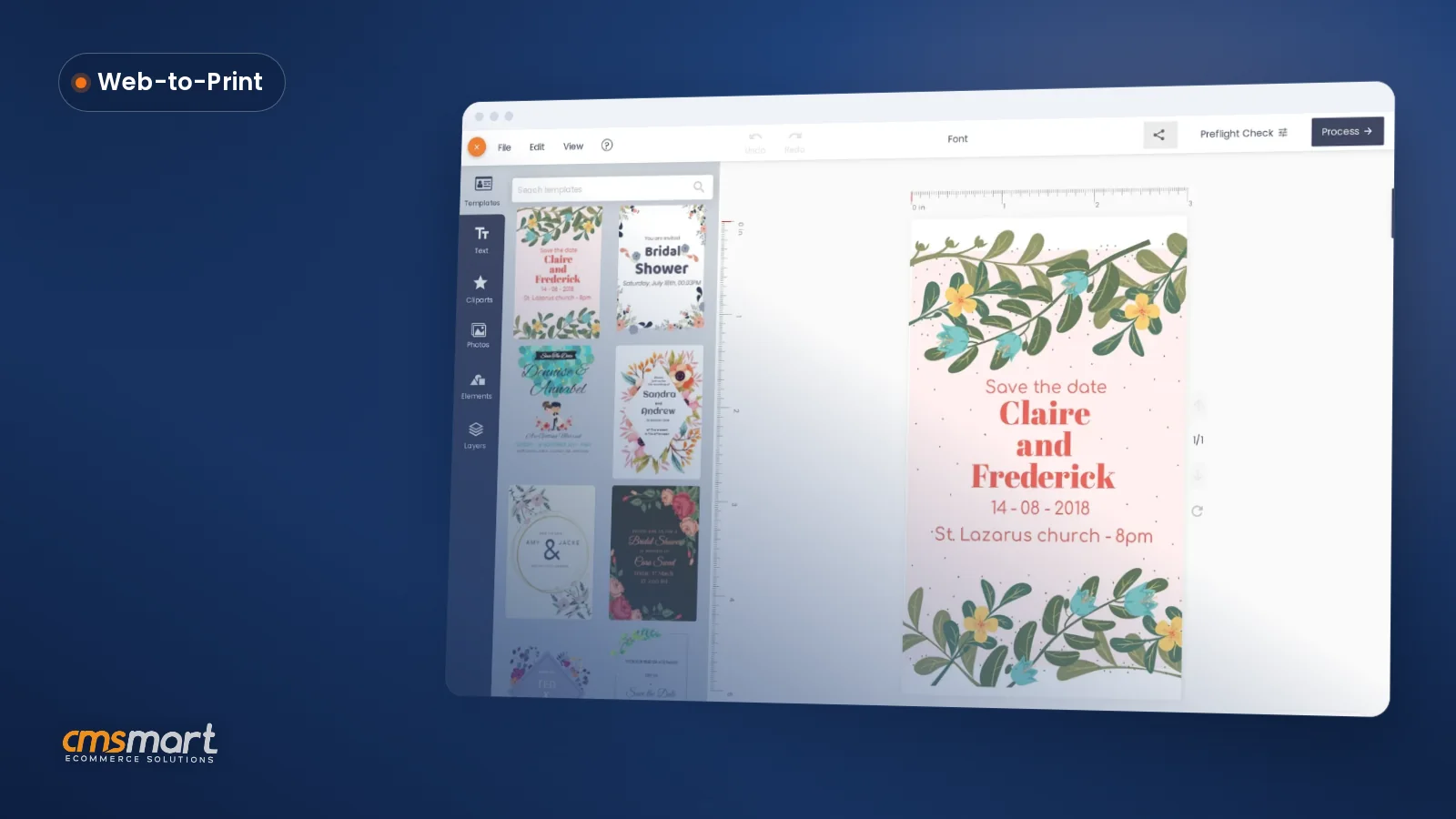
Cmsmart Product Designer puts the whole decision on the product page: pick a template or upload artwork, add text, watch the price update, then check out. For a print shop or POD brand, that single screen replaces days of email attachments and manual quotes with one visible, priced, ready-to-produce design.
Example scenario: a shopper visits a stationery store at 9pm to order wedding invitations. Instead of emailing a logo and waiting for a mockup, they open the product page, pick "Design here online," drop in their own wording over a template, watch the price update as they adjust paper and quantity, and check out the same night. The print-ready PDF is already queued when the shop opens the next morning.
How does Cmsmart Product Designer work for WooCommerce stores?
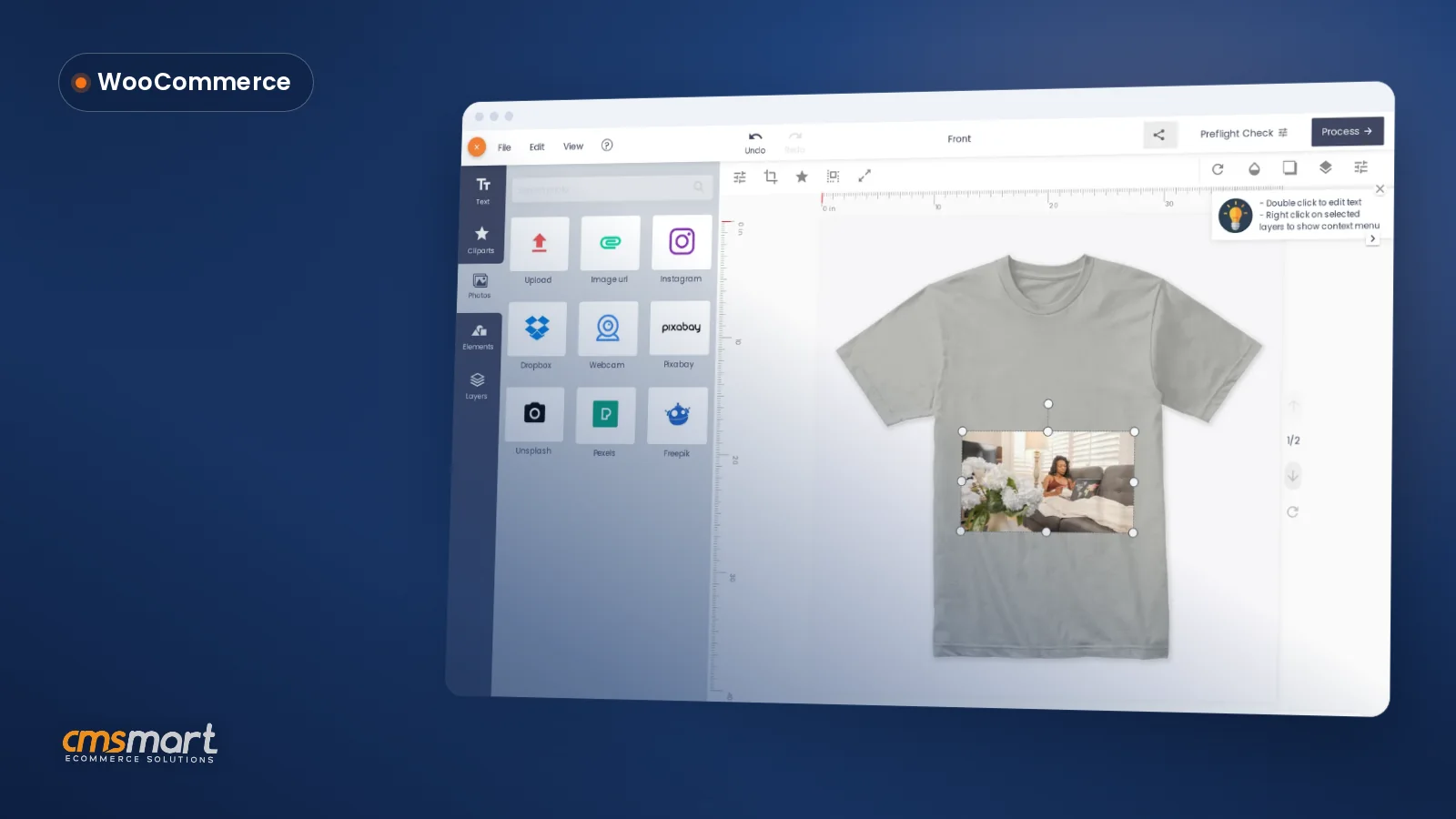
Cmsmart Product Designer adds a canvas to the product page with templates, text, cliparts, photo uploads and layers, plus the same price-matrix style print options a simple add-on field offers. Buyers design or upload, the price recalculates live, and Process turns the result into cart-ready artwork and a print file for your team.
The building blocks of Cmsmart Product Designer (NBDesigner) are: a storefront entry point on the product page; the canvas itself (templates, text, images, layers); print options with a price matrix for material, size and quantity, so simple choices don't need a second plugin; Process, which saves the design as "Your artwork" on the cart item; and, on the admin side, the order screen, the artwork approval box, and an automatic print-ready PDF that matches the order — a fix shipped in 2.17 so the automatic render and the admin's Create PDF read the same page geometry, including custom sizes.
Cmsmart insight: put a resolution and AI preflight check in front of every upload field, not only inside the full designer. A low-resolution photo the buyer already approved is harder and costlier to fix after an order ships than before it, whichever plugin collected the file.
What's the business value of moving from add-on fields to a visual designer?
Cmsmart Product Designer turns three slow, manual jobs — quoting, proofing and file prep — into one priced, approved, print-ready flow. The value shows up as staff hours given back, fewer reprints from mismatched artwork, and checkout that no longer depends on an email exchange before the buyer will commit.
Three mechanisms drive the return: fewer manual quotes, because the price matrix and canvas price the order the moment the buyer finishes designing; fewer reprints, because the approved-artwork lock stops a design from being edited again once an order item is approved, so production always uses the file that was signed off; and faster checkout, because the buyer sees the result instead of waiting for a mockup email. Track them with KPIs you already have: proof emails per week, average time from "add to cart" to "paid," and reprint rate. If print options and price matrices are new to your team, our walkthrough on building a price matrix table covers the pricing mechanics in more depth.
Rough the numbers for your store: (proof emails avoided per month) × (minutes per email round-trip) × (your hourly staff cost ÷ 60) = monthly staff time you get back. Add (current reprint rate) × (average cost per reprint) to see what a tighter approval workflow is worth before you weigh it against a designer plugin's price.
How to set up a visual product designer alongside your WooCommerce product add-ons
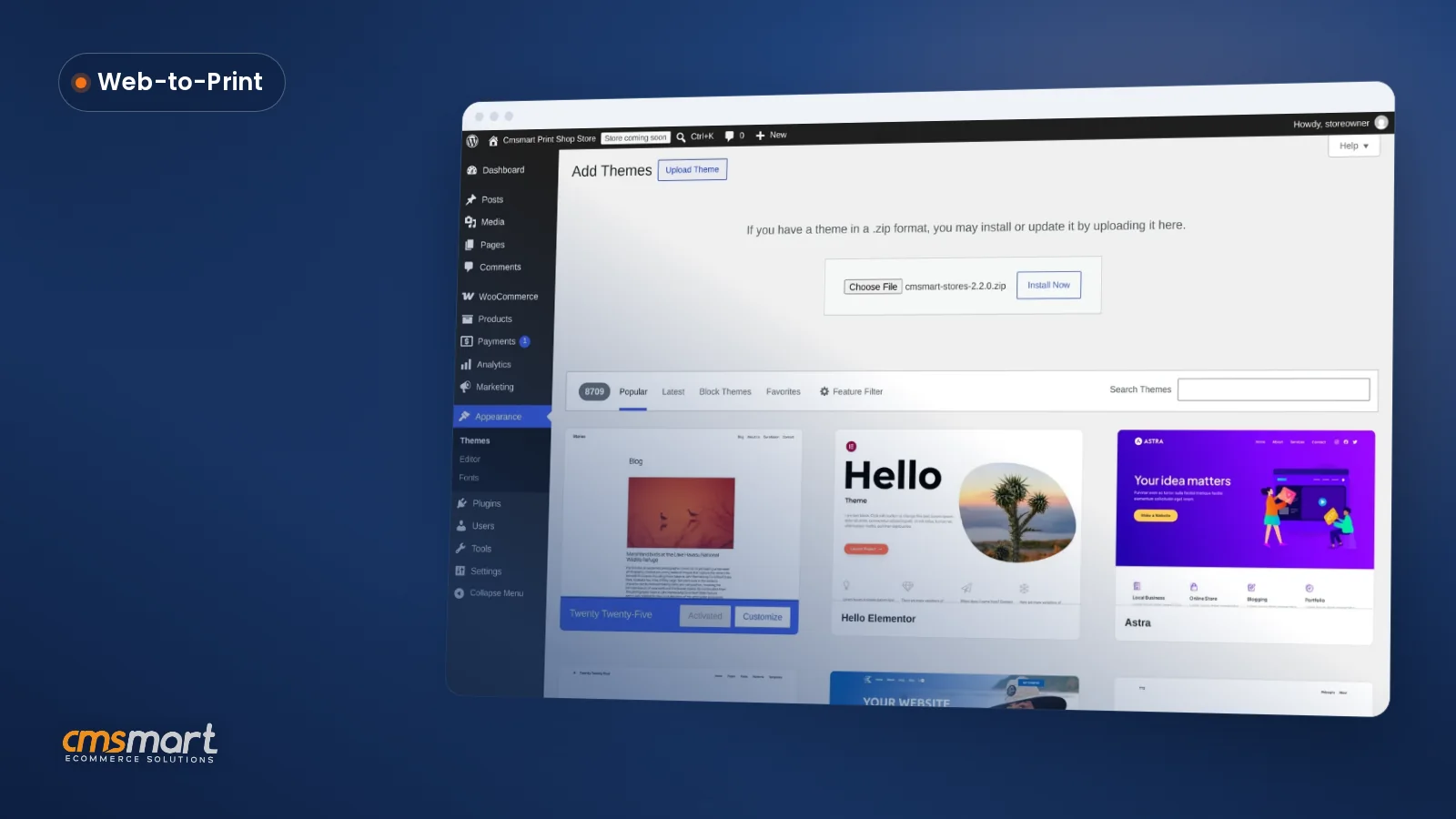
You do not have to replace WooCommerce's add-on fields everywhere. Cmsmart Product Designer installs alongside them, so you can configure the visual canvas and price matrix on design-heavy products while simple items — gift notes, sizes, basic personalization — keep their existing fields.
For every settings screen in more depth — fonts, cliparts, layers, templates — see the full walkthrough in WooCommerce product customizer.
Going further: what Cmsmart builds beyond the plugin defaults
Once a store outgrows both a plain add-ons field and the designer's defaults, Cmsmart builds the rest as custom development: rule-based pricing, production-system integrations, multi-step approval and richer previews, scoped to the store's actual workflow rather than a generic feature list.
Conditional pricing and dynamic rules. Pricing Options already ships rule-based show/hide logic and math-formula pricing on top of the price matrix, so a field can react to quantity or another field out of the box. What stays custom development is logic that spans several products or pages — a multi-step B2B configurator, or rules driven by an external source such as a customer's account tier or ERP data.
ERP or print-MIS integration. Re-keying every order into production software wastes staff time and introduces errors; Cmsmart builds API sync between WooCommerce orders and a shop's MIS, ERP or print queue as custom development, so a design only gets entered once.
Multi-level approval. Agencies and franchises often need a second sign-off before art goes to print. The accept/decline approval box below is the base Cmsmart ships; Cmsmart extends it into a multi-step approval chain with its own notifications as custom development.
AR preview and bespoke 3D configurators. A desktop 3D preview toggle already ships per product in Online Designer. Packaging and signage buyers who need mobile 3D, augmented-reality preview or a fully bespoke 3D configurator get that as custom development on top of the designer, scoped to where it actually moves conversion.
Delivery follows the same path for all of this: discovery, solution design, build in sprints, QA against your real catalogue, launch, then support — see how Cmsmart scopes these builds on the ecommerce projects page, the product designer customization service, or browse the web-to-print solutions hub for the wider toolkit a print business can draw on.
Plan my product designer upgrade
Why work with Cmsmart on your WooCommerce product customization?
Cmsmart has built and supported Cmsmart Product Designer as a Netbase JSC division since 2012, across 6,300+ client projects and 1,800+ live stores today. That track record is what lets Cmsmart tell a store honestly when a simple add-on field is still the right call, not just sell the bigger plugin.
Cmsmart is rated 4.2 out of 5 on Trustpilot from 404 reviews, and real store owners back that up in their own words:
See real build examples on the projects page, or talk an ecommerce expert through your own catalogue before you decide which products need the full designer.
Get a custom quote for my store
Frequently asked questions
Can I use WooCommerce Product Add-Ons for some products and Cmsmart Product Designer for others?
Yes. There's no need to migrate the whole catalogue at once. Keep gift notes, sizes and other simple choices on add-on fields, and switch design-heavy products — apparel, cards, signage — to the visual designer when shoppers need to see the result first.
What's the real difference between a price matrix and a product designer?
A price matrix changes the price when a shopper picks a material, size or quantity — add-ons plugins and Cmsmart Product Designer both do this. A product designer adds the canvas on top: the shopper sees their actual design, not just a price, before they check out.
How long does it take to set up the visual designer on an existing catalogue?
Turning on the designer for one product type — design area, templates, print options and output settings — is typically an afternoon's work for someone who knows the catalogue. Rolling it across many product types, or connecting it to production systems, is scoped as custom development.
Does the print-ready PDF really match what the customer designed?
Since the 2.17 release, the automatic render and the admin's Create PDF read the same page geometry, including custom sizes, so the print-ready PDF matches what the buyer approved rather than a generic template mockup.
Can Cmsmart connect the designer to our print shop or ERP workflow?
Yes, as custom development. Cmsmart builds API sync between WooCommerce orders and a shop's MIS, ERP or print queue so a design is entered once and does not need re-keying by staff.