

Guide · AI
AI Generated Designs Print on Demand: Quality & Rights
Selling AI generated designs print on demand? Check resolution, usage rights and AI preflight first, then get a Cmsmart quote.
Control AI usage WooCommerce stores pay for by limiting tools to staff or logged-in customers. See the Cmsmart settings and set it up in 10 minutes.
Table of contents
Was this tutorial helpful?
Written by
Cmsmart AI for Ecommerce Engineer
Adds practical AI to stores: image tools, preflight checks, automation and assistants.
The team behind it
 Account Manager
 Project Manager
 Business Analyst
 Developers & QA
Guide · AI
Selling AI generated designs print on demand? Check resolution, usage rights and AI preflight first, then get a Cmsmart quote.
Guide · AI
Draft AI product descriptions WooCommerce shoppers trust, add a human review step, dodge duplicate content, and control cost -- see Cmsmart's setup gu...
Guide · AI
See how an AI chatbot for WooCommerce can answer order questions from your store data, where a human must step in, and get a custom build quote.

Cmsmart Ecommerce provides custom ecommerce and WooCommerce development services for web-to-print, product personalization, plugin support and API integration.
Cmsmart AI for Ecommerce Engineer
Adds practical AI to stores: image tools, preflight checks, automation and assistants.
Meet the team →

In short
To control AI usage WooCommerce stores pay for, Cmsmart Product Designer lets a print shop decide, per tool, who may spend store-paid AI tokens — because today, a customer can upload a low-resolution logo, click Remove background, then Upscale, then run preflight twice before checkout, and none of it shows up as a cost until the balance is gone and paying customers see a resting assistant.
What does uncontrolled AI usage cost a WooCommerce store?
Cmsmart Product Designer bills every AI run — background removal, upscaling, preflight — to the store's own token balance, never the customer's, so an open Everyone setting lets anonymous traffic spend your budget with no record of who they were or what they bought.
Print-on-demand and custom-product stores run into the same pattern once AI tools go live in the designer:
This is not just a storefront problem: Microsoft's 2024 Work Trend Index found 78% of employees bring their own AI tools to work rather than wait for an approved one (Microsoft Work Trend Index, 2024) — the same pattern, now on the customer side of the counter.
What would predictable AI spend look like for your store?
With Cmsmart's audience and limit settings in place, every AI run is tied to a customer tier you chose, a daily cap stops any one visitor from draining the balance, and a reserve keeps your own preflight checks running even when the storefront pauses.
Picture the same store a week after turning the controls on. A logged-in customer clicks Upscale on a phone photo; because the audience is set to Members, the click came from an account you can email, and it counts against a daily cap, not an open tap. A guest who is not logged in sees the same button with a small lock icon — so you learn there was demand instead of never knowing the click happened. Overnight, when the balance dips toward the reserve you set, automatic preflight pauses before it drains the wallet; your manual Run preflight button in wp-admin keeps working, since staff tools are never gated by the customer-facing setting. By morning, the overview shows how many runs worked, how many were blocked, and by which rule.
How does Cmsmart control who can use AI in the product designer?
Cmsmart Product Designer's Cmsmart Cloud → AI Tools screen puts a master switch, an audience setting and two numeric brakes in front of every AI tool, so a store decides exactly who can spend tokens before a request reaches the AI service.
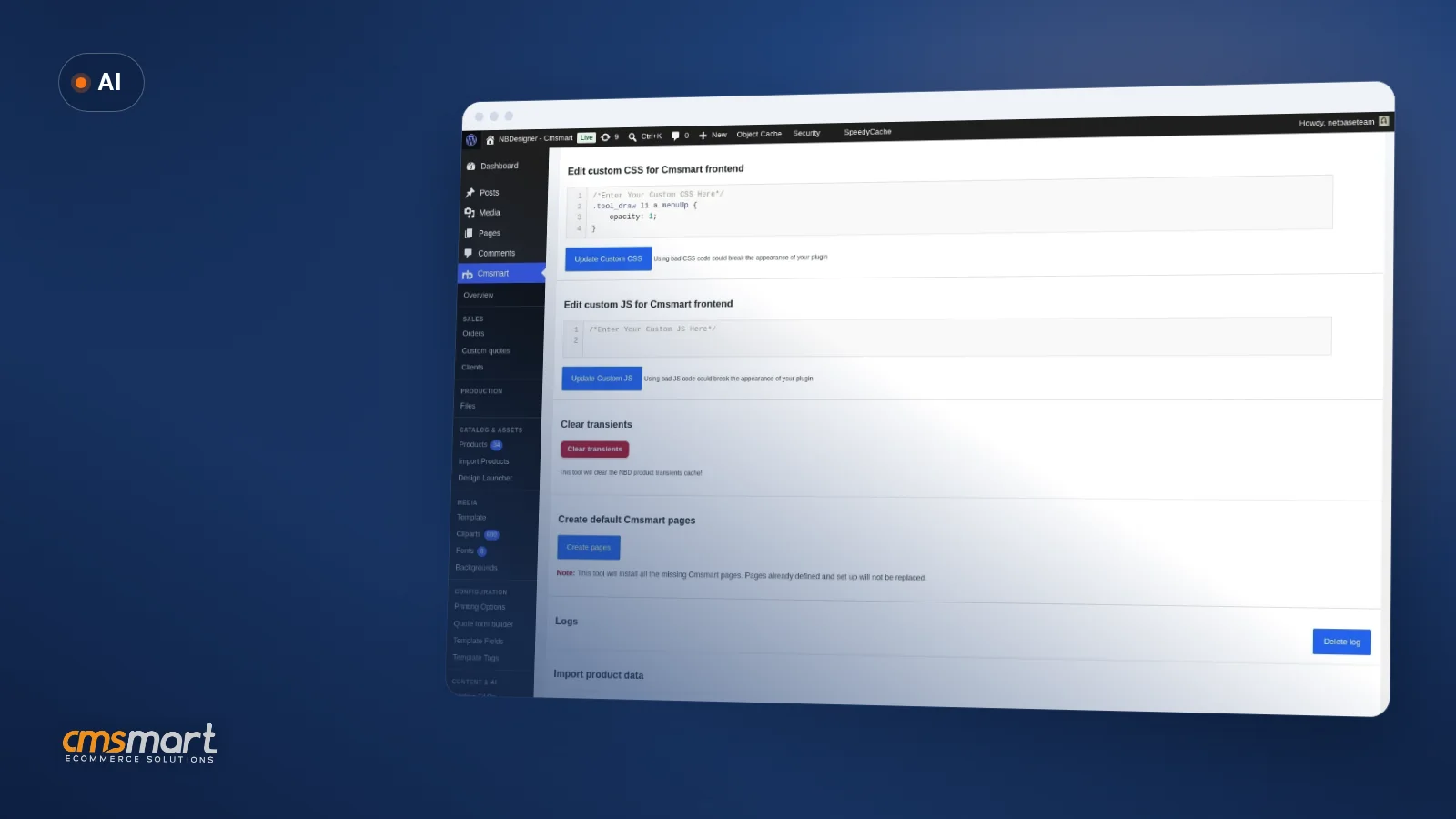
The control sits in one place: WP Admin → Cmsmart → Cmsmart Cloud → AI Tools, part of the broader Cmsmart AI line. Four blocks, each doing one job:
This is Cmsmart's named approach to the problem: AI preflight before production still runs the same quality scan it always did (resolution/DPI, color mode, bleed, fonts, transparency), but the audience and limit settings decide whose clicks are allowed to spend tokens on it. Choosing Members mirrors a trade-off store owners know from checkout: Baymard Institute's research lists "the site wanted me to create an account" as a reason 18% of shoppers abandon an order (Baymard Institute, cart abandonment rate), the same friction as WooCommerce's own account-creation settings at checkout.
Cmsmart insight: stores that regret an Everyone setting are rarely the ones with heavy human traffic — they are the ones a bot or scraper found first. A daily per-customer run limit catches that case even when the audience stays open, so we recommend setting both controls together.
What's the business value of controlling AI access?
Cmsmart's AI usage limits turn an unpredictable token bill into a number you can forecast: a daily cap bounds the worst case, a pause-below reserve protects the preflight checks that catch print defects, and the blocked-demand counter shows what tightening the settings cost in missed clicks.
Rough-cost worksheet — plug in your own numbers:
Estimated monthly token spend = (AI runs per active customer per day) × (your per-customer daily cap, or observed average if lower) × (active customers per month) × (tokens per run). Setting the cap below your observed average is the one number that bounds this formula.
A live store captured for this guide showed 72 AI runs in 30 days (48 preflight, 15 upscale, 9 background-removal), with 6 clicks counted as blocked demand because the balance had run out — a direct read of what the settings cost that week.
How to Control AI Usage WooCommerce Stores Pay For: Setup Steps
Setting up AI cost controls takes one settings screen: install and activate the plugin via the Series A setup guide, then configure the audience, the two usage-limit numbers and the per-tool toggles in Cmsmart Cloud → AI Tools — no code, no extra plugin.
If the plugin is not installed yet, start with the Cmsmart Product Designer installation guide (Series A), which covers activating the plugin and license first. Once that is done:
For a closer look at two of these tools on their own, see how we added the background remover feature, and how Cmsmart's AI tools stack up in Cmsmart Product Designer vs. Zakeke. If your print specs reference ICC profiles for color-managed output, the International Color Consortium's plain-language explainer is worth bookmarking for your production team (International Color Consortium, ICC profile FAQ).
Going further: custom AI cost controls Cmsmart can build
Beyond the built-in audience and limit settings, Cmsmart's development team builds store-specific AI governance as custom work — per-role quotas, cost-center reporting and approval gates that the core plugin does not ship with today.
The built-in controls cover one store, one audience rule, one shared wallet. Multi-brand, B2B-tier or large-staff stores tend to need more. These are not in Cmsmart Product Designer today — Cmsmart builds them as custom development:
Every custom build follows the same model: discovery, solution design, milestone-based sprints, QA, launch and support, documented on how Cmsmart runs ecommerce projects — paid per milestone, not upfront.
Get a custom AI cost-control quote See AI integration services
Why work with Cmsmart on AI cost control?
Cmsmart has built and supported the WooCommerce product designer and its AI tools since adding Cmsmart Cloud, backing the plugin with 6,300+ client projects since 2012 and a Trustpilot rating store owners can check before they commit.
Cmsmart is a Netbase JSC division that has built WooCommerce stores and the Cmsmart Product Designer (formerly NBDesigner) since 2012, with 6,300+ client projects and 1,800+ live stores today across 80+ countries. The tools behind these settings — Preflight Quality Checker, AI Background Remover and AI Image Upscale — run on Cmsmart's own token wallet (see AI credits and plans for balances and renewal). Cmsmart holds a 4.2 rating on Trustpilot from 404 reviews (Trustpilot); the plugin page has free-tier details for trying the AI Tools screen before scoping custom work.
Example scenario: a print-on-demand store selling personalized mugs and apparel turns on AI Image Upscale but sets the audience to Members after a launch-week spike in anonymous AI clicks with no matching orders. Signups rise because the design is saved against the new account, spend per completed order drops because the daily cap catches repeat anonymous testers, and blocked demand falls to a handful of clicks a week instead of running unmeasured.
Frequently asked questions
How long does it take to set up AI usage controls?
About ten minutes: choosing the audience, setting the two usage-limit numbers and picking what a blocked customer sees are all on the one Cmsmart Cloud → AI Tools screen.
Does limiting AI to logged-in customers affect my own staff tools?
No. The audience setting only gates buyer-facing buttons. AI preflight and auto-fix in wp-admin keep working regardless — the pause-below reserve exists to protect them.
Can I turn AI off for everyone without losing the design tool itself?
Yes. Turning off the master switch removes the AI buttons, while templates, cliparts, text and upload keep working as before.
What does a customer see when they hit the usage limit or the balance runs out?
Either the button with a lock and a short explanation (recommended, recorded as blocked demand), or no AI at all, depending on your choice. Only a store admin ever sees a balance number.
Does choosing Members hurt conversion the way a forced-account checkout does?
It can create some of the same friction Baymard Institute measures at checkout, where 18% of shoppers cite forced account creation as a reason they abandoned an order (Baymard Institute, cart abandonment rate), but the trade-off is narrower: only the AI buttons are gated, and each signup becomes a customer record with their in-progress design attached rather than a lost visitor.
Can Cmsmart build AI spend rules beyond what's in the settings screen?
Yes. Per-role quotas, cost-center reporting across stores, credit-gated AI for B2B accounts and alerting into tools like Slack are not in the core plugin today; Cmsmart builds these as custom development on top of the existing settings.