

Guide · Web-to-print
Print-Ready PDF Orientation in Cmsmart Product Designer
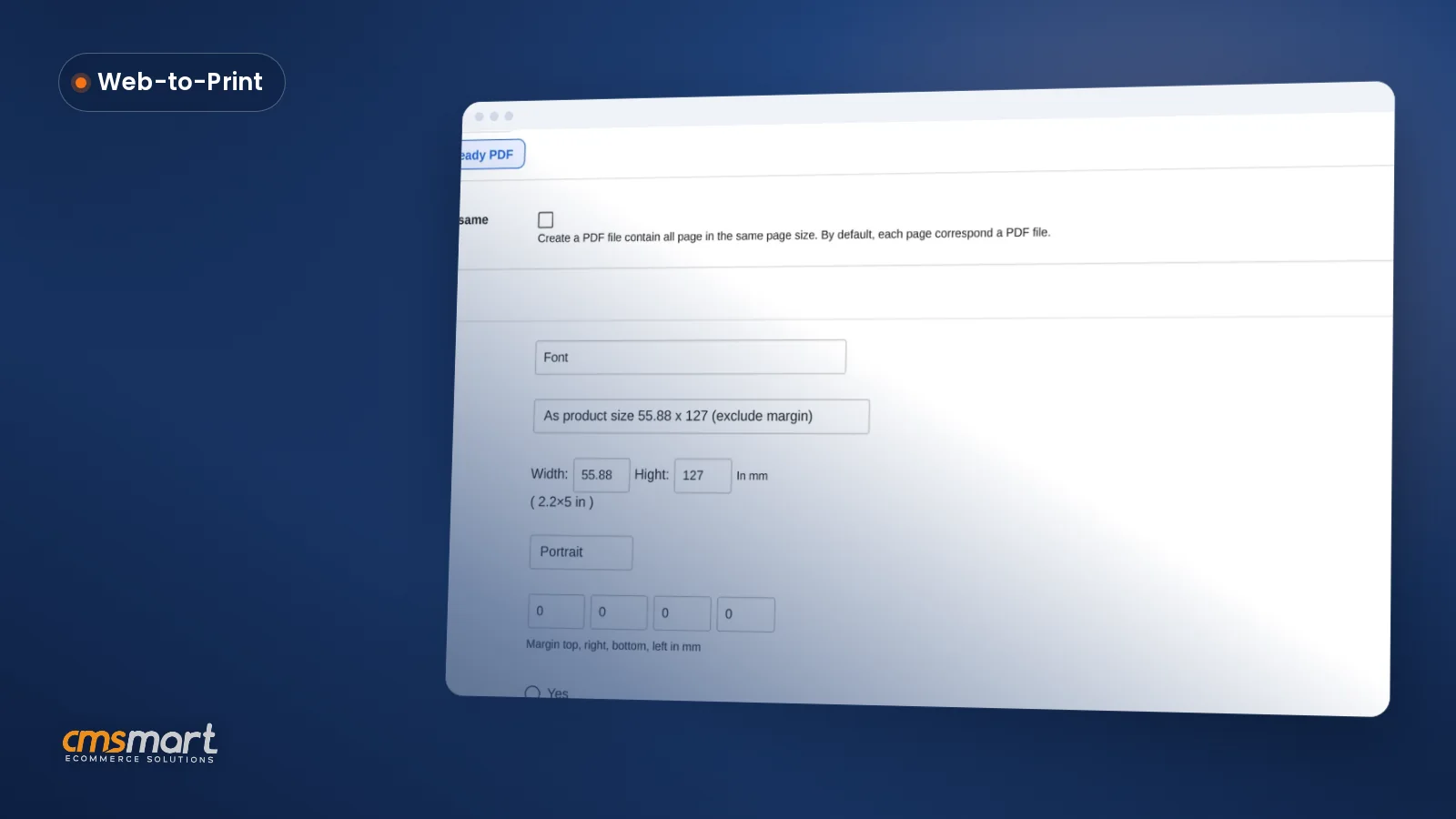
Set print-ready PDF orientation, paper size and margin in Cmsmart Product Designer's Create PDF tool so every file matches the order. Configure it tod...
An upload only product WooCommerce store sells lets a buyer attach their own print-ready file and pay, without ever opening an online designer, and Cmsmart Product Designer builds this directly into the product edit screen as a pair of switches your team can flip in minutes.
Was this tutorial helpful?
Written by
Cmsmart Product Designer Plugin Engineer
Builds and supports the Cmsmart Product Designer (NBDesigner) for WooCommerce.
The team behind it
 Account Manager
 Project Manager
 Business Analyst
 Developers & QA
Guide · Web-to-print
Set print-ready PDF orientation, paper size and margin in Cmsmart Product Designer's Create PDF tool so every file matches the order. Configure it tod...
Guide · Web-to-print
Set up product size options for WooCommerce so every variant gets its own price and print file, and let buyers order several sizes in one cart.
Guide · Web-to-print
T-shirt design templates for print-on-demand stores replace the blank canvas and cut design time. See how to set up and assign them.

Cmsmart Ecommerce provides custom ecommerce and WooCommerce development services for web-to-print, product personalization, plugin support and API integration.
Cmsmart Product Designer Plugin Engineer
Builds and supports the Cmsmart Product Designer (NBDesigner) for WooCommerce.
Meet the team →

In short
What does manual artwork handling really cost a WooCommerce shop?
Cmsmart Product Designer removes the inbox step: a customer's file attaches to the cart item and the order automatically, so nobody on your team has to match a stray email attachment to an order number by hand before production can even start.
If your product doesn't need a canvas, templates or clipart, a full online designer is a detour. The real cost shows up after checkout:
What would an upload-only product look like on your store?
Cmsmart Product Designer lets you strip the chooser down to a single path: the buyer sees only the upload form, attaches their file, and adds the product to the cart, so the outcome feels as simple as any other WooCommerce purchase.
Example scenario. A print shop sells press-ready business cards for customers who already have a finished PDF. With Upload Without Design switched on for that product, a buyer picks quantity and paper stock, uploads the PDF, and pays. No chooser, no canvas, no "which option do I pick" moment. The order lands in WP Admin with the file attached and a print-ready PDF queued for the Cmsmart Cloud renderer before anyone on the team has opened their inbox.
For products where some buyers want to design and others already have artwork, the chooser below keeps both doors open; Upload Without Design is the setting that removes the "Design here online" card entirely and sends every buyer straight to the upload form. If you're not sure which mix of products should stay upload-only versus keep the full Cmsmart Product Designer editor, that's a quick scoping conversation, not a guess.
How does Cmsmart turn a product into an upload-only item?
Cmsmart Product Designer puts three independent switches on every product: Enable Design, Enable Upload Design and Enable Upload Without Design, so a single product can offer the online editor, a file upload, both, or upload only, with its own file-type, size and DPI rules.
The mechanism lives in the WooCommerce product edit screen, in the "Setting Cmsmart" box, below the plugin's own Printing Option and Product Builder panels:
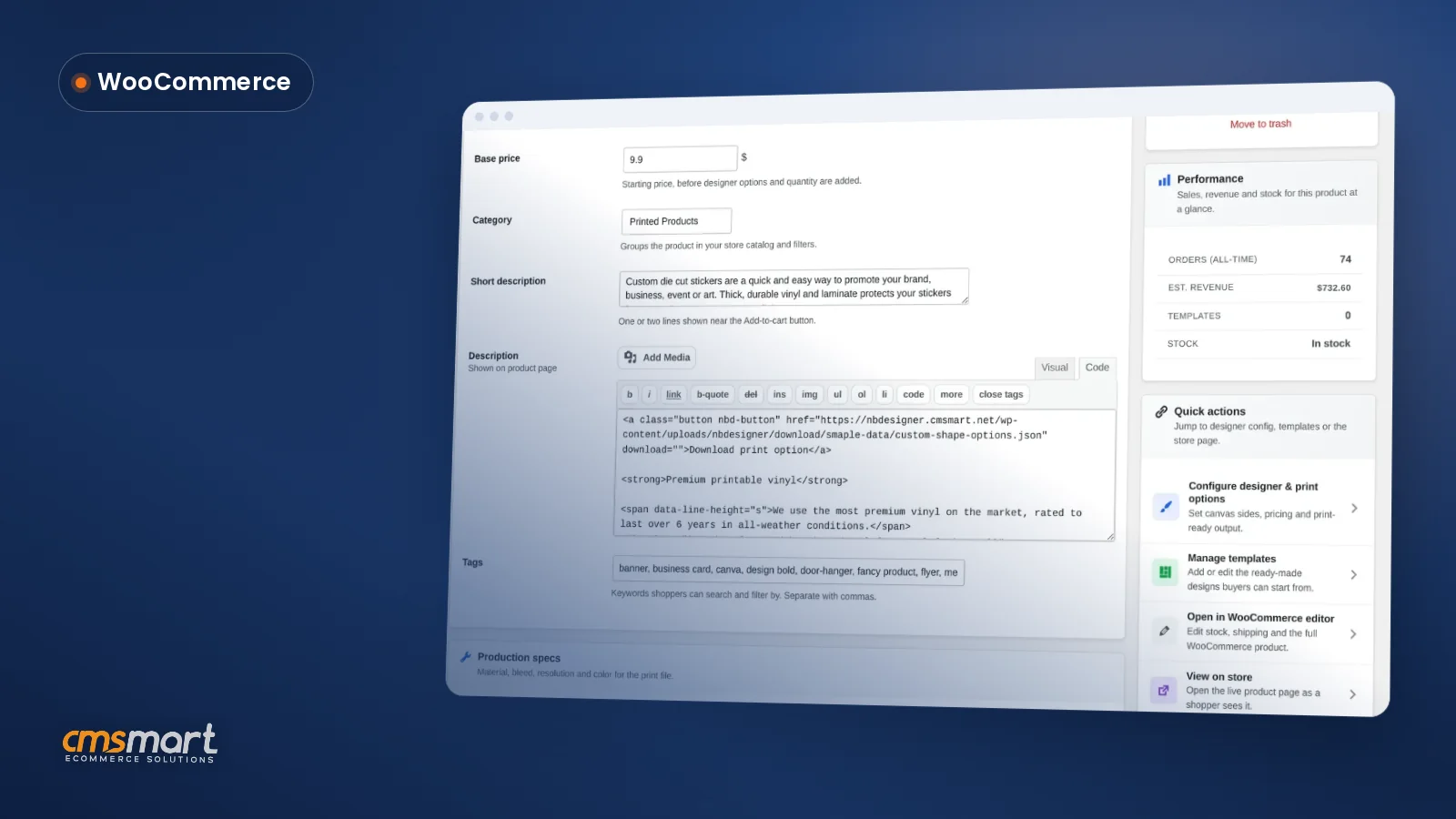
The plugin's own File Upload module already ships a working example in the demo catalog, listed in Product manager as a design-enabled product with its own base price:
Cmsmart insight: teams often leave Enable Design switched on "just in case" after turning on uploads. If the product genuinely never needs the online editor, turning Enable Design off removes a decision the buyer doesn't need to make and shortens the path to the cart.
Every uploaded file still rides the same pipeline as a designed one: it is checked against your file rules, attached to the cart item, carried through checkout, and queued for a print-ready PDF that matches the order, the same named innovation Cmsmart ships for the online designer.
What's the business value of going upload-only where it fits?
Cmsmart Product Designer turns an upload-only product into a self-service order: the buyer does the attaching, the plugin does the checking, and your team opens an order that already has a validated file and a rendering print-ready PDF instead of an empty line item.
Rough-cut ROI worksheet. Staff minutes saved per month = (upload-eligible orders per month) × (minutes your team currently spends matching an emailed file to an order). Reprint cost avoided per month = (orders per month) × (your current reprint rate from bad files) × (average cost per reprint). A shop running 40 upload orders a month at six minutes of manual matching each gets back about four hours of staff time a month before counting a single avoided reprint.
This is also where WooCommerce's own scale works in your favor: the platform reports more than 4 million stores and 31% of the top 1 million ecommerce sites running on it, so an upload-only product is a well-trodden path, not an edge case your host has never seen. The broader personalized-print market backs the same bet: Grand View Research values the global print-on-demand market at USD 10.8 billion in 2025, growing at a 23.6% CAGR, which is exactly the demand a frictionless upload step is built to capture.
Plan my upload-only setup
How do you set up an upload only product WooCommerce store can sell?
Cmsmart Product Designer needs two product-level switches and one settings tab to configure an upload-only product: Enable Upload Design, Enable Upload Without Design, and the file, size and DPI rules in the product's Upload Design tab, backed by store-wide defaults you set once.
If you haven't installed or licensed the plugin yet, start with the installation and setup guide first; the steps below assume Cmsmart Product Designer is already active on your store.
How can you go further with custom upload workflows?
Cmsmart builds the production-side automation that sits past the plugin's own upload rules, so an uploaded file can walk straight into your prepress or MIS system instead of stopping at a download button in WP Admin for someone to action.
The core Upload Design feature checks and attaches a file; what happens to that file once it reaches your team is often specific to your shop. These are custom development, not built into the core plugin, and Cmsmart builds them as fitted work:
Delivery follows the same path for every custom build: discovery, solution design, sprints, QA and launch, with support after go-live; see how we scope and run these projects on our web-to-print solutions hub and in our Cmsmart Product Designer plugin page.
Get a custom upload workflow quote
Why work with Cmsmart on your upload-only setup?
Cmsmart has run WooCommerce design and print projects since 2012 as a Netbase JSC division, and Cmsmart Product Designer is the same plugin behind that work, so the upload rules you configure are backed by a team that also builds the custom production pipelines around them.
A few figures, as published on our own site: 6,300+ client projects and 1,800+ live stores since 2012, with a Trustpilot rating of 4.2 from 404 reviews. One recent five-star review, from a long-time user, speaks directly to the plugin's upload and designer reliability:
Frequently asked questions about upload-only WooCommerce products
Can WooCommerce customers upload a file instead of using the online designer?
Yes. Switch on Enable Upload Design for the product and buyers can attach their own file; combine it with the online designer or keep it as the only option.
Can I make a product upload-only, with no design option at all?
Yes. Tick Enable Upload Without Design on that product and the upload form becomes the main, and only, path to the cart.
Which file types, sizes and minimum DPI can I require?
You set allowed and disallowed file types, the number of files and the minimum and maximum size in MB per product, with store-wide defaults in Settings → Cmsmart → Upload design. Executable and script files are always rejected.
Can Cmsmart catch a blurry or low-resolution upload before it goes to print?
You can require a minimum DPI for JPG uploads, and AI Preflight can flag low-resolution artwork and check the print PDF before it reaches production.
Can a customer replace their uploaded file after checkout?
Yes. Customers can re-upload a replacement from the cart and from their order in My account, and the order keeps the latest file.