

Guide · Web-to-print
Cmsmart Stores Setup Wizard: What's New, October 2026
The Cmsmart Stores Setup wizard installs niche, B2B and Marketplace stores with sample data live in minutes. See what changed and try it free.
A screen-printer, embroiderer or POD seller loses orders every time a buyer with a ready logo is forced into a design tool they do not need. Cmsmart's order upload plugin for WooCommerce lets that buyer attach their own artwork at checkout, while your team still gets a file you can approve, size-check and turn into a print-ready PDF before it goes anywhere near a machine.
Was this tutorial helpful?
Written by
Cmsmart Print-on-Demand & Apparel Specialist
Helps T-shirt, apparel and print-on-demand brands sell personalised products online.
The team behind it
 Account Manager
 Project Manager
 Business Analyst
 Developers & QA
Guide · Web-to-print
The Cmsmart Stores Setup wizard installs niche, B2B and Marketplace stores with sample data live in minutes. See what changed and try it free.
Guide · Web-to-print
The NBDesigner plugin now gives stationery shoppers a curated background library so print-ready PDFs always match the preview. See how to set it up.
Guide · Web-to-print
See how t-shirt artwork approval and print-ready PDFs cut POD reprints on WooCommerce; get a free workflow review from Cmsmart today.
Browse more guides, tutorials and case studies from the Cmsmart community.
Follow the steps to plan a T-shirt business, choose hosting and a WordPress theme, add key plugins, create product samples and promote the store.
Read MoreStarting to get money from home by selling t-shirts. Here is an easy guideline on How to start a t-shirt business from home to follow. Let’s discover.
Read MoreThe print on demand business benefits are real, but only with the right tools in place. See how Cmsmart turns orders into print-ready files. Get a quote.
Read More
Cmsmart Ecommerce provides custom ecommerce and WooCommerce development services for web-to-print, product personalization, plugin support and API integration.
Cmsmart Print-on-Demand & Apparel Specialist
Helps T-shirt, apparel and print-on-demand brands sell personalised products online.
Meet the team →

In short
What's the real cost of a manual artwork-upload process for your T-shirt store?
Cmsmart Product Designer replaces email-based artwork collection with an upload step on the product page itself, so a customer's logo or print file is attached to the order automatically, cutting the back-and-forth that otherwise eats staff time on every custom order.
If your store still collects artwork the old way, the pattern is familiar:
Cmsmart's own Files screen keeps a running count of exactly this problem — files that have never been checked and files that are below a safe print resolution — on every store running the plugin:
Cmsmart insight: check the DPI column before you approve anything, not after. A logo saved from a website is almost always sized for a screen, not for a 4000×5000 px print area — the preflight check catches that gap while the order is still "awaiting review," not after the shirt is pressed.
What would it look like if every uploaded T-shirt design arrived print-ready?
Cmsmart Product Designer lets a buyer attach their own artwork, pay, and move on with their day, while the store gets a file that is already checked for type and resolution and queued for a print-ready PDF — no email chain required on either side.
Example scenario. A customer ordering 50 branded T-shirts for a team event opens your product page, clicks "Upload a full design," attaches the club's existing logo PDF and pays. Your Files screen already shows the upload, flagged if its resolution is too low to print cleanly at that size. Production opens the order, approves the artwork in one click, and downloads a print-ready PDF sized to the product — without a single email going back and forth about the logo.
That is the gap between "we received a file" and "we received a file we can safely print." Closing it is what the rest of this guide covers.
How does Cmsmart's Order Upload solution work?
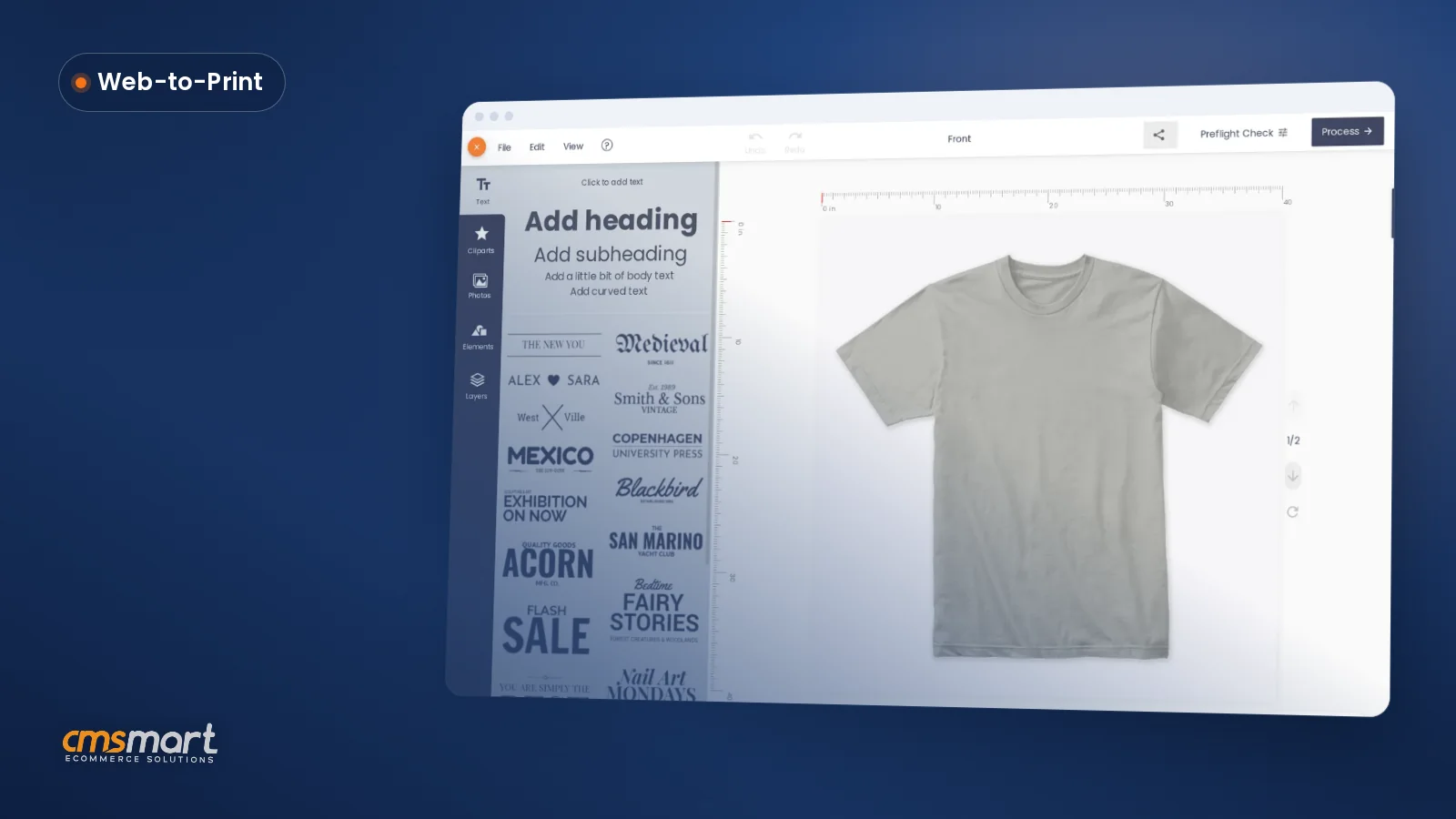
Cmsmart Product Designer gives every design-enabled product a chooser — "Upload a full design" or "Design here online" — then carries whichever file the buyer produces through the same order, approval and print-ready pipeline, so your production team works from one consistent screen regardless of how the artwork arrived.
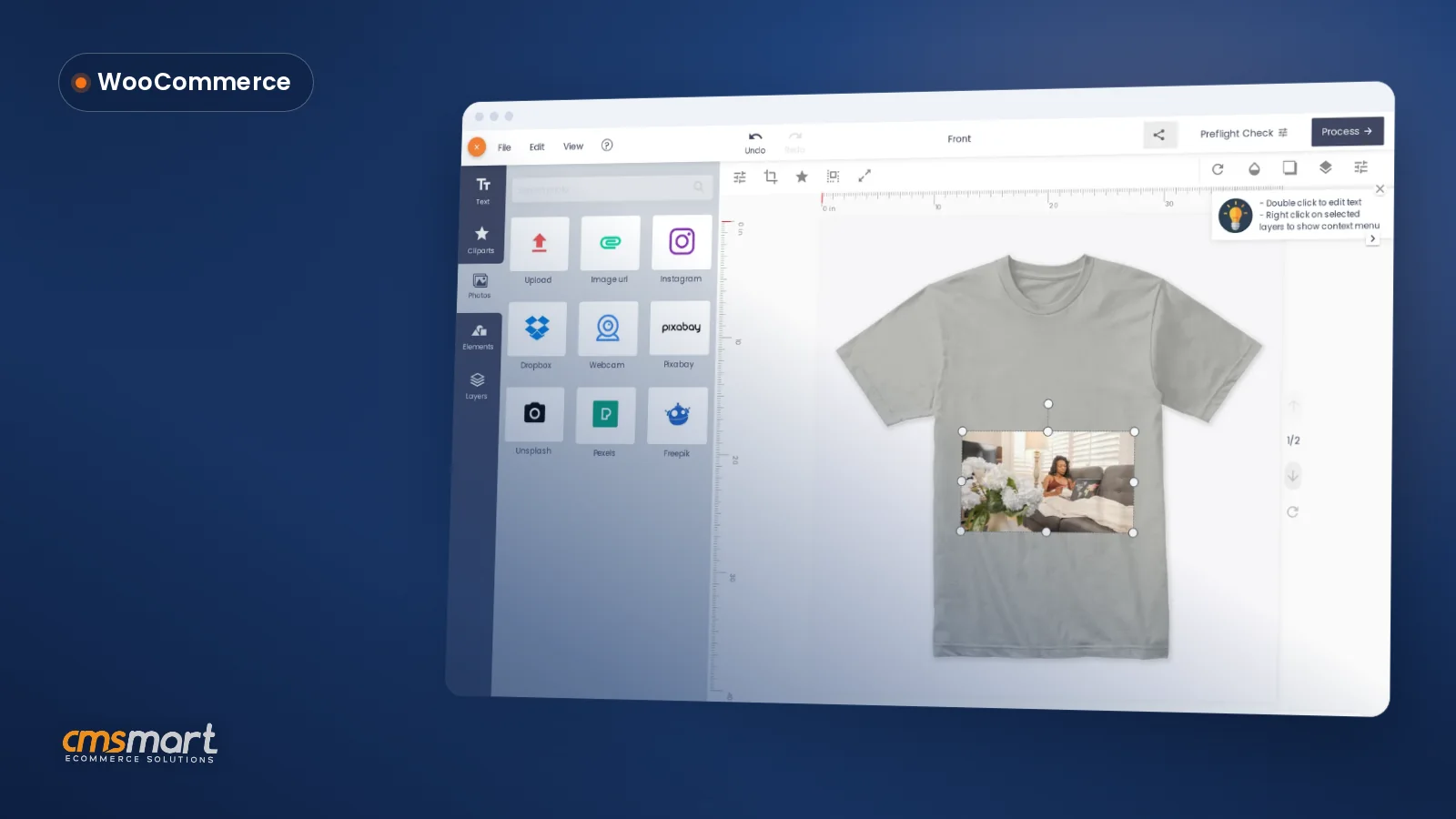
On a live Cmsmart demo T-shirt product, once a buyer picks "Upload a full design," bringing their own artwork into the flow looks like this:
From there, the building blocks are:
Readers who want the full field-by-field settings walkthrough — every option on the Upload design tab, login requirements, third-party sources like Dropbox and Google Drive — should see our dedicated upload-settings guide; this one stays focused on the apparel/POD business case around it.
What's the business value of letting customers upload their own artwork?
Cmsmart Product Designer turns a customer's own ready-made logo from a checkout obstacle into a one-click path to an order, while giving production a file that has already passed a type and resolution check — fewer stalled orders, fewer reprints, and a shorter gap between payment and production.
Rough-cut ROI worksheet (fill in your own numbers):
Orders per month needing manual artwork handling (A) × minutes your team spends chasing or re-requesting a file (B) × your fully loaded hourly rate (C) ÷ 60 = monthly hours (and cost) spent on artwork admin you could remove.
Reprint rate on uploaded-artwork orders (D%) × average cost per reprint — blank, ink/film, machine time (E) × monthly orders with customer-uploaded art (F) = monthly cost a DPI and preflight check could prevent before the press runs.
How to set up Cmsmart's order upload plugin for WooCommerce T-shirt stores
Cmsmart Product Designer's Upload design settings let you configure, in one tab, exactly what a customer may send you — file types, size limits and a minimum resolution — so every upload that reaches your order screen already meets your print shop's own bar.
jpg,pdf,psd,airather than every format under the sun.Going further: what can Cmsmart build on top of Order Upload?
Cmsmart builds custom extensions on top of the core Order Upload feature for stores that need more than file-type and DPI rules — automatic art cleanup, production-system integration or bulk B2B upload flows — as scoped, quoted custom development rather than a plugin setting.
Every engagement follows the same delivery model: discovery call, solution design, build in sprints, QA against your real catalog, launch and ongoing support — see how that runs on Cmsmart's project delivery page, and browse real examples on Cmsmart's project case studies.
Get a custom artwork workflow built
Why work with Cmsmart on your apparel upload workflow?
Cmsmart has run Order Upload and the wider Product Designer plugin for print-on-demand and apparel stores since 2012 as a Netbase JSC division, with thousands of client projects behind the same approval and print-ready pipeline this guide walks through.
Postponing a proper upload and approval workflow gets more expensive as the print-on-demand market keeps growing — Grand View Research valued the global print-on-demand market at USD 10.8 billion in 2025, with software platforms already the largest share of it. Cmsmart has built the plugin and the stores that run on it since 2012 (a Netbase JSC division), across 6,300+ client projects, with a 4.2/5 rating from 404 reviews on Trustpilot. If you are still scoping the wider store, our step-by-step guide to starting a print-on-demand business covers the stages around this one feature.
One long-time user summed up the plugin side of that track record on Trustpilot: "We have had the NB Designer plugin installed for three years and have experienced absolutely no problems during that time. It is wonderful to see their commitment to continuous development, with new features being added frequently to keep the software current and highly capable." — Web Developer, Trustpilot review, Sep 2026.
For the wider web-to-print picture beyond this one feature, see Cmsmart's web-to-print solutions hub, or start with a scoped install through Cmsmart's store and print-shop preset installation service.
Frequently asked questions
Does Order Upload replace the online designer, or work alongside it?
Alongside it. The same product shows both options — "Upload a full design" for a buyer with finished artwork, "Design here online" for one who wants to build it in the browser — and both paths land on the same order, approval and print-ready screens. For the full online-designer setup, see our advanced upload and online design guide.
What file types can customers upload?
Whatever you allow in Upload design settings — commonly JPG, PDF, PSD and AI for apparel artwork. Anything not on your allowed list (or on your disallowed list) is rejected at the upload step, before it reaches an order.
How do we stop low-resolution logos from reaching production?
Set a minimum DPI in Upload design settings, and use the Files dashboard's "Low DPI" filter to catch anything that slips through before you approve it. For a deeper check, AI Preflight — a Cmsmart Cloud AI tool billed in wallet tokens per scan — flags print problems a DPI number alone won't catch.
Can we require customers to log in before uploading?
Yes — the Login Required option on the Upload design tab limits uploads to logged-in accounts, which is useful for B2B or reseller stores that only want artwork from known accounts.
What happens if we decline an uploaded design?
The Customer Design box lets you decline with a reason and send a notification email in the same step, so the buyer knows to re-upload a fixed file rather than guessing why their order has stalled.
Is the print-ready PDF the same whether a file was uploaded or designed online?
Yes — since 2.17.0, both paths are rendered by the same Cmsmart Cloud renderer at the product's own size, so your production team works from one consistent file format regardless of how the artwork arrived.