

Guide · Web-to-print
Cmsmart Stores Setup Wizard: What's New, October 2026
The Cmsmart Stores Setup wizard installs niche, B2B and Marketplace stores with sample data live in minutes. See what changed and try it free.
Installing Cmsmart Product Designer is only half the job. Knowing how to set up WooCommerce product designer plugin settings — licensing, uploads, output and pricing — decides whether your first order ships a print-ready file or a support ticket. This guide walks a print shop, POD brand or custom-product store through installing, licensing and configuring the plugin for a real launch.
Was this tutorial helpful?
Written by
Cmsmart Product Designer Plugin Engineer
Builds and supports the Cmsmart Product Designer (NBDesigner) for WooCommerce.
The team behind it
 Account Manager
 Project Manager
 Business Analyst
 Developers & QA
Guide · Web-to-print
The Cmsmart Stores Setup wizard installs niche, B2B and Marketplace stores with sample data live in minutes. See what changed and try it free.
Guide · Web-to-print
The NBDesigner plugin now gives stationery shoppers a curated background library so print-ready PDFs always match the preview. See how to set it up.
Guide · Web-to-print
See how t-shirt artwork approval and print-ready PDFs cut POD reprints on WooCommerce; get a free workflow review from Cmsmart today.
Browse more guides, tutorials and case studies from the Cmsmart community.
Run a custom tote bag printing business with Cmsmart Product Designer: live pricing, real print specs and a print-ready PDF. See how to set it up.
Read MoreBuild a car wrap ecommerce store on WooCommerce: panel pricing, approval and print-ready PDFs before you print. Plan your wrap store today.
Read MoreDiscover how the home décor industry is transforming with the rise of personalized products and the challenges retailers face. Learn how CMSmart's Product Builder offers a solution, improving customer engagement, reducing return rates, and increasing sales through real-time 3D previews and automated processes.
Read More
Cmsmart Ecommerce provides custom ecommerce and WooCommerce development services for web-to-print, product personalization, plugin support and API integration.
Cmsmart Product Designer Plugin Engineer
Builds and supports the Cmsmart Product Designer (NBDesigner) for WooCommerce.
Meet the team →



In short
What does a manual Cmsmart Product Designer rollout really cost your print shop?
Left on its defaults, Cmsmart Product Designer still works, but every gap in setup becomes a manual task for your team: unrestricted uploads, no price matrix and no license check turn a five-minute install into weeks of support tickets and hand-typed quotes.
The plugin install itself takes minutes. The cost shows up afterward, in the settings nobody changed on day one:
RGB (screen)color profile and no bleed value prints a file your press operator has to fix by hand before every run.A rough cost formula for your own numbers: (manual quotes per week × minutes per quote × your hourly staff cost) + (reprints per month × cost per reprint). Most of that cost disappears once licensing, upload rules and pricing are configured instead of left at the install defaults.
What does your store look like once the designer is live?
A properly configured Cmsmart Product Designer lets a shopper open a product, design or upload artwork, see the live price from your price matrix, and pay — while the backend queues a print-ready PDF automatically, so your morning starts with files instead of a quoting queue.
Example scenario. A buyer opens your store at 10 p.m. on a product with the Online Designer enabled. They pick a quantity and a paper stock from the Printing Options price matrix and watch the total update. They upload a logo; because Upload design enforces a minimum DPI, a low-resolution file is rejected on the spot instead of printed wrong three weeks later. They click Add to cart, check out, and the order appears in Cmsmart → Orders with its production status. By the time the shop opens, the print-ready PDF is already rendered and waiting to download.
How does Cmsmart Product Designer turn a plugin into a working print pipeline?
Cmsmart Product Designer connects six building blocks — licensing, the design tool, upload rules, output rules, a pricing engine and order-to-print automation — so a WooCommerce install becomes a working design-to-print pipeline instead of a static customization form on a product page.
Six blocks, each configured once in wp-admin:
Cmsmart insight: most support tickets we see after a self-install trace back to one setting left on the default — a 0 minimum upload DPI that lets a customer submit web-resolution art nobody can print. Set that the same day you activate the license, not after the first blurry order.
What's the business value of setting it up right the first time?
Configuring Cmsmart Product Designer before launch turns a handful of install-day settings into measurable business KPIs — fewer manual quotes, a lower reprint rate and a faster time-to-print — instead of leaving them to be discovered the hard way the first time a job goes wrong.
Rough ROI worksheet (use your own numbers):
Hours saved per week = manual quotes avoided × minutes per quote ÷ 60
Monthly value = (hours saved per week × 4.3 × your hourly staff cost) + (reprints avoided per month × cost per reprint)
WooCommerce itself is a safe platform to build this on: it now powers 7+ million active installs (WordPress.org plugin directory, October 2026) and roughly 47.5% of all online stores (W3Techs, October 2026), which is also why Cmsmart builds exclusively on it rather than a closed platform. If you want a second opinion on where the configuration effort pays off fastest for your catalog, talk to an ecommerce expert.
How to set up WooCommerce product designer plugin: install, license and configure
Setting up Cmsmart Product Designer on WooCommerce means installing the plugin, activating your license, then working through five settings tabs and your product list once — roughly an hour of admin time before you open the designer to real, paying customers.
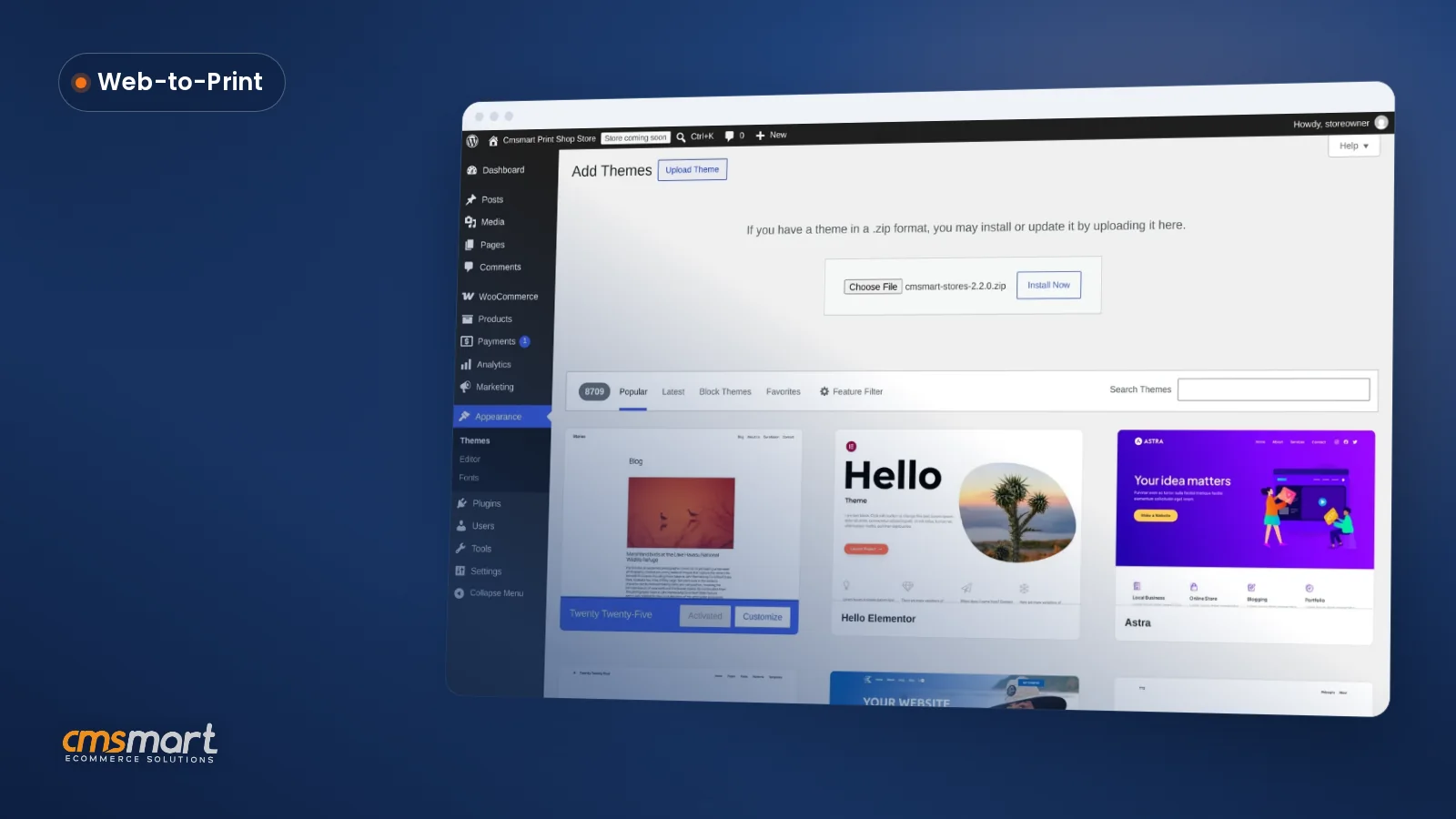
.zipand your license key from your Cmsmart account (or start the free 30-day trial first if you haven't bought yet)..zip, click Install Now, then Activate.Cmsmart insight: treat the per-product bleed area and color profile as part of installation, not a finishing touch. A product saved with the default
RGB (screen)profile and no bleed value still "works," but every order from it needs a manual fix before it can print.For the deep settings behind each tab — fonts, cliparts, layers, templates — see our full backend configuration guide, and for price-matrix formulas specifically, see how to build a price matrix table.
How far can you go with custom development on Cmsmart?
Beyond the settings above, Cmsmart builds custom development on top of Product Designer for workflows the core plugin doesn't ship — gang-sheet builders, ERP/MIS sync, custom pricing rules and B2B approval flows — tailored to how your shop actually prints.
Once the base install is configured, these are the extensions we build most often for print shops and custom-product stores:
Our delivery approach for custom work is the same whether it's a gang-sheet builder or an ERP sync: discovery, solution design, build sprints, QA, launch, then ongoing support — see examples on Cmsmart's ecommerce project case studies.
Get a custom setup quote
Why work with Cmsmart to launch your product designer?
Cmsmart has built and supported Cmsmart Product Designer (NBDesigner) as a Netbase JSC division since 2012, backing the plugin you're installing with 6,300+ client projects, 500+ custom development projects and a support team that answers the tickets a DIY setup eventually generates.
Beyond the trust figures, this is a plugin under active development: 2.17.0 alone fixed how print-ready PDFs are generated for custom sizes and locked approved artwork against accidental edits, on top of the licensing and Cmsmart Cloud AI tools already in your settings. A long-time user sums up the support side of that:
Cmsmart's own Trustpilot rating stands at 4.2 from 404 reviews. For a wider view of what the plugin is built for, see Cmsmart's web-to-print solutions hub or the Product Designer customization service if you'd rather have Cmsmart configure and extend it for you.
Frequently asked questions about installing and configuring Cmsmart Product Designer
How long does installing and configuring the plugin actually take?
Installing the plugin and activating the license takes a few minutes. Working through General, Upload design, Output, Products and a first Printing Option set takes most stores about an hour, before you enable the designer on real products.
Do I need a developer to do the initial setup?
No. Every step above is a wp-admin settings screen. A developer becomes useful once you want custom pricing logic, ERP/MIS sync or a gang-sheet builder — the custom development work described above.
Does this work with WooCommerce HPOS and the block checkout?
Yes. The Customer Design approval box runs on the HPOS order screen, and order metadata for designs and print options is written through WooCommerce's order APIs rather than legacy post meta.
Can Cmsmart connect the designer to our ERP or MIS system?
Not out of the box — that's custom development. Cmsmart builds order and print-file sync into MIS/ERP systems and print APIs as a tailored project rather than a toggle in Settings.
What's the difference between this setup and just getting the free trial?
The free 30-day trial guide covers starting the trial and activating a trial license on up to 5 products. This guide picks up after that — or after a full purchase — and covers the settings that make a store ready to take real paying orders.
Which file types and minimum DPI should we require from customers?
There's no single right answer; it depends on what you print. A common starting point for print shops is to allow JPG, PDF and PSD uploads with a 150-300 DPI minimum on the Upload design tab, then tighten it if you see reprints caused by low-resolution art.