Applies to Cmsmart Stores 2.0.1 (parent theme 2.1.0 for Cmsmart B2B Store, 2.2.0 for the niche stores and Cmsmart Marketplace Store), Cmsmart Stores Blocks 2.1.2, Cmsmart Store Installer 2.0.3 and Cmsmart Product Designer 2.18.3 · Updated October 2026. This guide shows how to install a Cmsmart store on WordPress, replacing the 0.4.5 theme-only walkthrough with the current Store Setup installer and manual upload path, captured on a live install run after the October 2026 Cmsmart Stores 2.0.1 release.
In short
- Outcome: a live Cmsmart store — any of six niche stores, Cmsmart B2B Store or Cmsmart Marketplace Store — running on WooCommerce with a sample catalogue from minute one.
- How it works: Store Setup downloads a one-file installer that handles WordPress, theme, Cmsmart Product Designer and licence for you, or you upload the theme and plugin zips yourself.
- What it takes: a WordPress host with PHP 8.3+, an empty database or cPanel token, your Cmsmart licence key, and 10 to 30 minutes.
This guide shows two ways to install a Cmsmart store on WordPress: Store Setup, a one-file installer finishing a WooCommerce store with sample data in about ten minutes, or a manual upload of the theme and plugin zips for full control. It is the install hub for all eight Cmsmart Stores.
What's the cost of a stalled WooCommerce store rollout?
A stuck rollout is rarely a theme bug, it is usually a sequencing or licence mismatch, and every retry costs time meant for products. Cmsmart's Store Setup and manual paths both cut that time to minutes, not tickets.
The pains that show up before a Cmsmart store goes live:
- Wrong plan, wrong key. A Fullstore key will not activate Cmsmart B2B Store or Cmsmart Marketplace Store, and a Premium (plugin-only) key activates no store at all.
- Host requirements nobody checked first. A non-writable folder, or a low PHP version, fails the host check.
- Wrong upload order. WordPress won't activate a child theme until the Cmsmart Stores parent theme is already installed.
- Stuck on old releases. Moving a 0.4.x Cmsmart Stores site to the 2.x line is a fresh install, not an in-place upgrade.
What does a finished Cmsmart store look like?
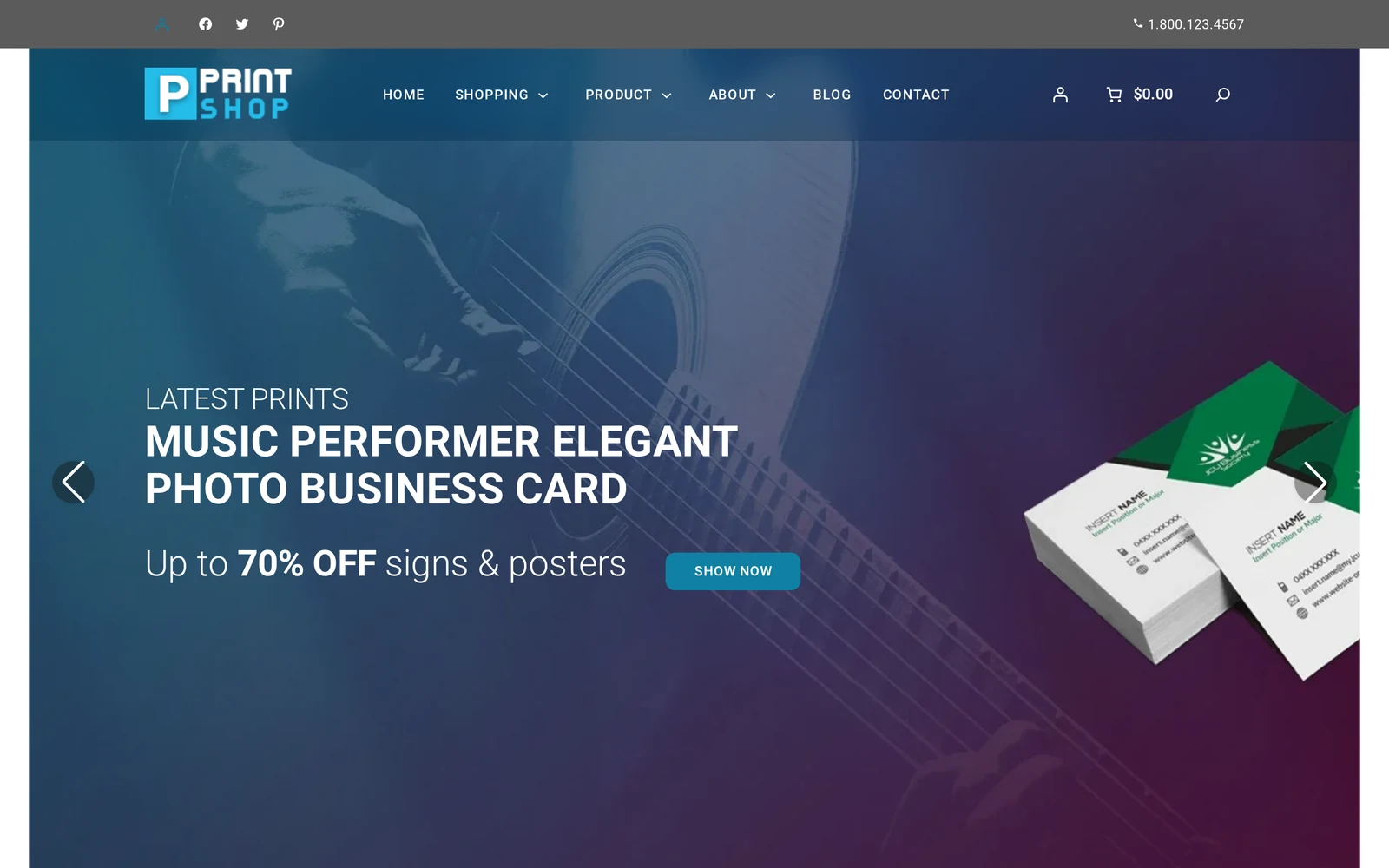
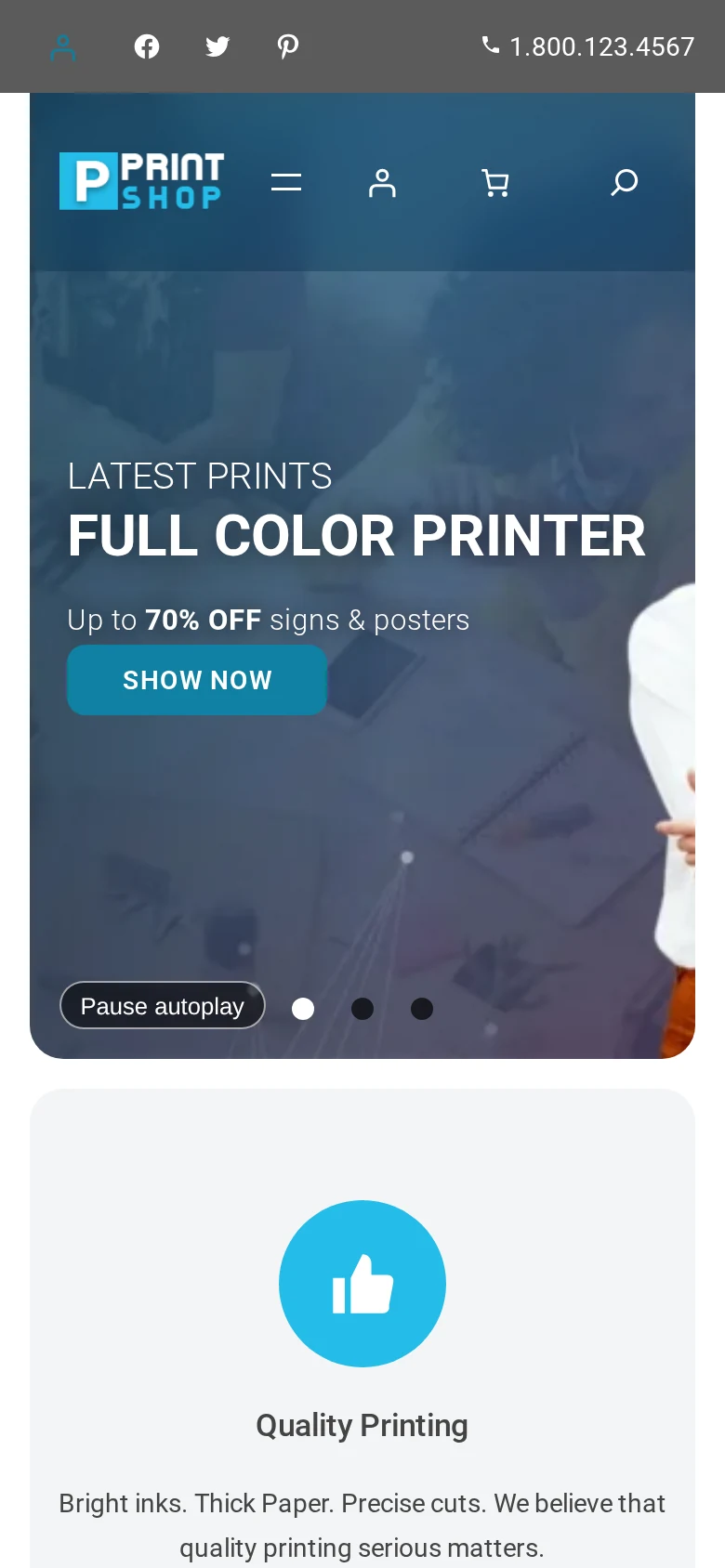
Once Store Setup or the manual upload finishes, a merchant has a complete WooCommerce storefront in the niche they picked, filled with Cmsmart's sample catalogue, with Cmsmart Product Designer installed and the licence key already active.
Example scenario. A merchant opens the Cmsmart dashboard, picks a store, and presses Set Up. Minutes later they have a full storefront, sample products in their niche, and a design tool ready on every item, so the afternoon goes to their own catalogue instead of zip files.
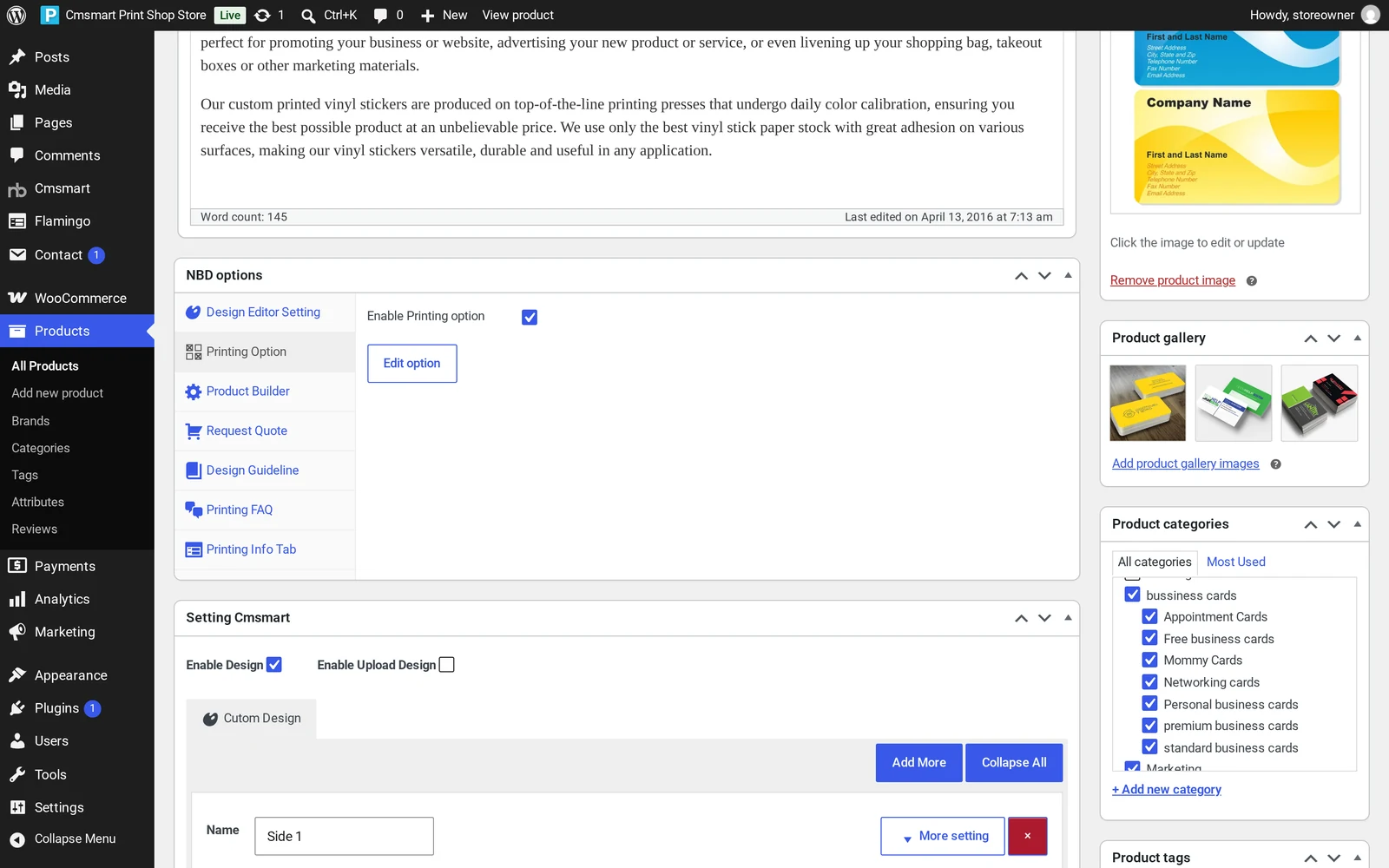
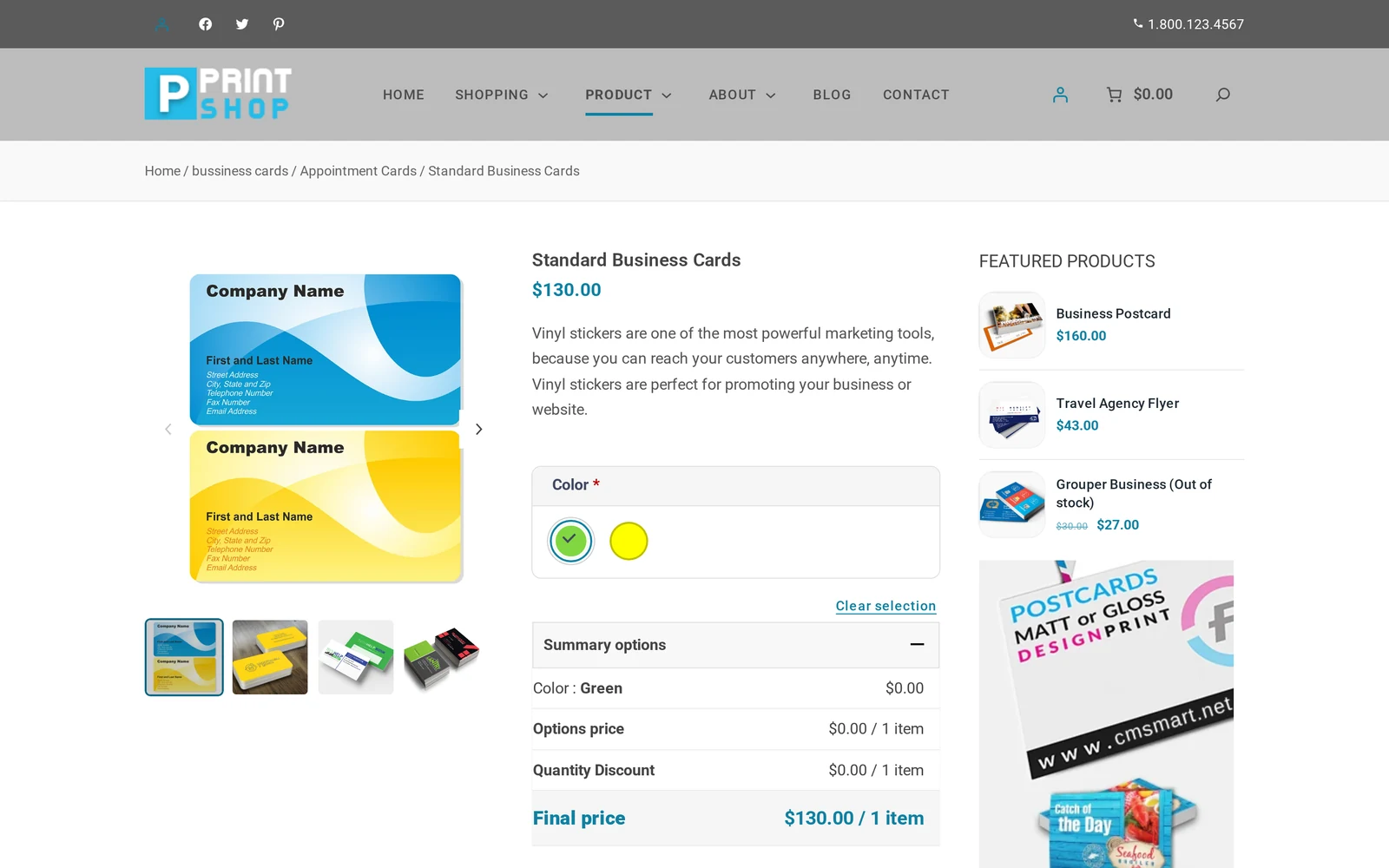
That catalogue is sample data, not a preview: names in a content pack are generic placeholders (a T-shirt listed as "Business Postcard" is normal). Merchants wanting their own branding from day one typically pair the install with Cmsmart's preset installation and demo import service.
How does Cmsmart's dashboard and theme system work?
Cmsmart's install system has three layers: a dashboard that knows your licence and builds the installer, a WordPress parent-and-child theme pair that supplies the storefront, and the separate Cmsmart Product Designer plugin that turns a product into a live customizer.
The pieces behind every Cmsmart store:
- Cmsmart dashboard. Checks your licence against the store you picked, then builds the installer (Cmsmart Store Installer 2.0.3) or hands you the theme zips.
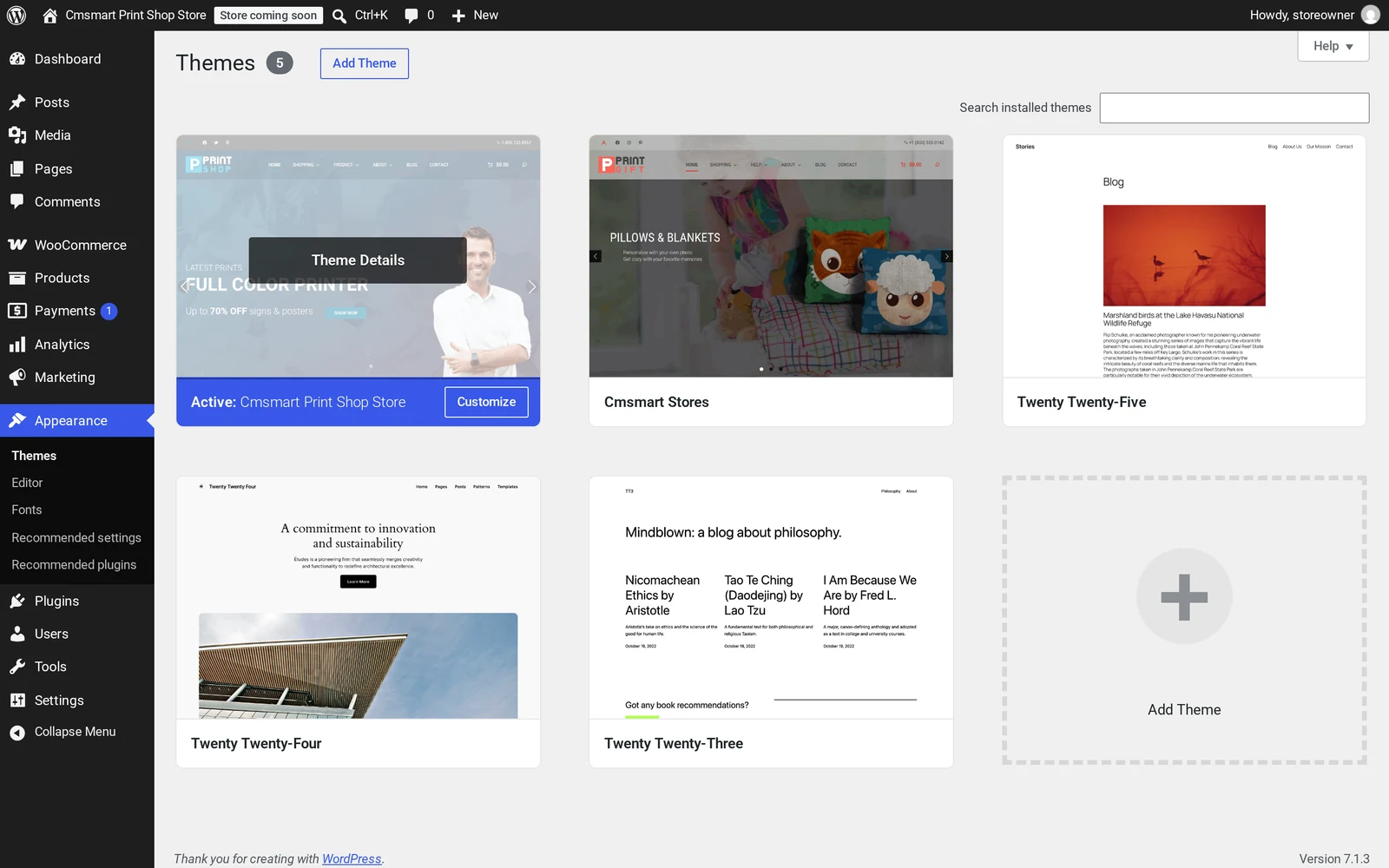
- Parent theme — Cmsmart Stores. A WordPress block theme every store builds on: 2.1.0 for Cmsmart B2B Store, 2.2.0 for the six niche stores and Cmsmart Marketplace Store.
- Child theme — one of eight. Each store's child theme, now 2.0.1 after the October 2026 release, declares its parent in the stylesheet.
- Cmsmart Stores Blocks (2.1.2). A companion plugin for the store's Site Editor block patterns.
- WooCommerce. The cart, checkout and catalog engine every store theme is built around.
- Cmsmart Product Designer. Turns a product into an on-page customizer and generates a print-ready PDF that matches the order automatically. Store Setup bundles version 2.18.3.
Cmsmart insight: keep the parent theme installed even after you settle on one child store. WordPress uses it for every template the child does not override, so removing "the one you're not using" can break the live child.
Which store should I pick?
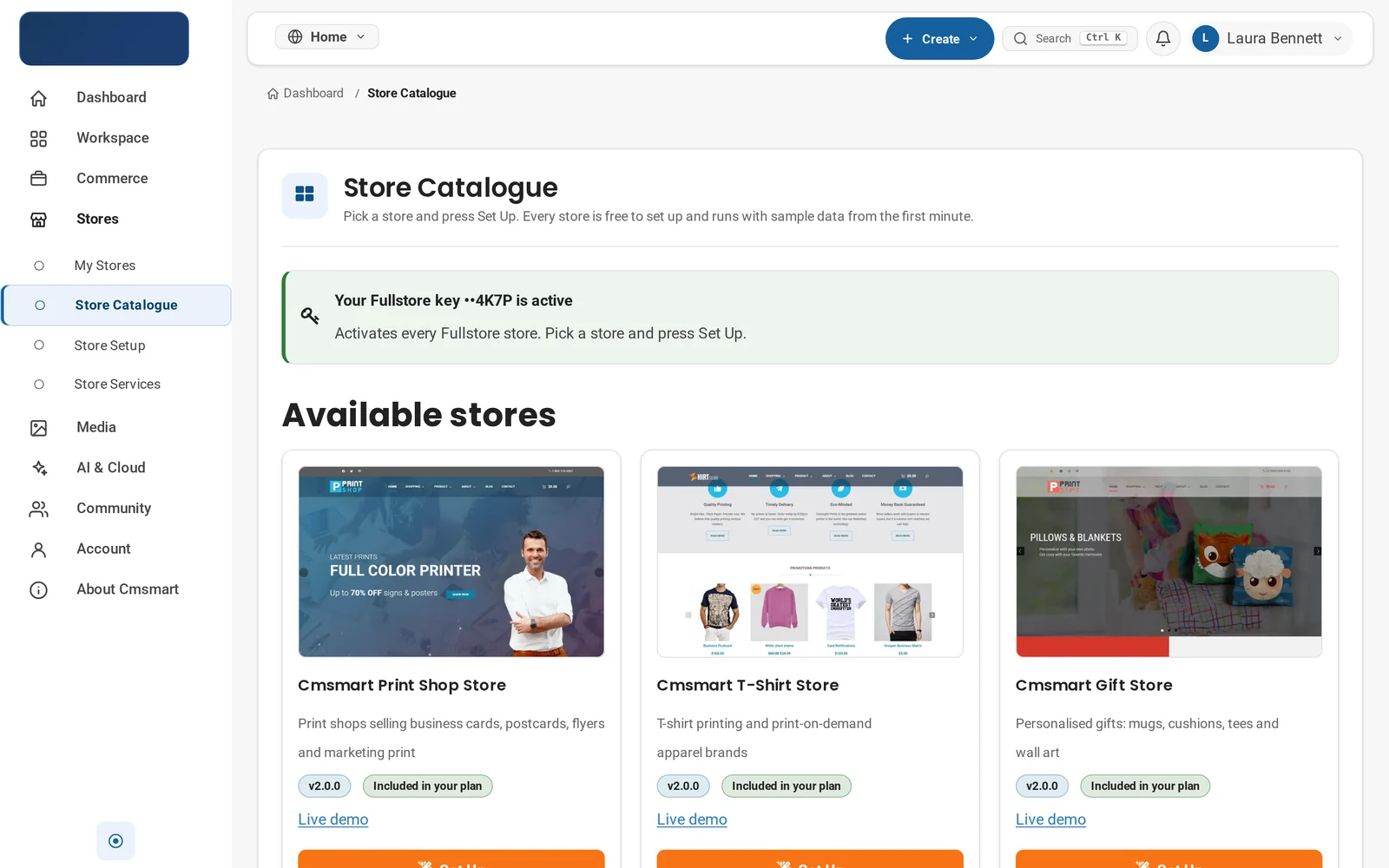
| Store | For whom | Plan that activates it | Links |
|---|---|---|---|
| Cmsmart Print Shop Store | Cards, flyers, signage | Fullstore | Store · Demo |
| Cmsmart T-Shirt Store | Apparel, print-on-demand | Fullstore | Store · Demo |
| Cmsmart Gift Store | Personalised gifts, mugs | Fullstore | Store · Demo |
| Cmsmart 3D Store | 3D-printed, model products | Fullstore | Store · Demo |
| Cmsmart Boxed Store | Packaging products | Fullstore | Store · Demo |
| Cmsmart Boxed 2 Store | Packaging, second layout | Fullstore | Store · Demo |
| Cmsmart B2B Store | Wholesale, frequent reorders | B2B | Store · Demos |
| Cmsmart Marketplace Store | Many sellers or designers | Marketplace | Store · Demo |
A B2B key also activates every Fullstore store, a Marketplace key activates every store. Current plan names are on Cmsmart's pricing page.
What's the business value of getting the rollout right?
Picking the right store and path the first time means spending setup hours on products and branding, not re-downloading zips, decoding a licence error, or rebuilding a store that was never meant to upgrade.
| Benefit | How it shows up in your business | KPI to track |
|---|---|---|
| Faster time-to-first-product | A full storefront and catalogue exist before you touch WooCommerce's product screen | Days from signup to first live product |
| Fewer support round-trips | Right plan, right upload order, avoids the two most common activation errors | Install-related tickets per launch |
| Niche fit from day one | Picking the right store avoids a theme switch later | Store or theme changes per launch |
| Design tool ready immediately | Product Designer installs and licenses in the same flow | Share of SKUs with design enabled at launch |
A simple way to size the time saved: hours per failed install, times installs per month, times your hourly cost. For an agency running several client installs a month, that adds up fast.
How do you install a Cmsmart store on WordPress?
Run Store Setup from the Cmsmart dashboard, which builds a one-file installer that does the WordPress, theme, plugin and licence steps for you, or upload the parent theme, child theme, Cmsmart Stores Blocks and Cmsmart Product Designer yourself through WordPress's upload screens.
Before you start
- PHP 8.3 or greater, WordPress's own recommendation.
- WooCommerce, already installed for manual (Store Setup installs it for you); see WooCommerce's requirements.
- Write access to an empty folder (Store Setup) or WordPress admin access (manual).
- Your Cmsmart licence key under Commerce > Your Licenses, matching the plan for your store.
Back up first. Both paths are safe on a fresh install, but if your site has content already, back it up before uploading anything; cheaper to undo than to debug live.
Set up with Store Setup (recommended)
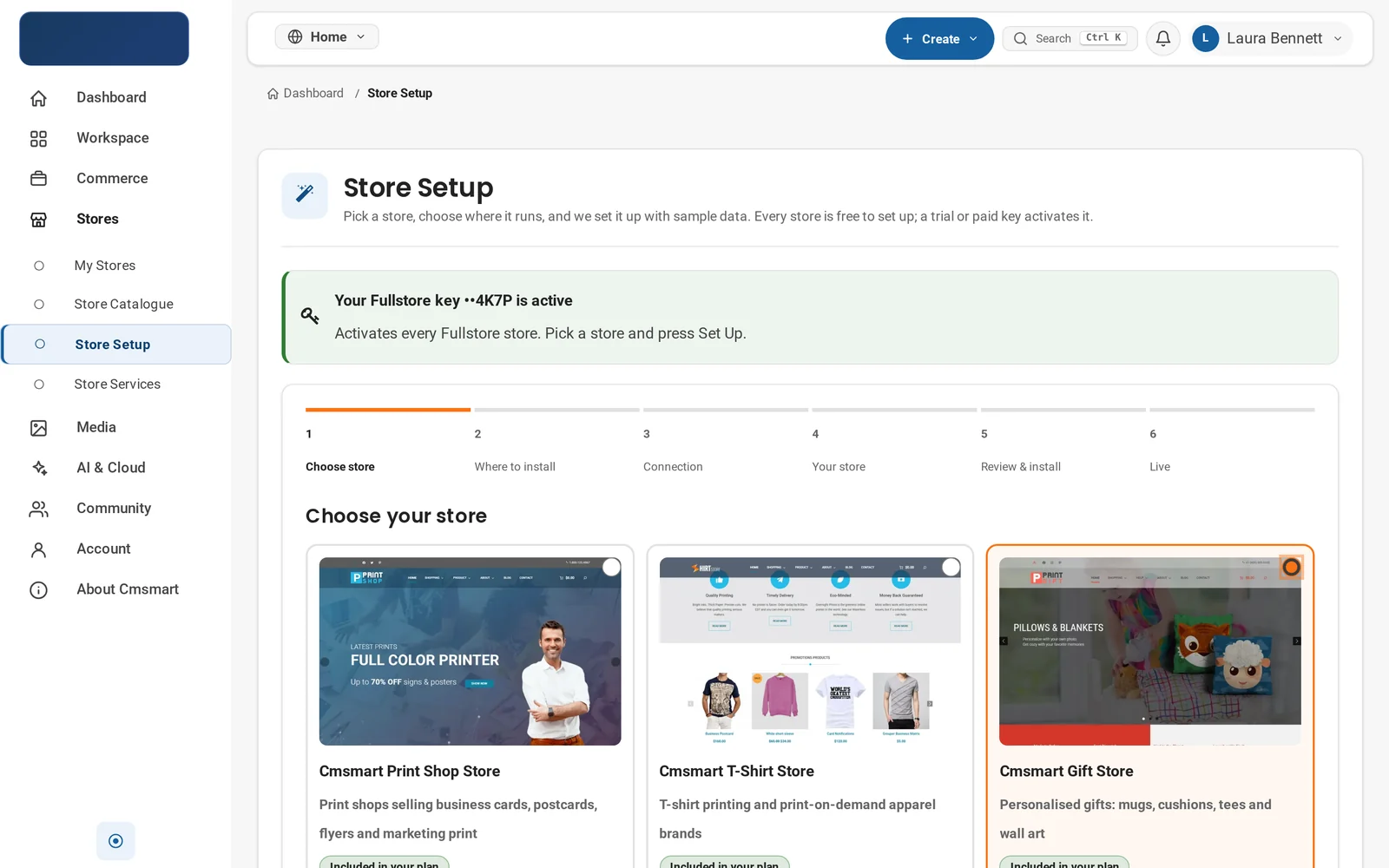
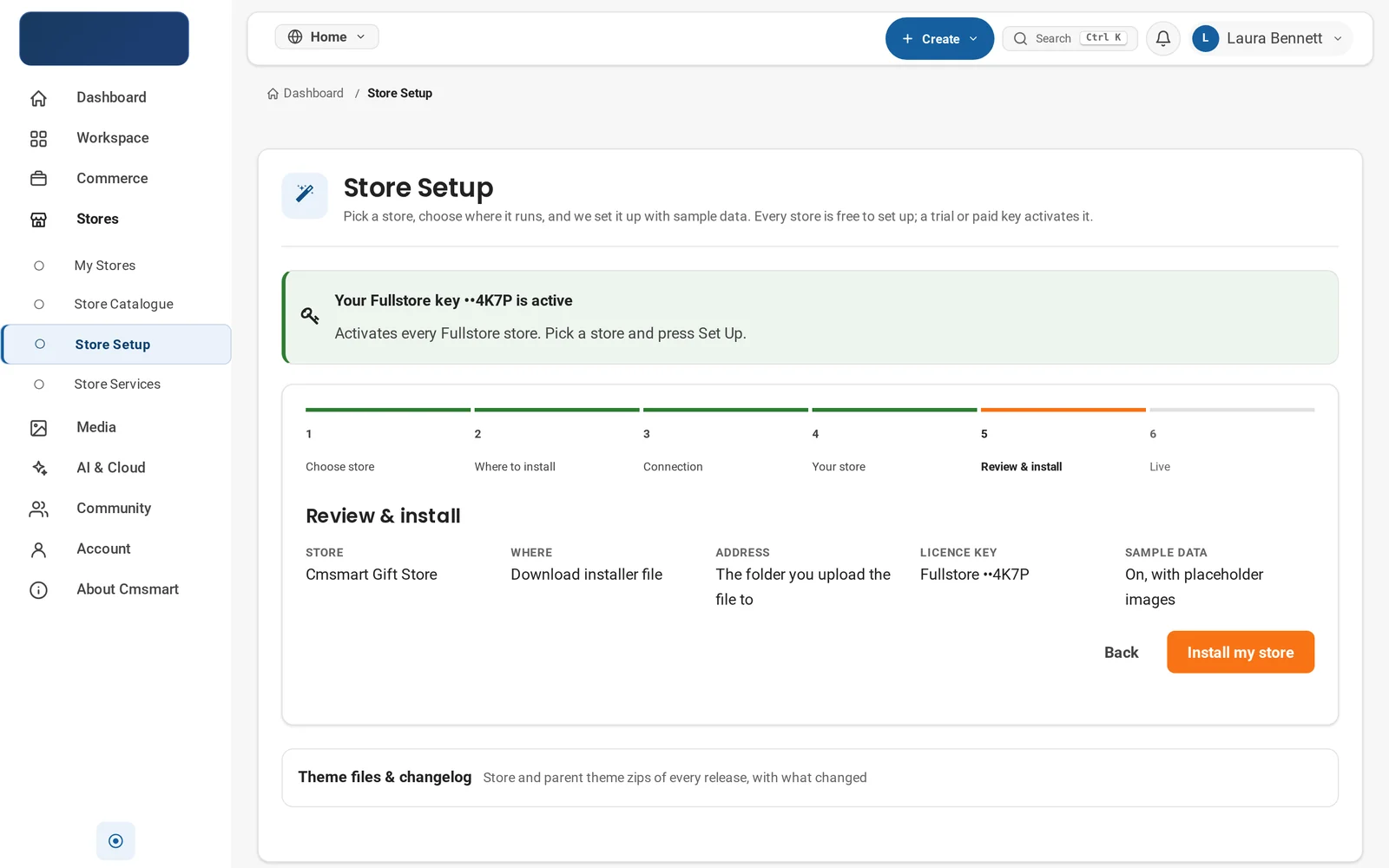
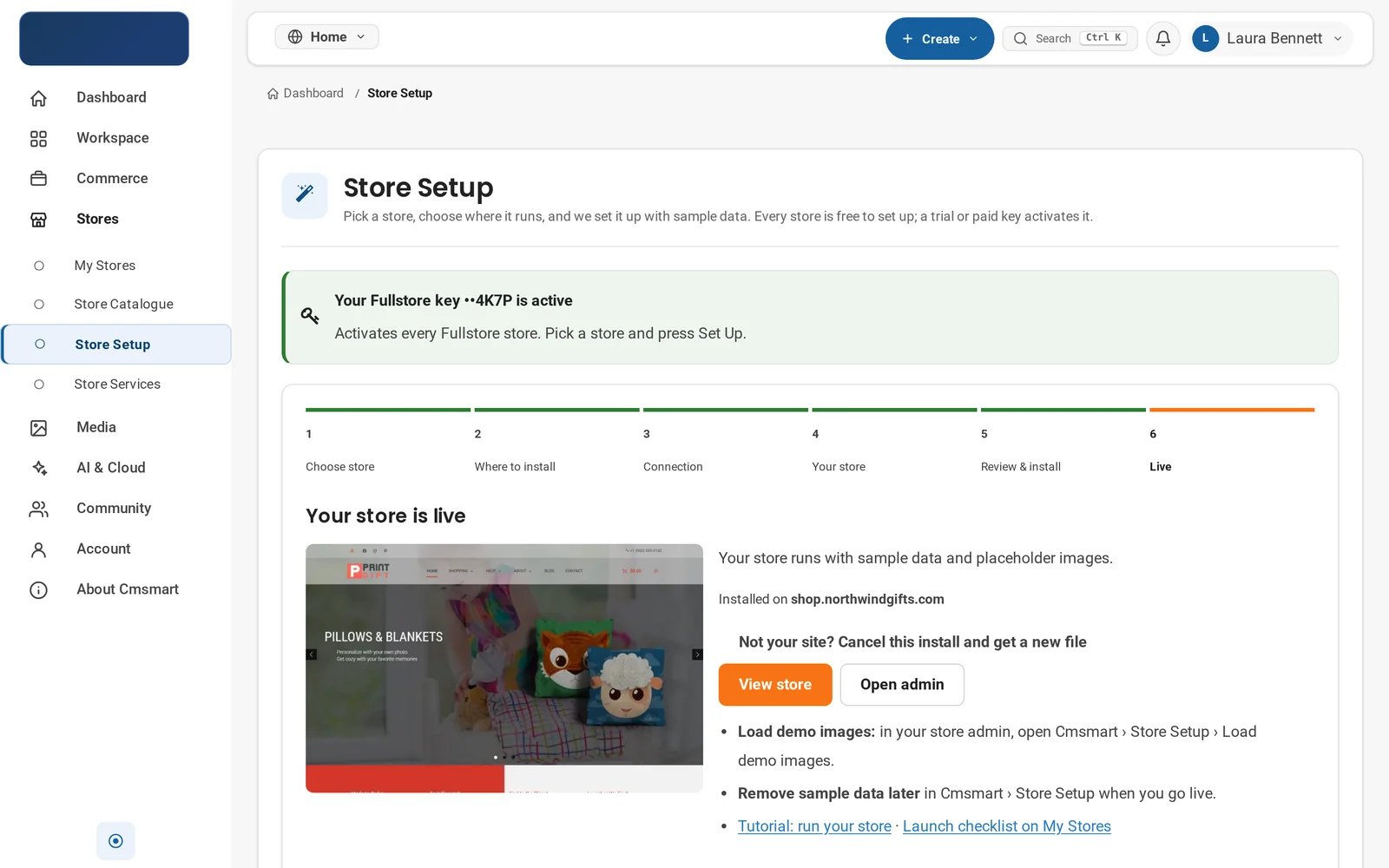
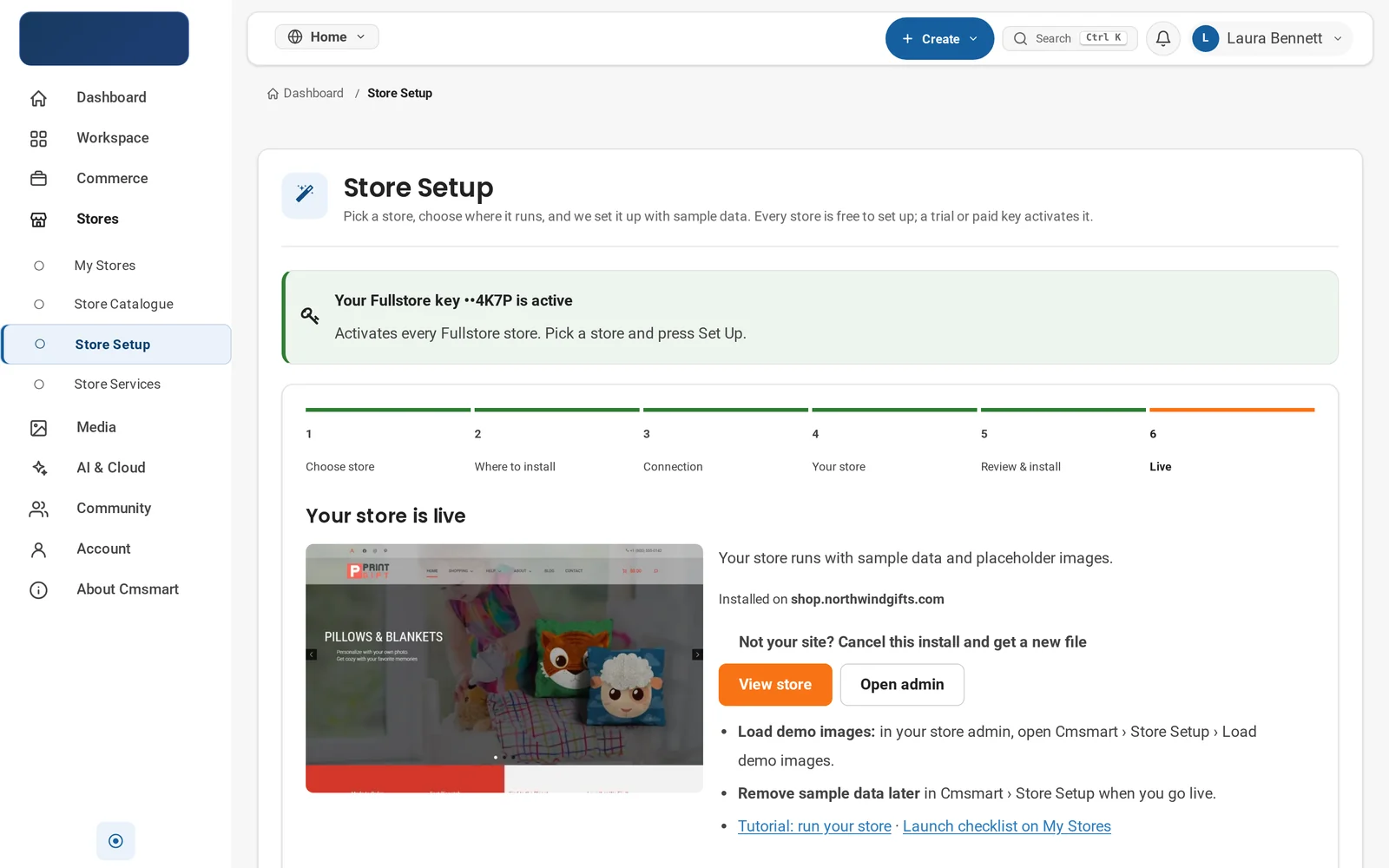
- In the dashboard, go to Stores > Store Setup, choose your store, and press Continue.
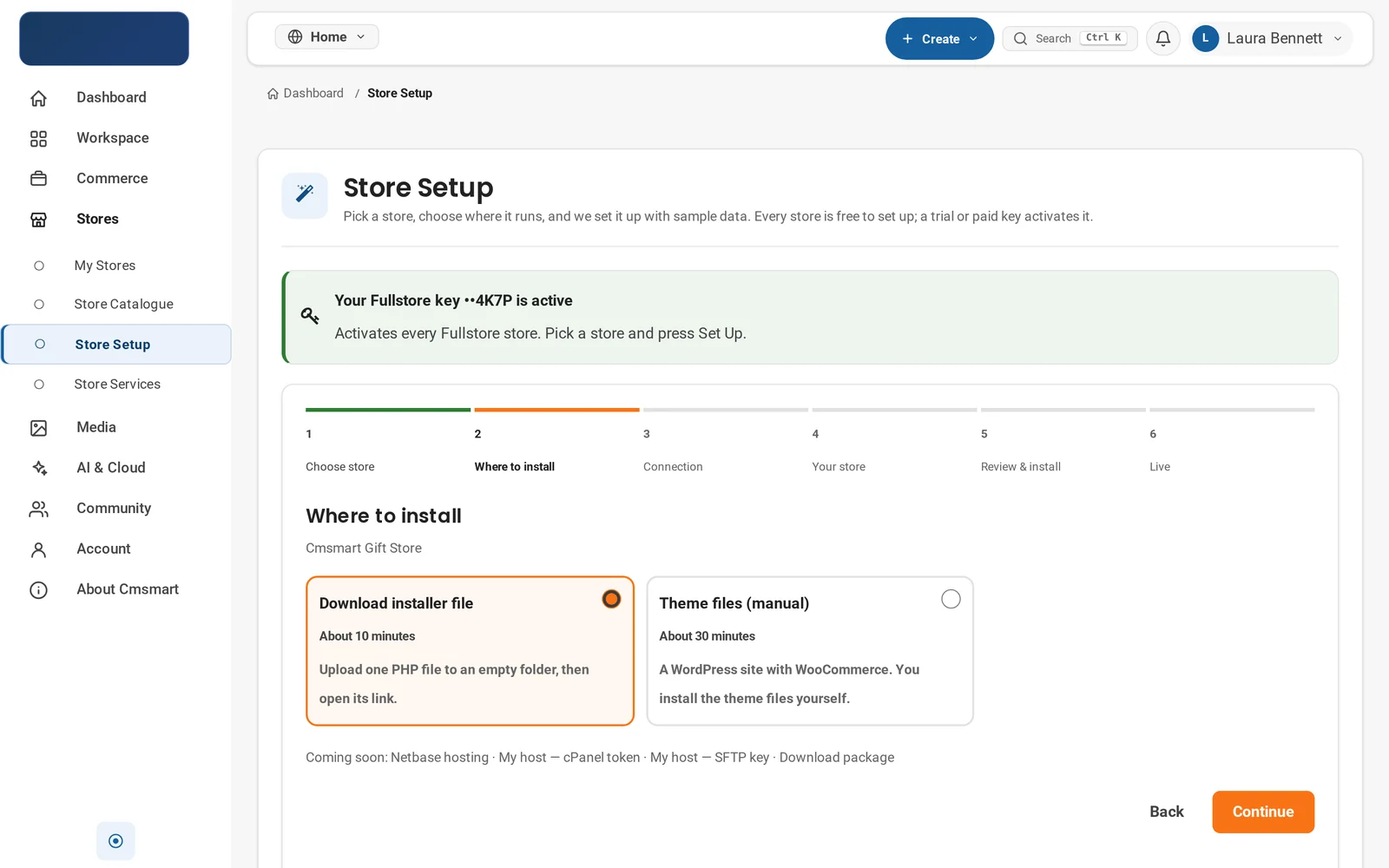
- On Where to install, choose Download installer file (about 10 minutes) over the manual option.
- On Connection, note the installer from step 5 carries your key and store inside it, works for 7 days, at most 3 installs.
- On Your store, set a store name and admin email; sample data stays on for a full launch catalogue.
- On Review & install, check the details, then press Install my store to download the PHP file.
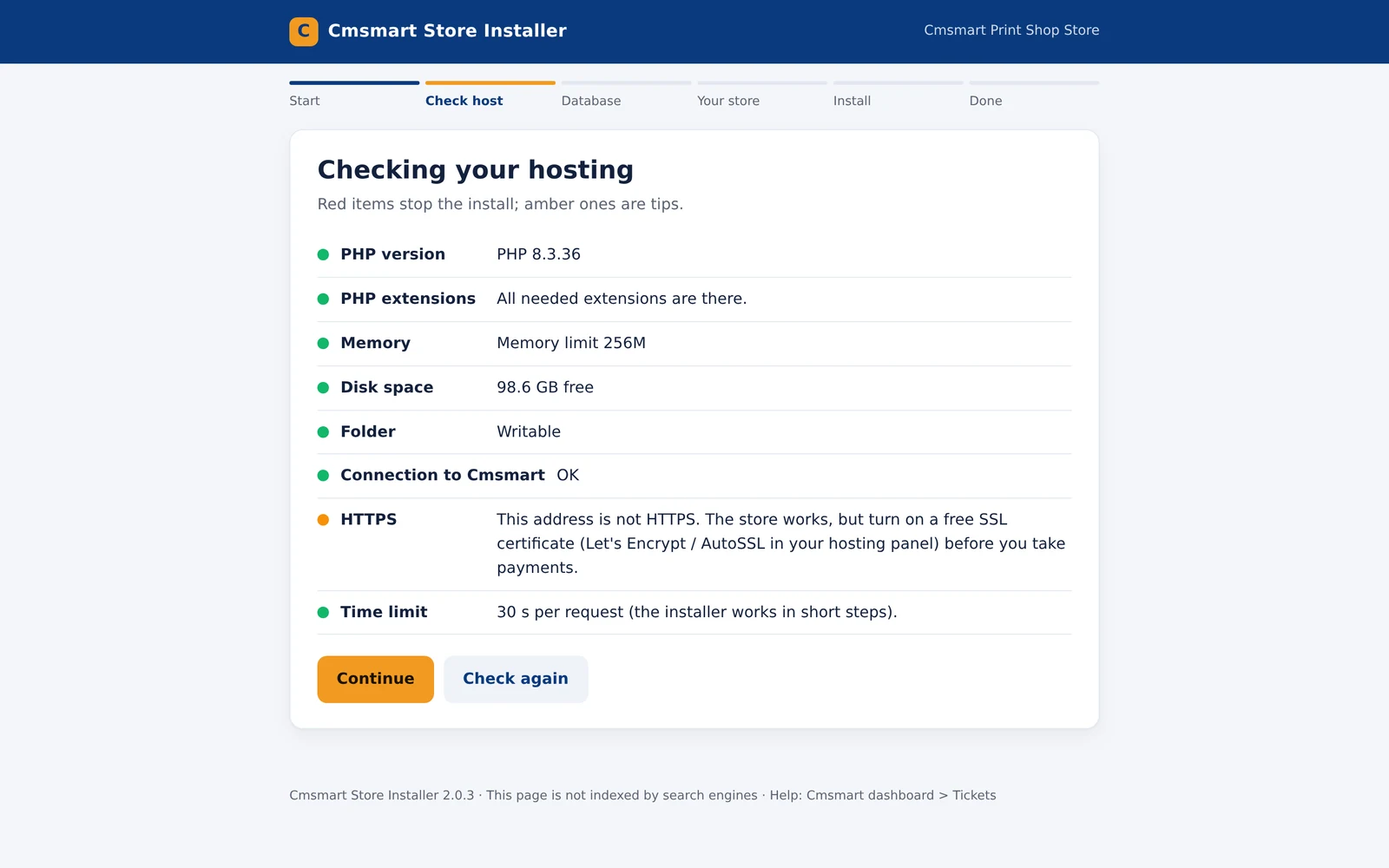
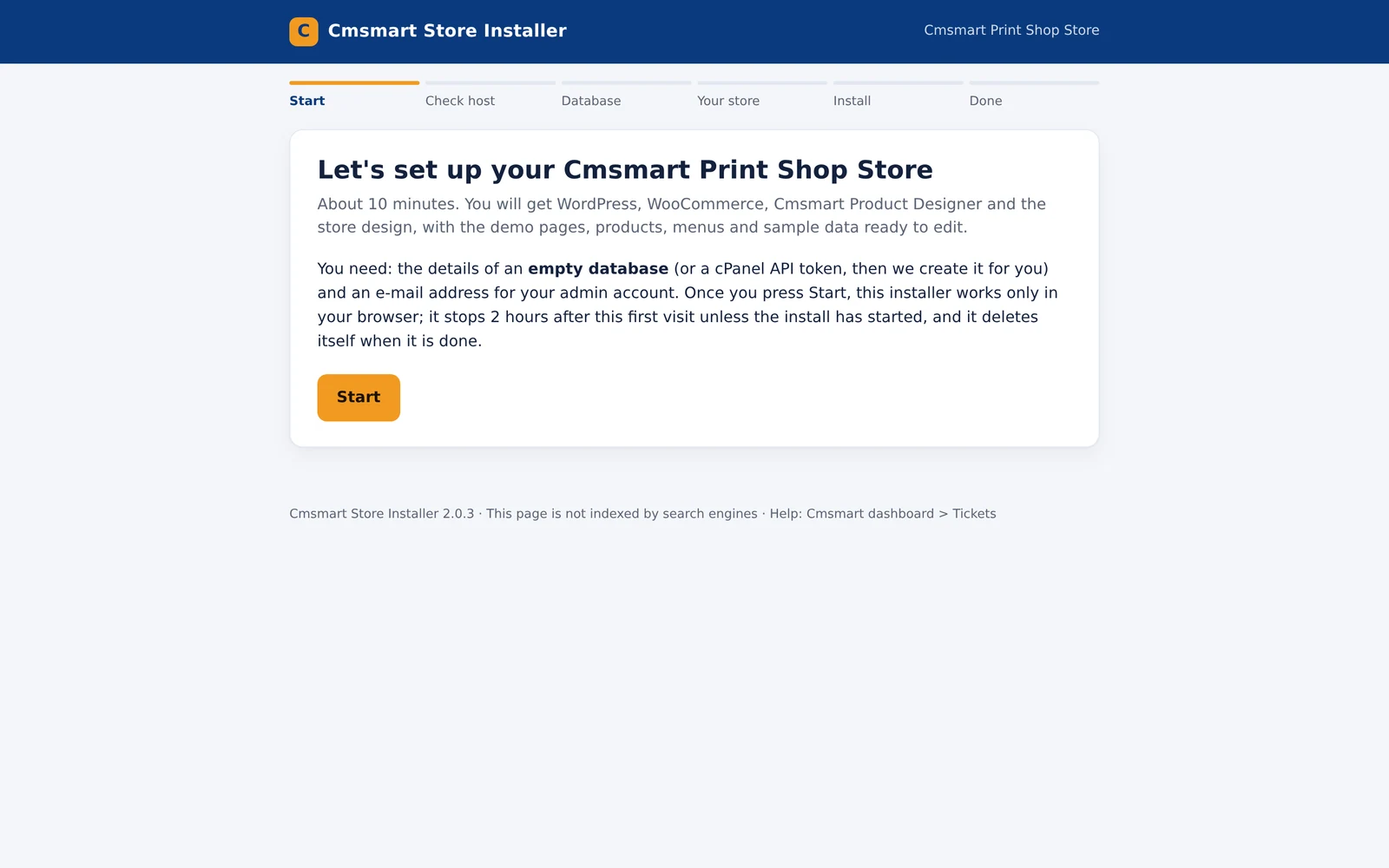
- Upload that file to an empty folder on your host and open its link; the installer opens on a Start screen asking for an empty database (or cPanel token) and an admin email.
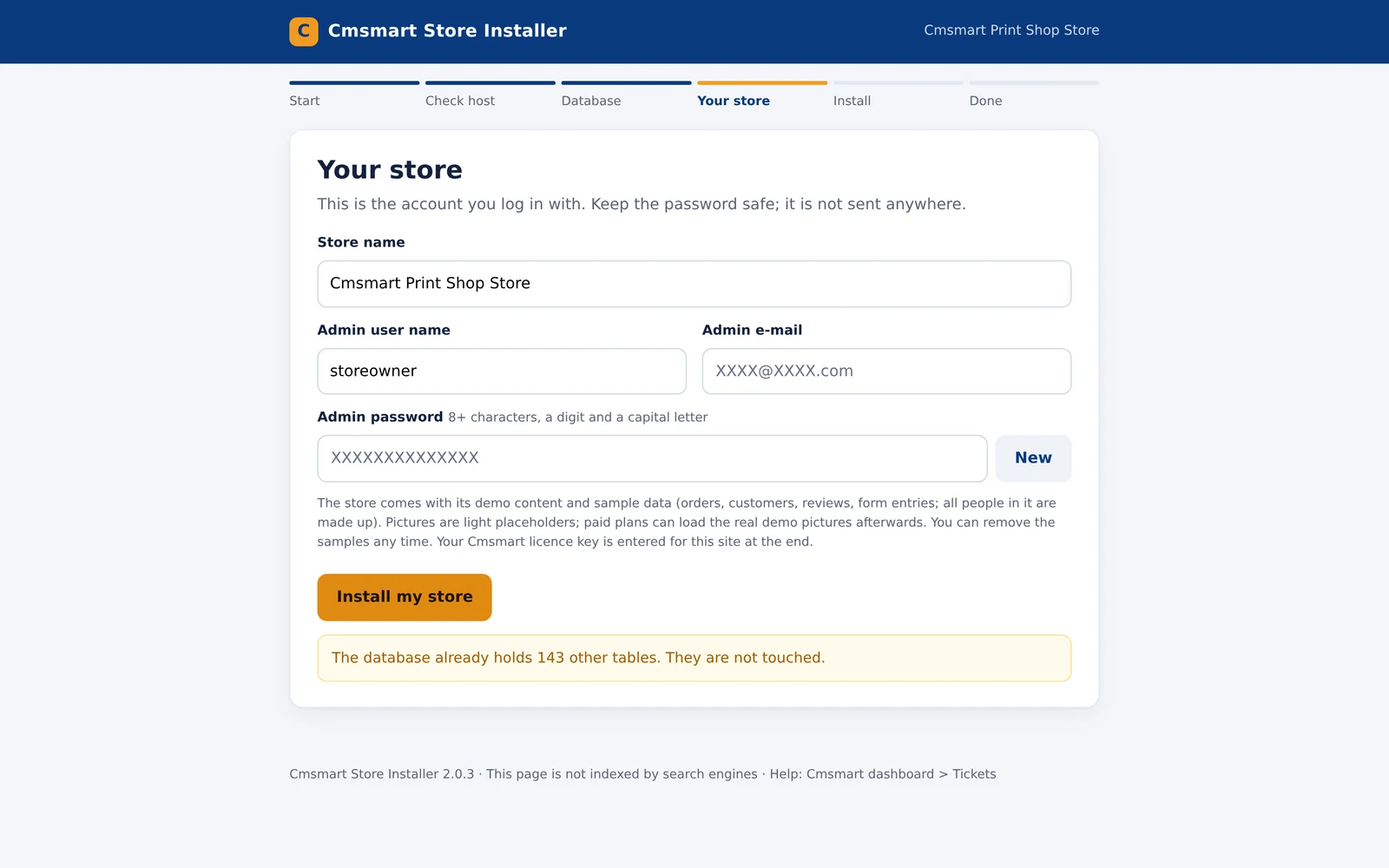
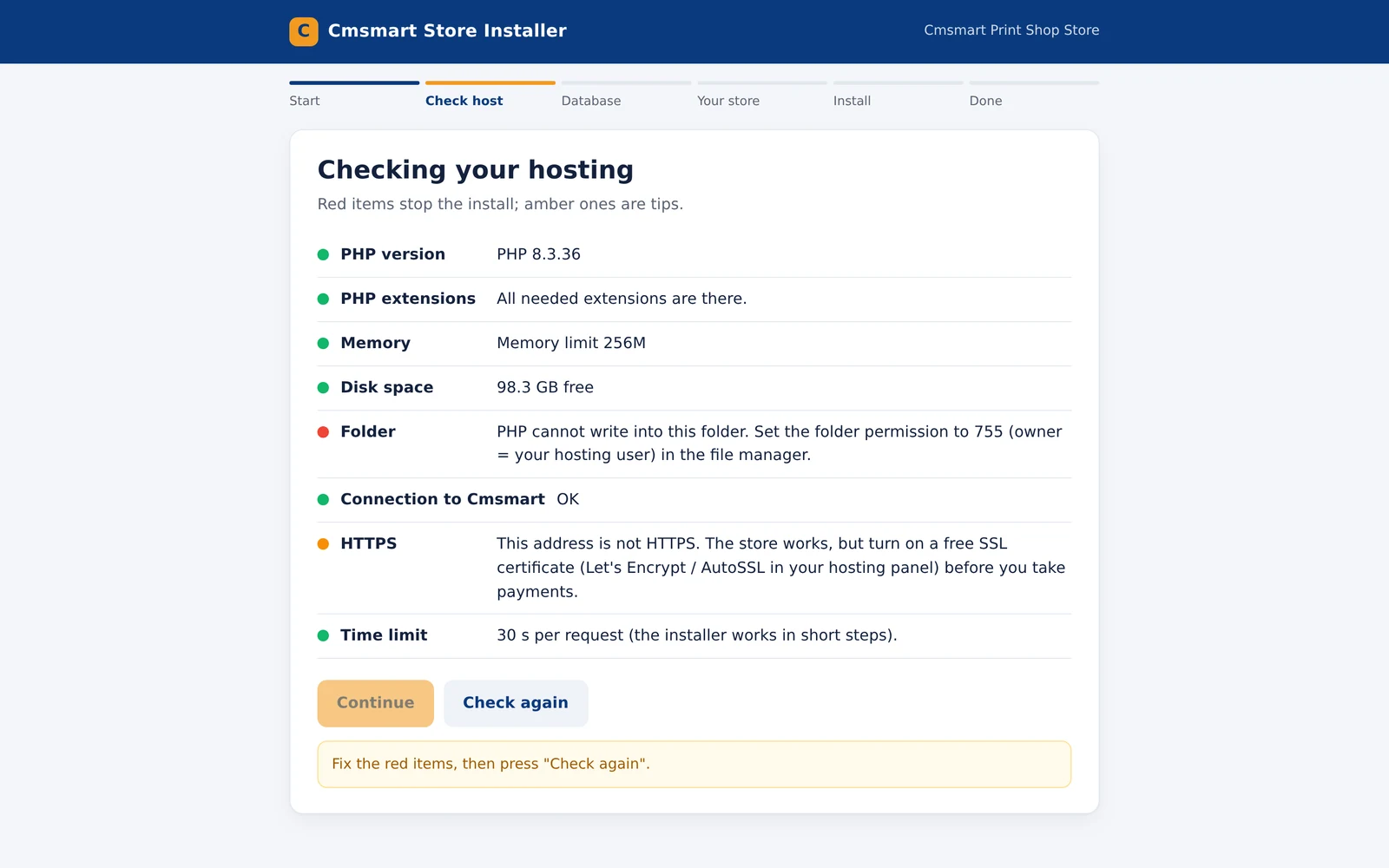
- Press Start, then walk Check host, Database, and Your store (admin user name, email, generated password).
- Press Install my store; it downloads files, installs plugins and themes, and imports the demo store and sample data.
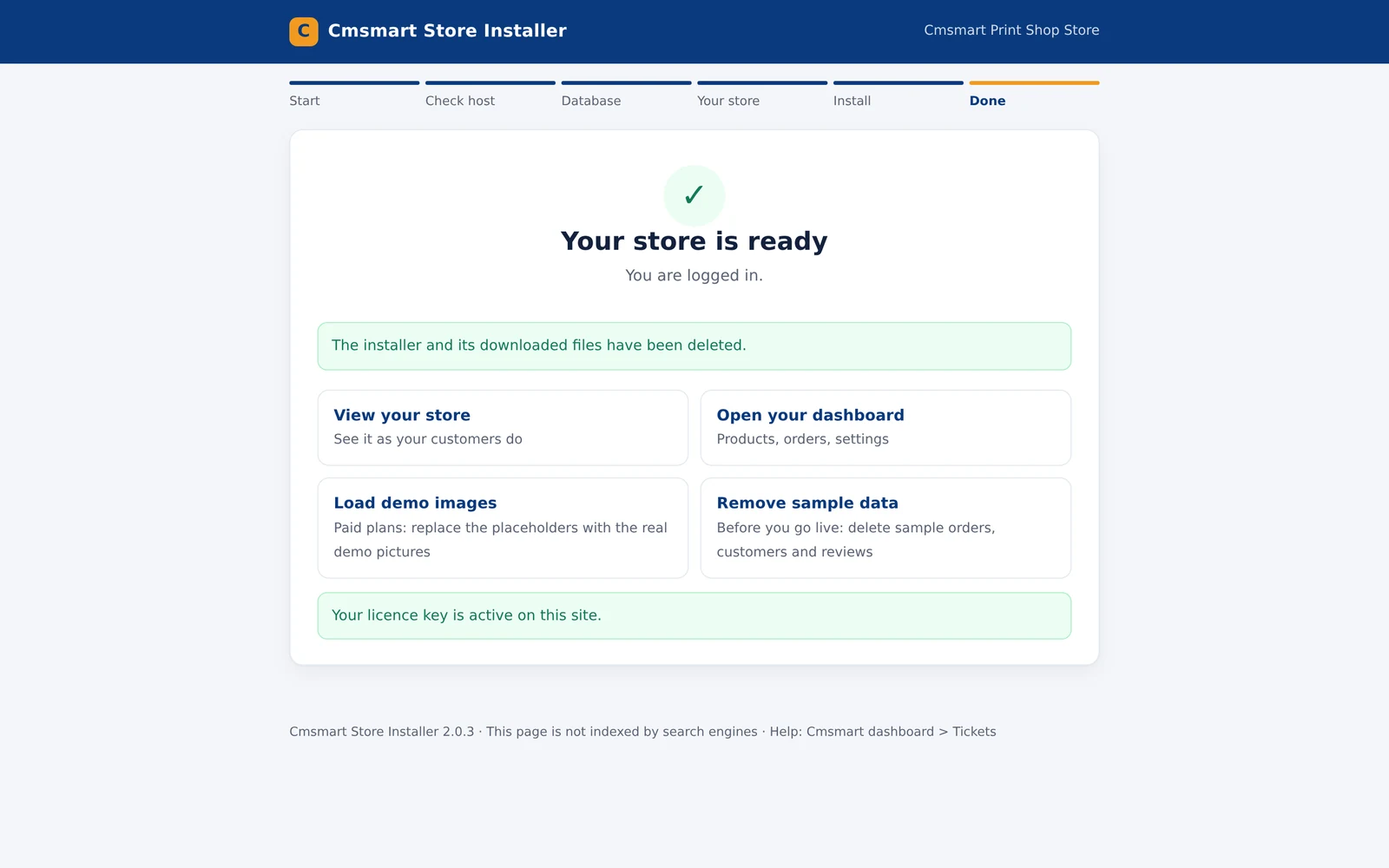
- On Done, you land on "Your store is ready", logged in, installer deleted, licence key active.
- For Cmsmart Marketplace Store, demo sellers and products keep populating in the background for a short while once the plan is active.
Install the theme files manually
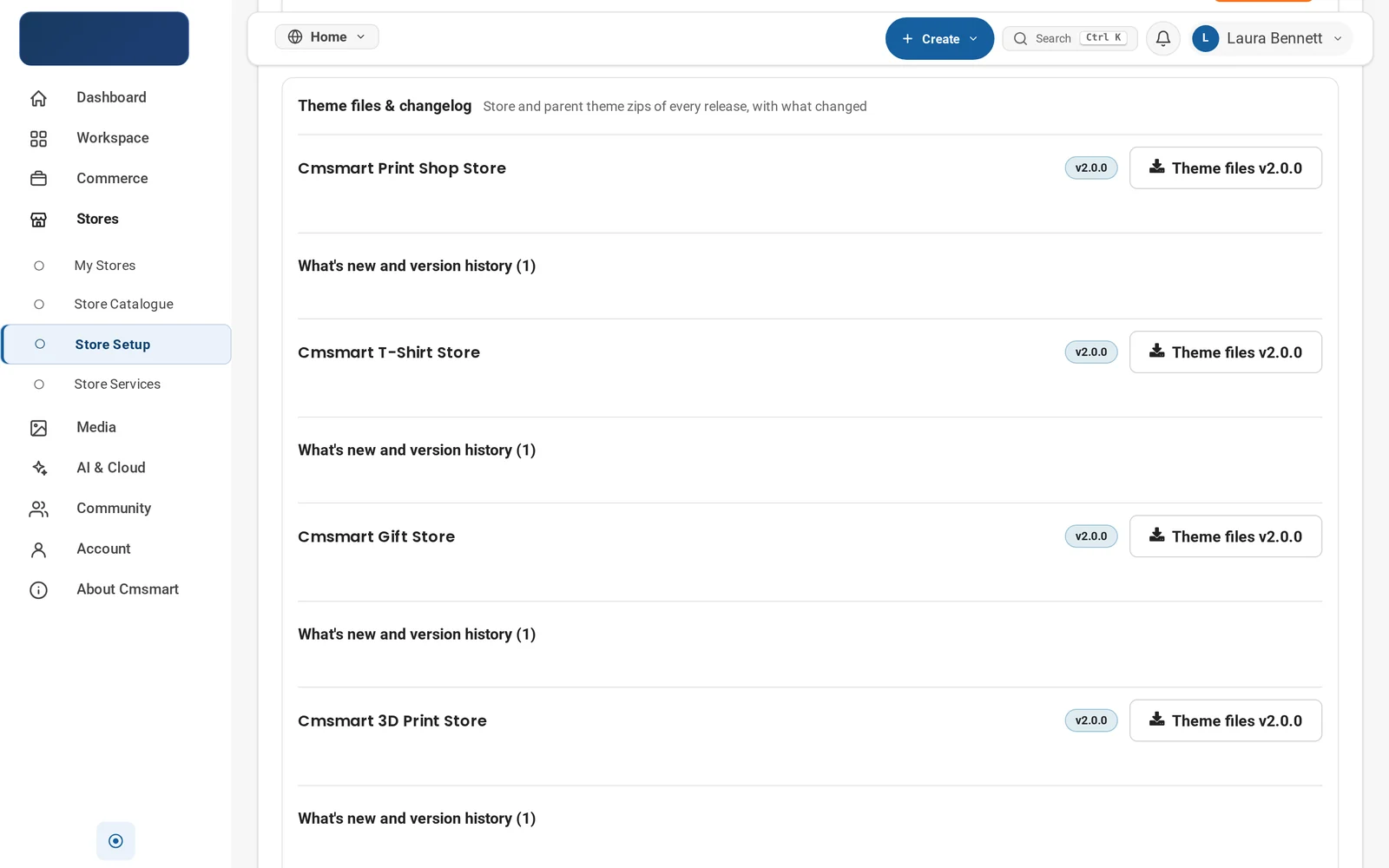
- In the dashboard, open Theme files & changelog and download the Cmsmart Stores parent theme zip and your store's child theme zip.
- In
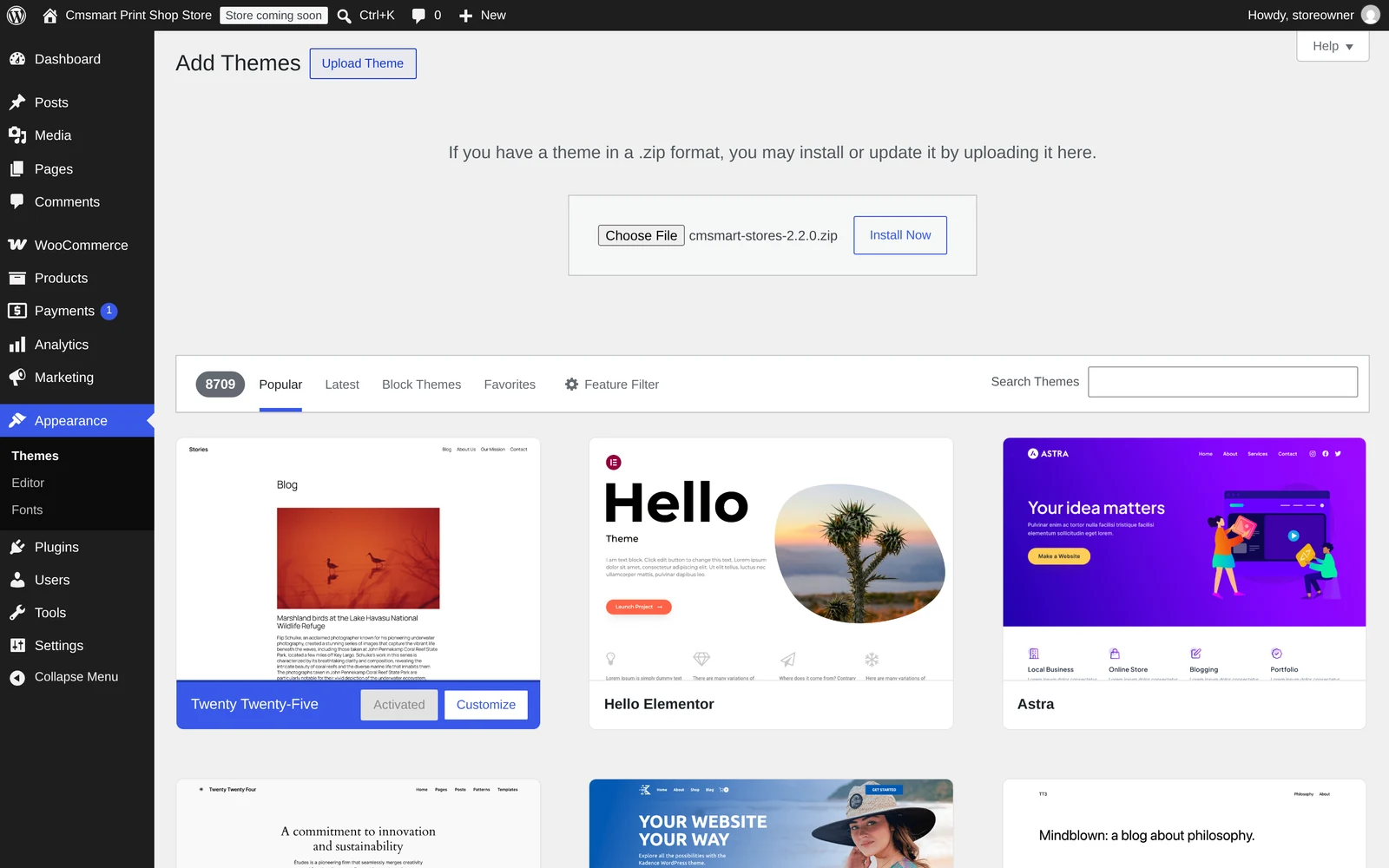
wp-admin: Appearance > Themes > Add New Theme > Upload Theme, choose the parent zip, click Install Now, but do not activate it yet. - Once it shows "Theme installed successfully," upload the child theme zip the same way; WordPress checks the parent is installed, then installs the child.
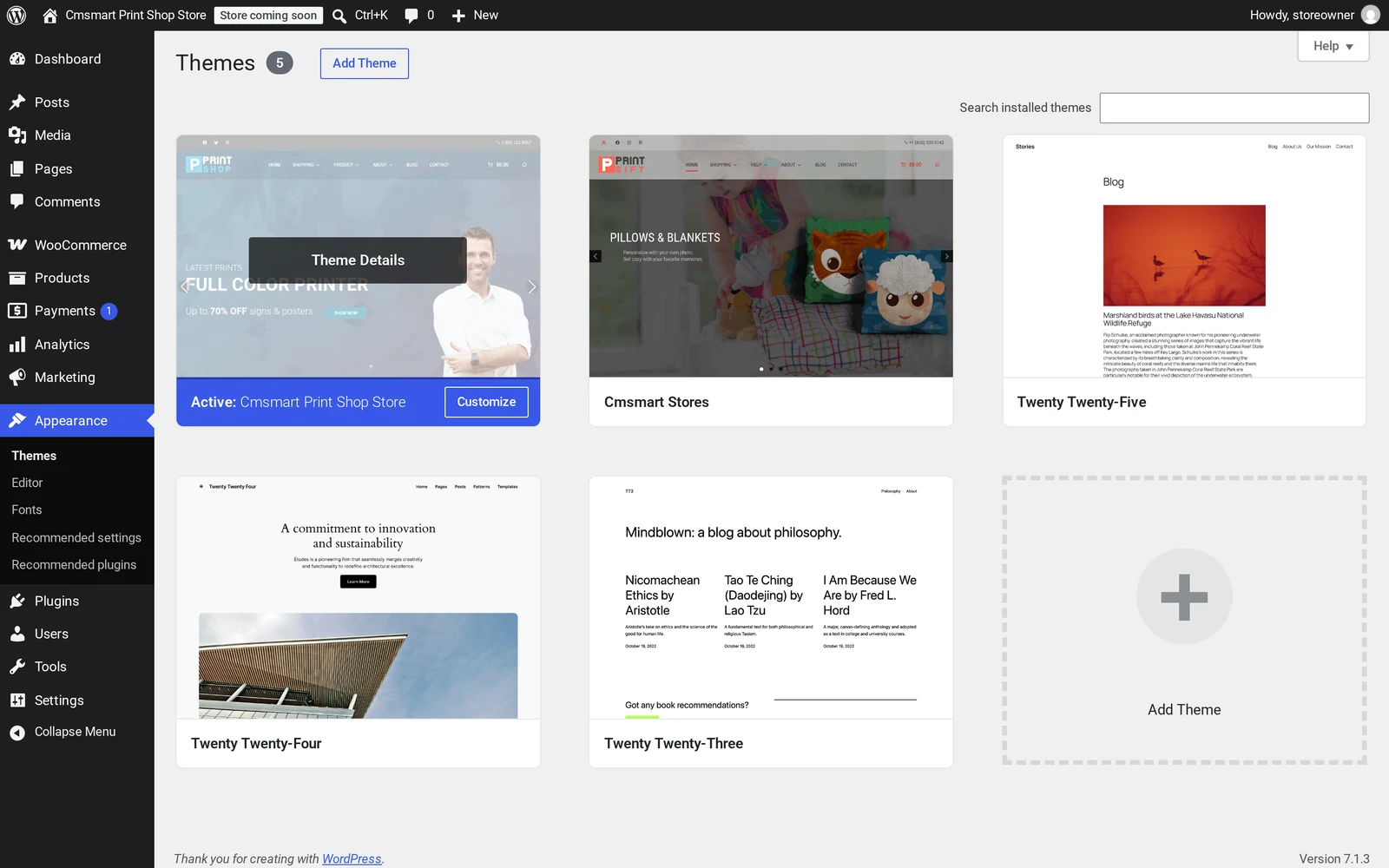
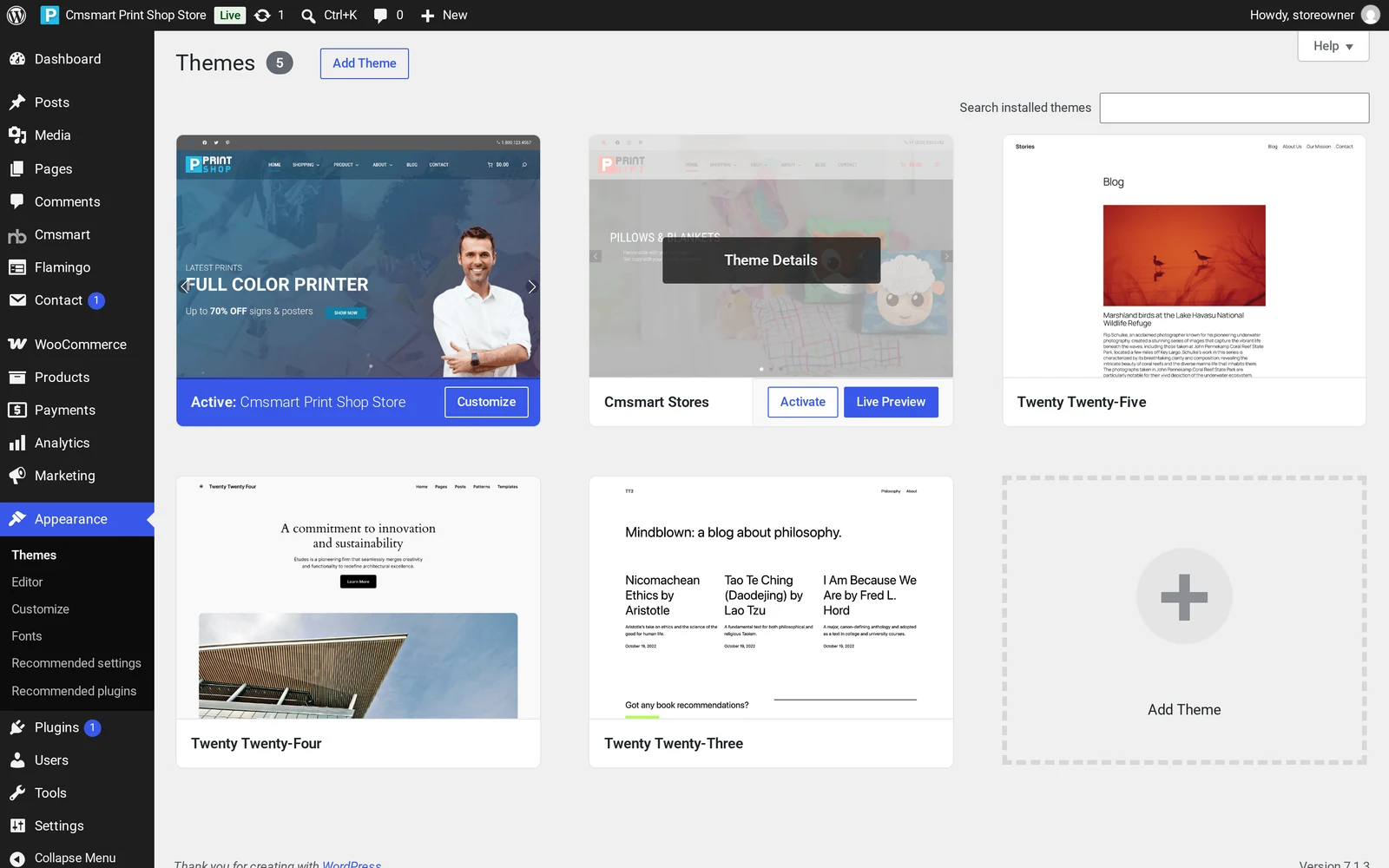
- Open Themes, click Activate on the child theme, and confirm it shows active next to the parent.
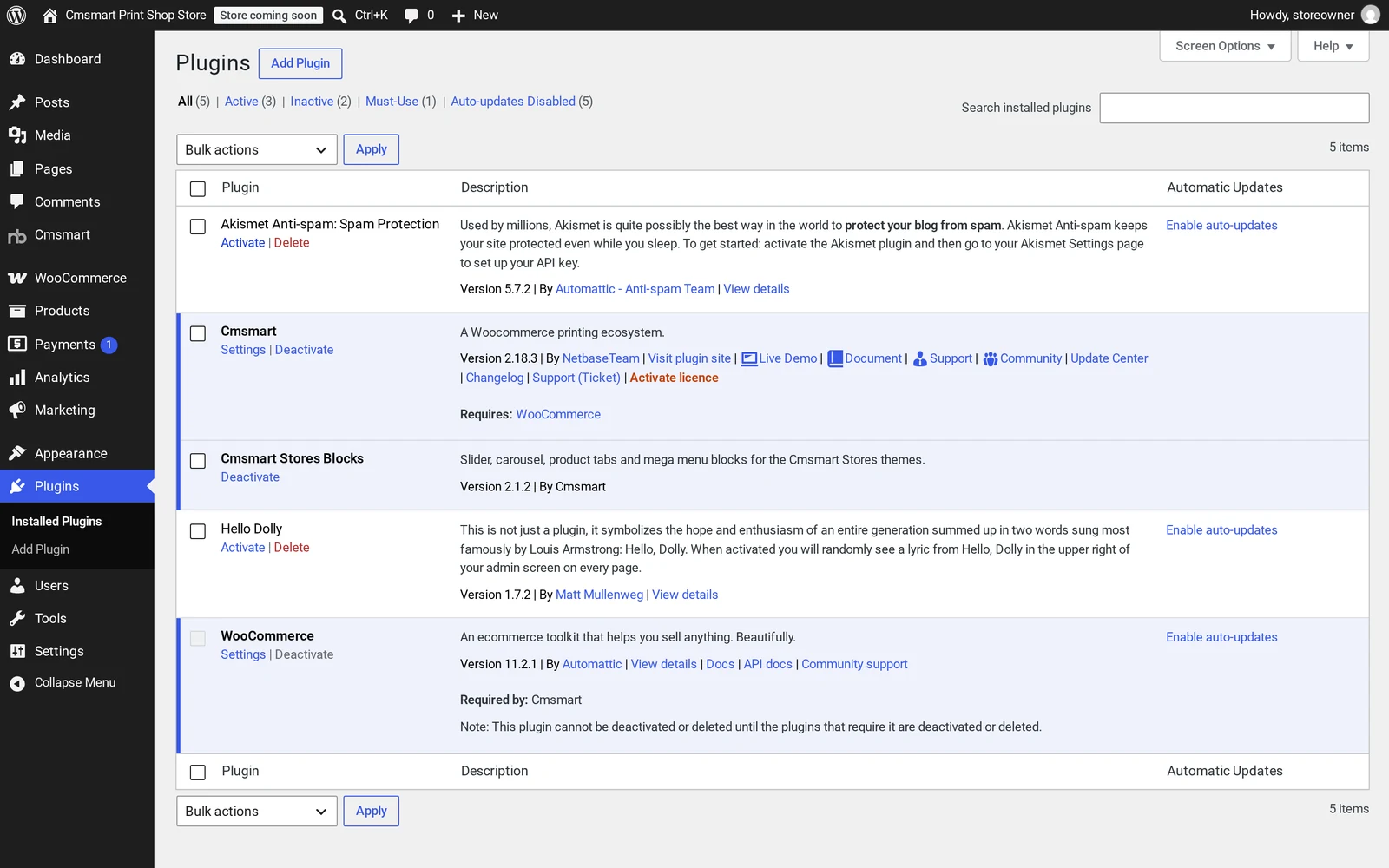
- Under Plugins > Add New Plugin > Upload Plugin, install and activate Cmsmart Stores Blocks, then Cmsmart Product Designer the same way.
- Open Tools > Cmsmart Stores demo content, choose your content pack zip, tick Import full sample data, press Import, then use Load demo images for the real demo photos.
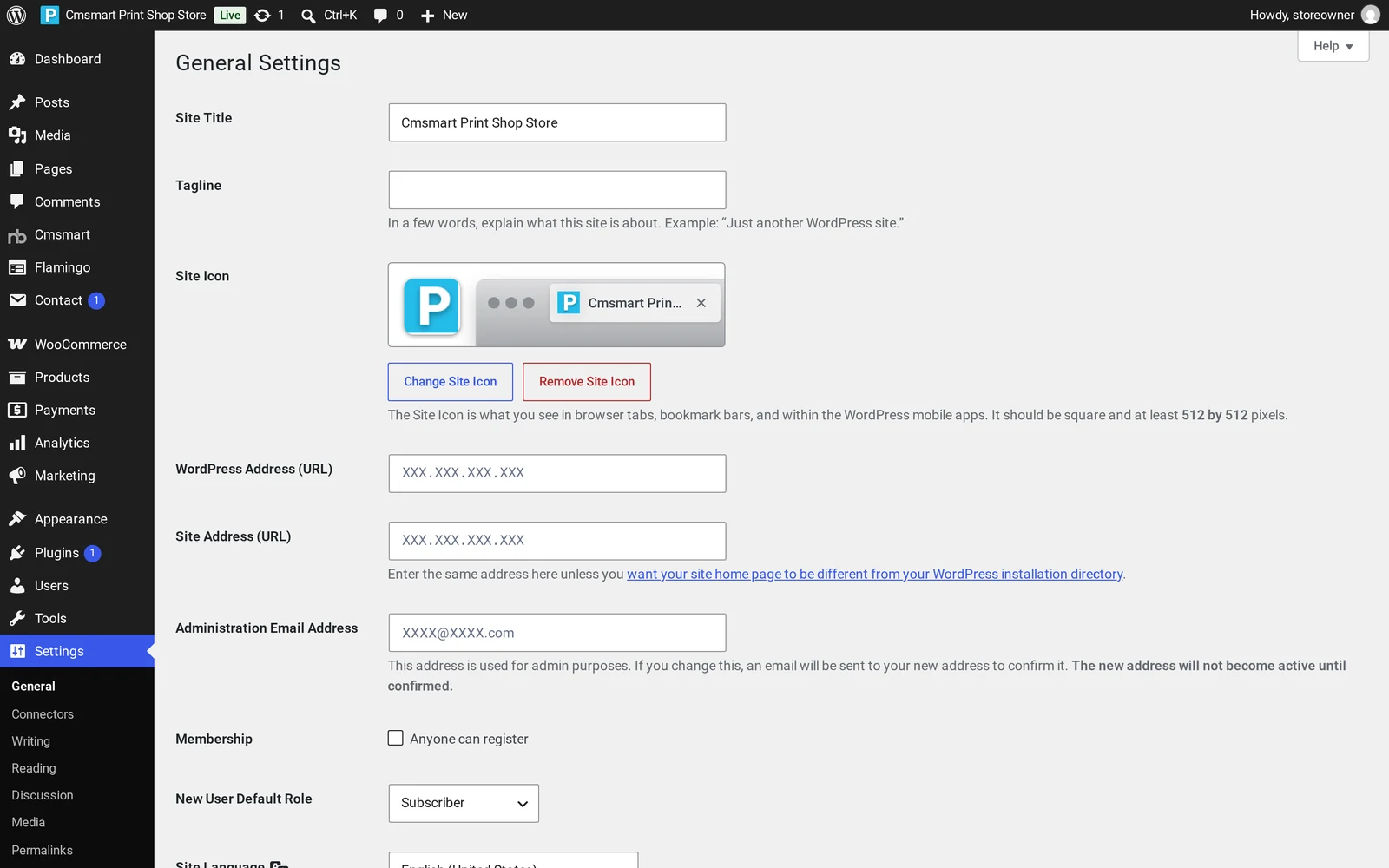
- In WooCommerce > Settings > Site visibility, switch from "Coming soon" to Live.
What to do in your first hour
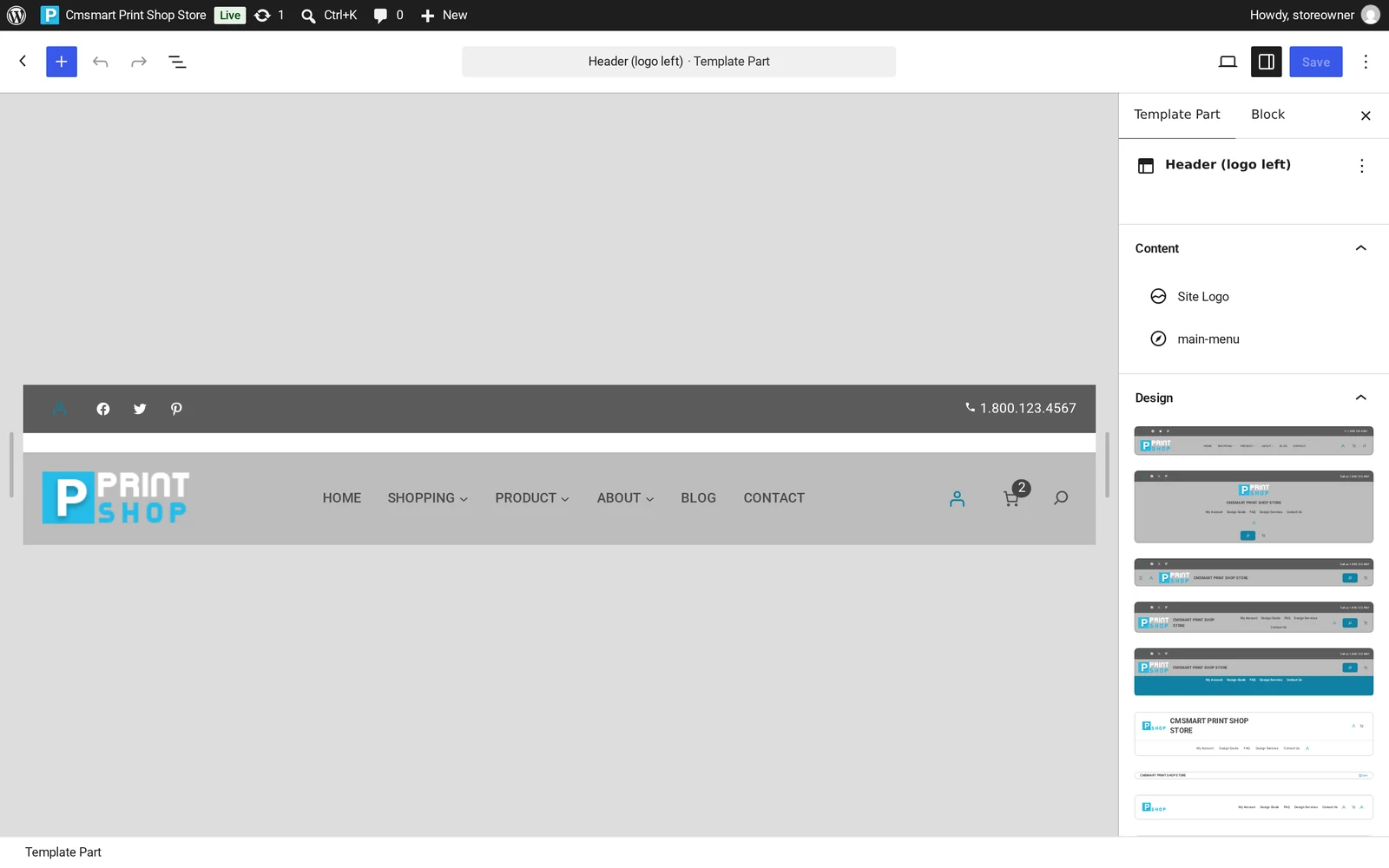
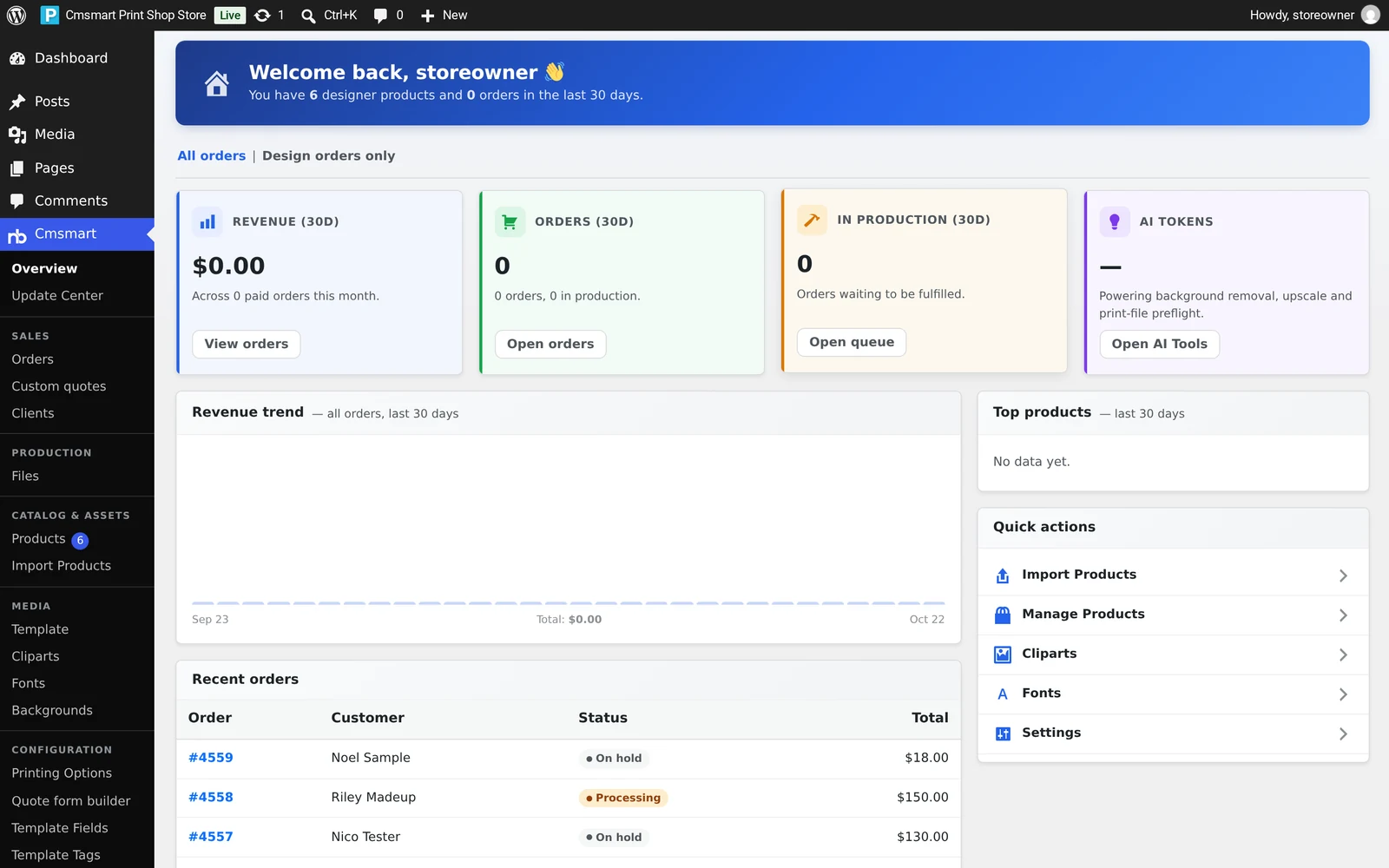
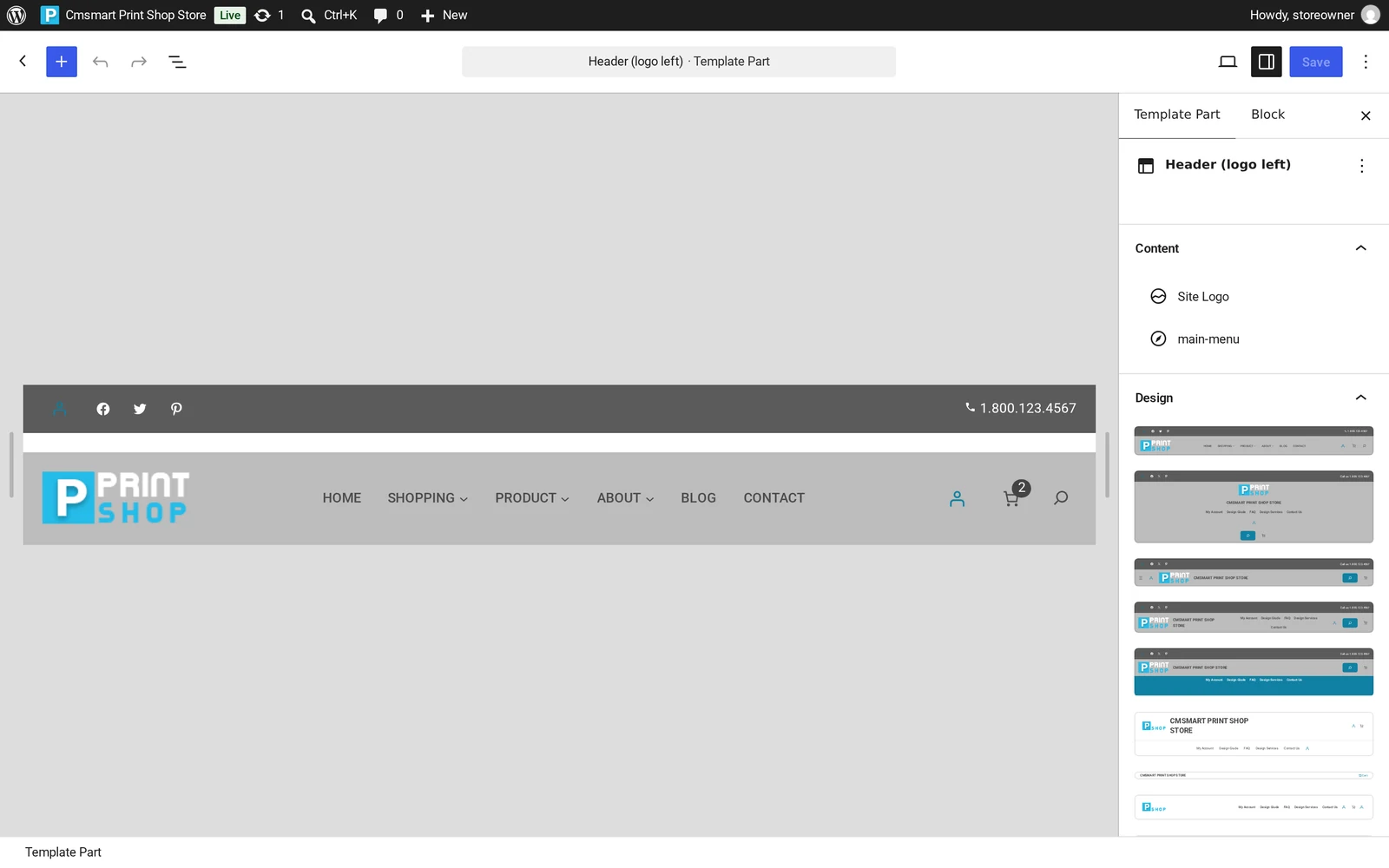
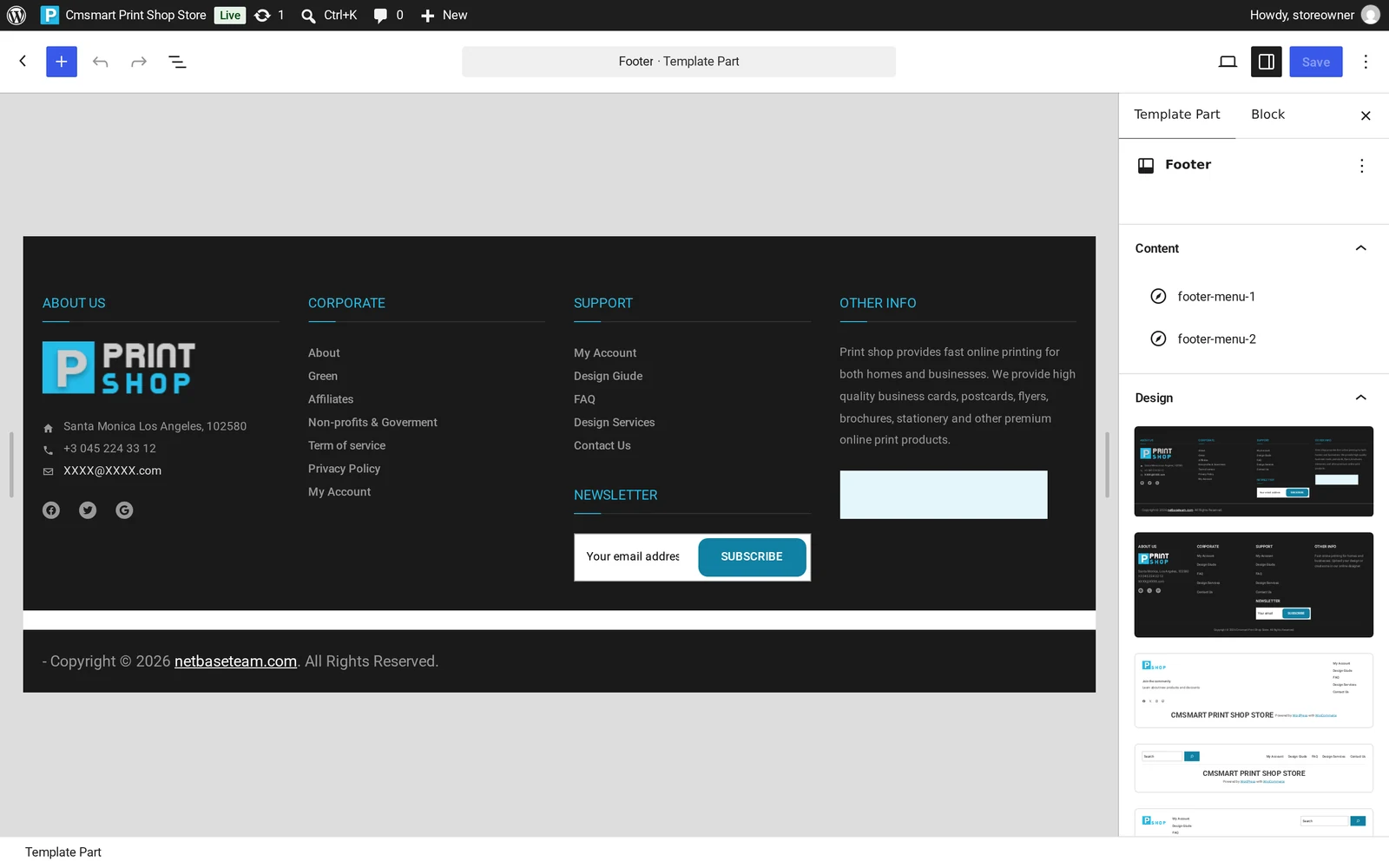
- Set your logo, colors and home template in Appearance > Editor before you touch products.
- Walk through the customisation guide for recommended plugins and Site Editor changes.
- Remove sample orders, customers and reviews from Cmsmart > Store Setup before you go live.
- On a paid plan, load real demo pictures from Cmsmart > Store Setup > Load demo images.
Troubleshooting
Wrong plan. The dashboard shows This key does not activate this store for a Fullstore key on Cmsmart B2B Store or Cmsmart Marketplace Store, or Premium is the plugin plan — stores need Fullstore for a plugin-only key; the installer's own licence check gives the same answer mid-download. Download the theme files free, add the right key later.
A red item on the host check. Usually a non-writable folder; set its permission to 755 and press Check again.
A second browser tab shows the install running. You opened the link twice; finish in the first tab.
"The parent theme is missing" (manual). You uploaded a child theme before the Cmsmart Stores parent theme; install the parent first.
Moving on from 0.4.x. The 2.0 stores are a fresh install, not an upgrade: export content, install fresh, bring the catalogue back in.
Can Cmsmart customize or build more than the base package?
Store Setup and the manual path both give you a working storefront with a sample catalogue; Cmsmart builds everything past that as custom development for merchants who want their own brand, catalogue and integrations in place rather than edited in afterward.
What we build on top of a fresh Cmsmart store, project by project:
- Preset install and demo import, done for you. We install the store and replace the sample catalogue with products shaped to your business. See Cmsmart Store preset installation & demo import.
- Brand styling. Site Editor templates, colors and typography matched to your brand.
- Catalog and pricing migration. Products, categories and price-matrix rules from an existing store or platform.
- Product designer configuration. Design areas, print options and output settings for your range.
- B2B and marketplace operations. Company accounts, approvals and vendor onboarding on Cmsmart B2B Store or Marketplace Store.
- ERP and POS integration. Connecting orders and inventory to the systems you run on.
Delivery: discovery call, solution design, build sprints, QA, launch, then support. See Cmsmart ecommerce projects.
Get my Cmsmart store installed and branded
Why Cmsmart for your store rollout?
Cmsmart has built WooCommerce storefronts and the Cmsmart Product Designer plugin since 2012 as a Netbase JSC division. The Store Setup installer, the parent/child theme system and the designer plugin all come from that same team, built to activate together.
Cmsmart has delivered 6,300+ client projects and runs 1,800+ live stores in 80+ countries, rated 4.2 on Trustpilot (404 reviews):
"The plugin used is really top, time saving and complete features. ultra easy installation and configuration. And even when I needed specific development in relation to my theme, Andrea from customer service was very competent and fast. I recommend!" — Adrien Darmon, Trustpilot review
Related reading: the Cmsmart Product Designer plugin page, our web-to-print solutions hub, and the plugin's installation and activation guide. New to the plugin? Try the free lite version, or see all Cmsmart Stores side by side first.
Frequently asked questions
How long does installing a Cmsmart store take?
About 10 minutes with Store Setup once your licence key and database or cPanel token are ready. The manual path is closer to 30 minutes.
Do I need a licence key to install a store?
No. Download the theme files free and install with no key; the store stays gated until a trial or paid key activates it. A free 30-day trial unlocks every Fullstore store, no card required.
What happens to the sample data when I go live?
Remove sample products, orders, customers and reviews from Cmsmart > Store Setup before real orders; on the manual path that is Tools > Cmsmart Stores demo content.
Can I switch which store or child theme is active later?
Yes, within the same family: switching from Print Shop to Gift just means uploading and activating the new child theme on the shared parent. Cmsmart B2B Store and Cmsmart Marketplace Store use their own parent theme versions, so treat those as separate installs.
Does Store Setup work for Cmsmart B2B Store and Cmsmart Marketplace Store too?
Yes, the same flow and installer apply; only the licence plan differs, and a Marketplace store's demo sellers keep populating briefly after the done screen.
What changed in the October 2026 Cmsmart Stores 2.0.1 release?
The six niche store child themes moved from 2.0.0 to 2.0.1, matching the version Cmsmart B2B Store and Cmsmart Marketplace Store already shipped. Store Setup still bundles Cmsmart Product Designer 2.18.3; later Product Designer updates reach an installed store through its normal plugin update, not a reinstall.
What if my current store still runs the old 0.4.x Cmsmart Stores theme?
Treat the 2.0 stores as a fresh install, not an upgrade. Export your products and content first, install fresh, then bring your catalogue back in before pointing your domain at the new site.




 In Site Origin, hover over Revolution Slider -> Click on “Edit Revolution Slider”